

Google Drive
Google Drive provides a single place to store, create, sync, and share documents, files, and folders of all types. Access files anywhere - at your desk, from home, or on a mobile device.
Google Drive is streamlining Google Meet file organization. Notes, transcripts, and recordings will now save to a new "Google Meet" folder in the host’s My Drive, neatly organized into subfolders by meeting. Attendees automatically get shortcuts to these files in their own "Google Meet" folders, and existing "Meet Recordings" folders will soon migrate into "Legacy Meet Recordings."
New Features July 2026
Google Vids
AI-powered video creation for work. Tell more engaging stories through easy-to-use, collaborative video creation with Gemini.
Create flows with Gemini
Use AI-powered steps in flows
Google Workspace Studio uses General and Action AI steps (like Ask Gemini) to analyze data and automate flow logic. Simply pass variables from earlier steps into your prompts to provide context and get precise results.
Features
Google Drive provides a single place to store, access, create, edit, sync, and share documents, files, and folders of most types.
Google Drive is also great for collaboration; work with multiple people at the same time on one document!
Create and share Docs, Slides, Sheets, Forms, Maps, Drawings and more that is accessible online from any computer.
*East Campus users with @stonybrookmedicine.edu accounts should contact the Hospital Help Desk at 631-444-HELP to get access to a Google Drive account.
Shared Drives
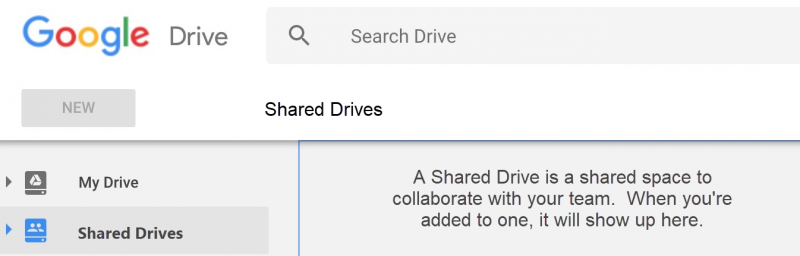
A Google Shared Drive is a place where departments or official student groups can create, store, and search files, without having to manage who owns what because the team owns the files, not individuals. And if a member leaves the team, the files stay in the Shared Drive. You can belong to multiple Shared Drives, and they're available wherever you access your My Drive. Shared Drives work very similarly to your Google My Drive. Learn more about using Shared Drives.
Shared Drives cannot have Google Forms with file upload questions
Faculty and staff can request a Shared Drive. Fill out the form, supplying email addresses and Solar IDs of at least 2 who will manage the Shared Drive.
Shared Drive Frequently Asked Questions
Google Drive for Desktop
Drive for Desktop allows you to access all of My Drive and Shared Drives files directly from your computer’s desktop or folders.
Access all of My Drive and Shared Drives files on demand, directly from your computer’s desktop or folders. It streams files from Google Drive on the web without using up your hard drive space: great for video, image, PDF files -- any file type that you can only edit on your computer. These files are stored in Google Drive on the web so you can share them with anyone but open them on your desktop.
Once installed, look for the Google Drive icon next to the time on your computer or in your system tray.
Another function of Drive for Desktop is that it will backup any folder or library on your computer to Google Drive on the web. (This function replaces the old Backup and Sync tool: Transitioning from Backup and Sync to Drive for Desktop)
Learn More


View past (and upcoming, if applicable) DoIT workshops on Google Drive. For past workshops, access workshop resources, too.
Frequently Asked Questions
Accessibility
For More Information Contact
Need Help? The fastest way to get support is by submitting a request through our ticketing system.
Get Help With Google Drive