Setting up a Google Form So Anyone (or SBU and SBM) Can Respond
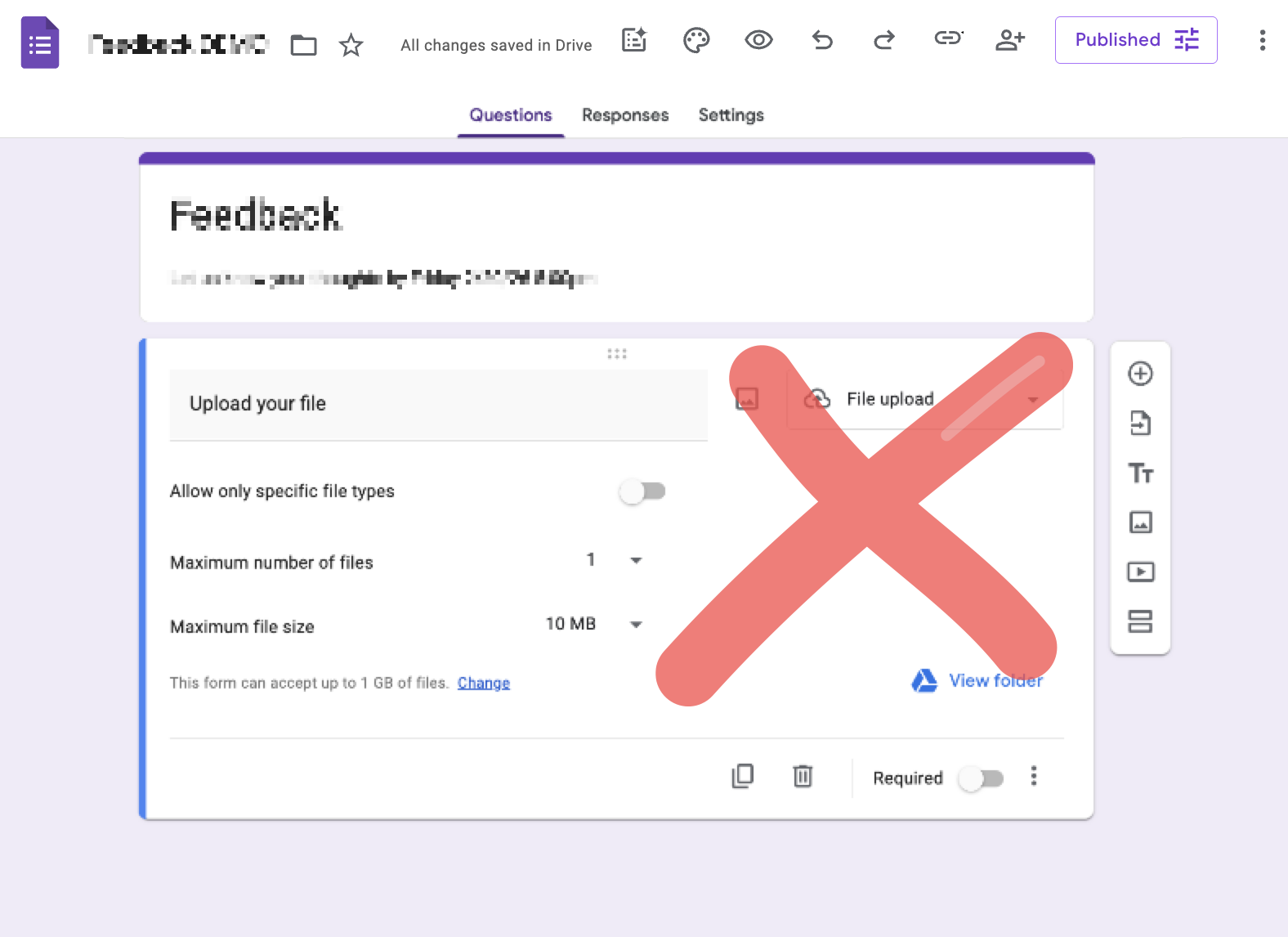
There are a few options you have to set correctly to allow anyone (or SBU and SBM) to respond to a Google Form and some options you cannot use. Give Responder access to Anyone with the link and then remove the following: Verified email address collection, limit to 1 response and file upload questions
- Open edit view of a Google Form
- Near the top, click Settings
- Click Responses
- For Collect email addresses, select Do not collect or Responder input
Do not select Verified as that will require responders to sign in to Google Turn off Limit to 1 response
Limiting to only 1 response requires responders to sign in to Google
- Near the top right, click Published (or click Publish and then Publish again, and then click Published)
- Next to Responders, click Manage
For Responder view, select Anyone with the link. Then click Done and Save
If you select Stony Brook University, responders will be required to sign in to a Stony Brook Google Account, which most SBM users don't have.
- At the top, click Questions
Scroll through your questions and remove all File upload questions
File upload questions require responders to sign in to Google Account