

Accessing and Permanently Deleting Trash for a Shared Drive
Trash in Google Drive is separated by My Drive Trash and Shared Drive(s) Trash. Access Trash and then select which trash to view from the drop down.
- Go to Google Drive on a computer
- On the left, select Trash
- At the top, where it says Trash from, select the drop-down and select which Trash to view: My Drive or for a Shared Drive you have access to
- That Trash will show. Review the files and for any you want to keep or specifically delete, select the 3-dot More actions button to the right and select Restore or Delete forever.
Check over the files and if you want to delete them all, select Empty trash near the top right
Tip: You need at least Manager access to a Shared Drive to be able to permanently delete a file or empty the trash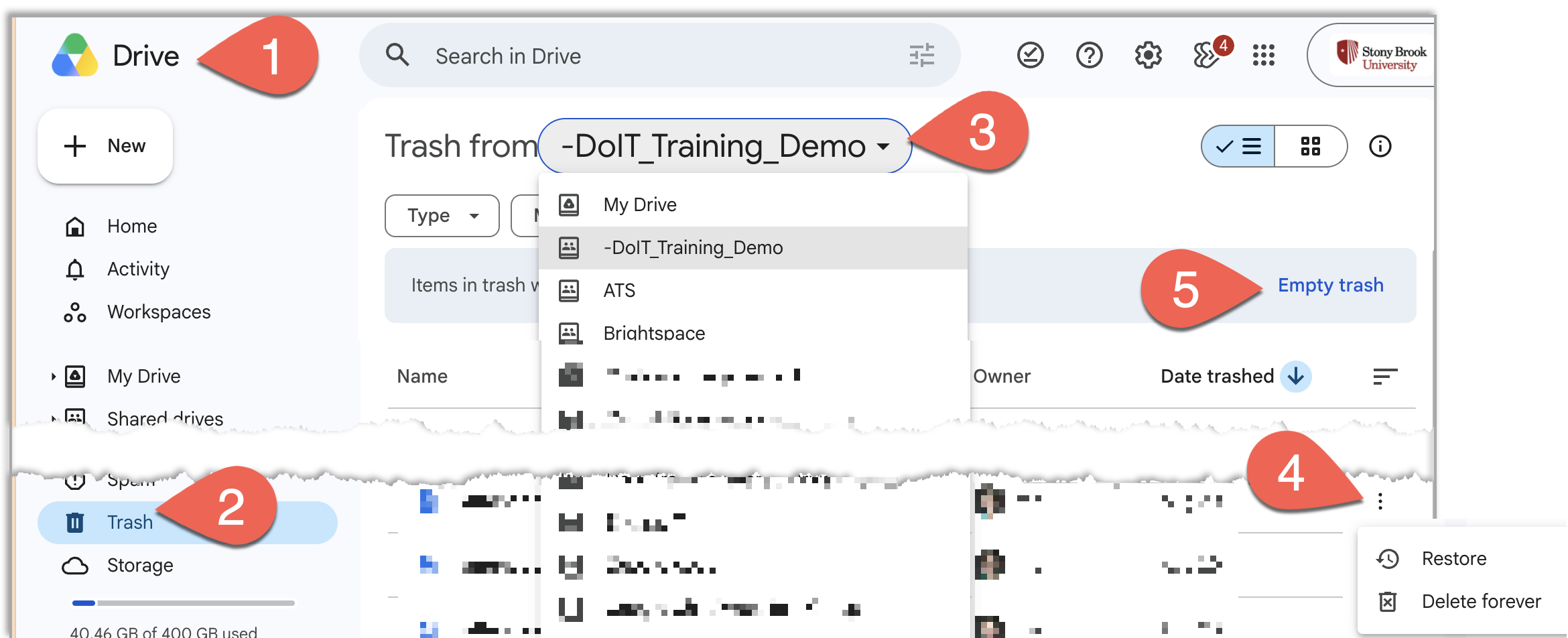
Contact
Customer Engagement and Support