

Connecting to the Stony Brook VPN on a Mac
Once you've downloaded and installed GlobalProtect on your computer, use these directions to connect. Be sure you have you default device that is registered with DUO Security handy. If your menu looks different from the images below, check for updates.
GlobalProtect Icons
An earth icon with a shield means you are connected 
A grayed-out earth icon means you are disconnected 
- Click the GlobalProtect icon in the menu bar (if the GlobalProtect icon doesn't appear in the menu bar, see Troubleshooting)
- If prompted for the portal address, enter it as follows: vpn.stonybrook.edu
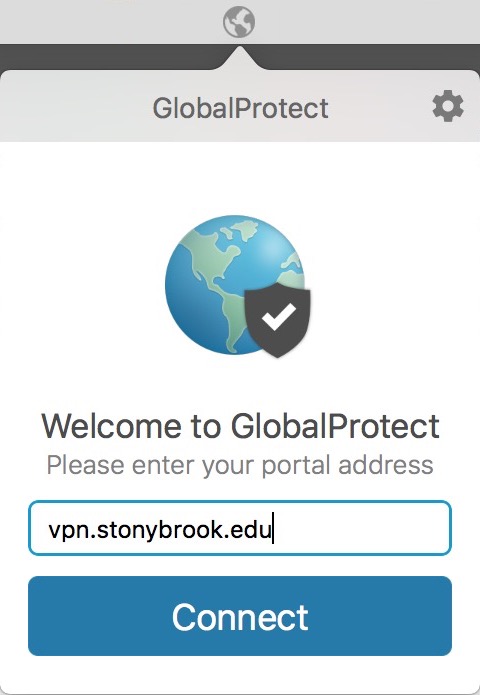
- Click Connect
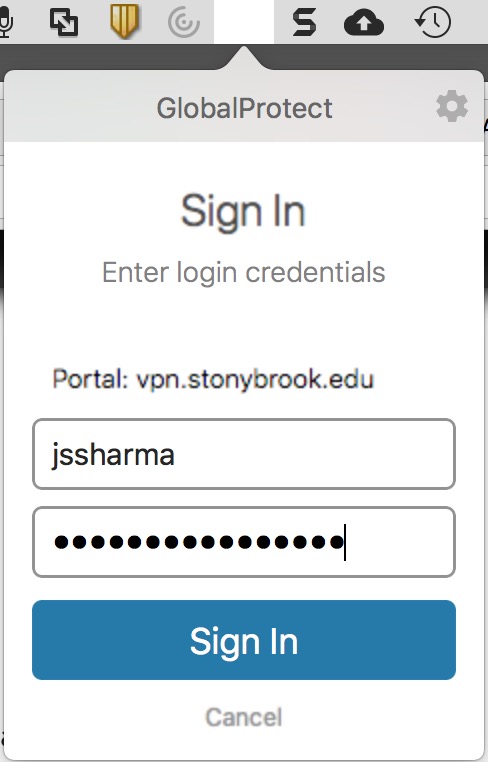
- If prompted to Sign In, enter your NetID and NetID password, then click Sign In.
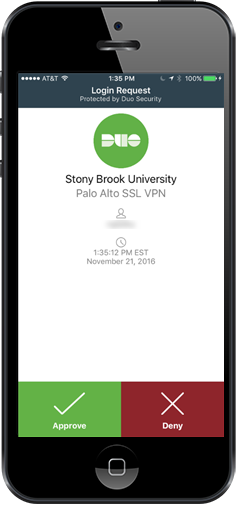
- Approve authentication on your default Duo Enrolled device (if your default device is a call, then pick up the phone when it rings and press any key on the number pad to finish authentication)
- Once connected, the menu bar icon will display the connected icon
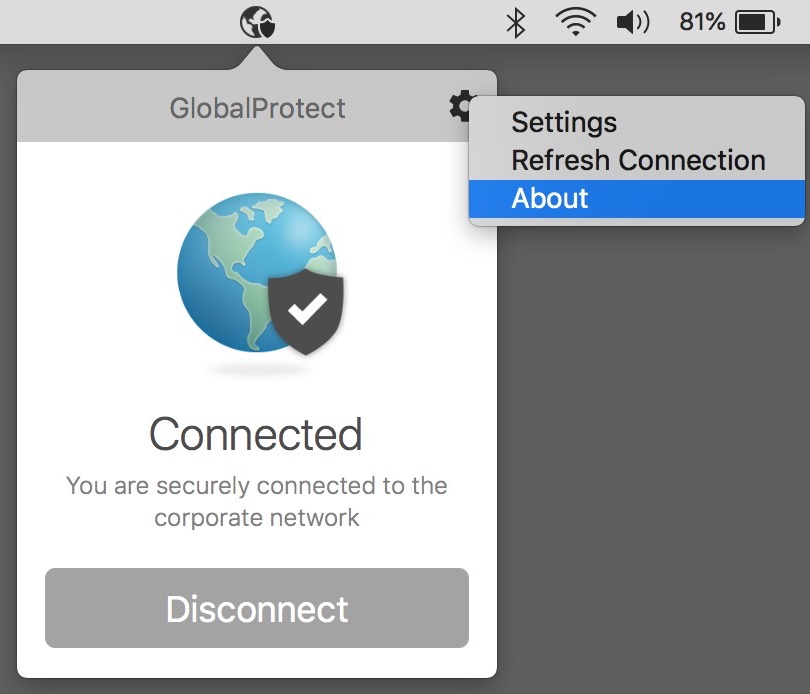
 and the GlobalProtect window will show "Connected You are securely connected to the corporate network"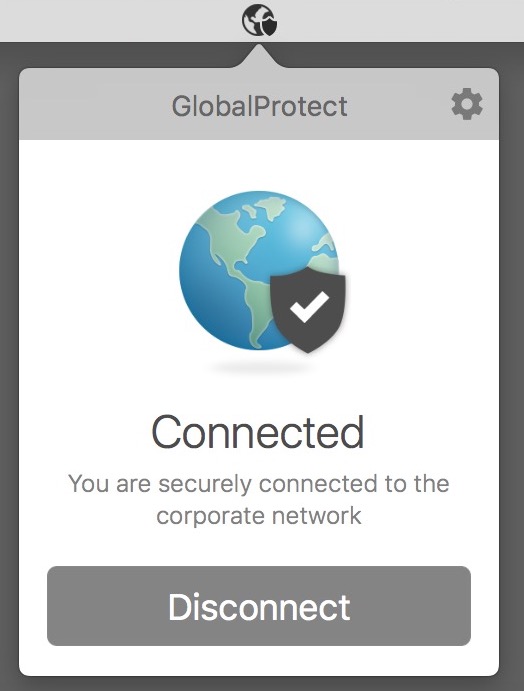
Troubleshooting
If your GlobalProtect menus/icon look different, update GlobalProtect:
- Click the GlobalProtect icon in the menu bar
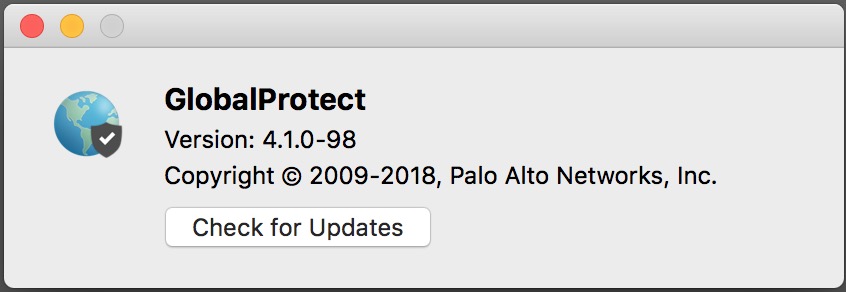
- If you see about in the menu, click About; if About doesn't appear when you click the icon, click the gear icon, then click About
- In the About window, click Check for Updates
If the GlobalProtect icon doesn't appear in the menu bar:
- Check that GlobalProtect has been downloaded and installed:
- Open Finder and select Applications

- Search for GlobalProtect. If it isn't in Applications, download and install it again
- Open Finder and select Applications
- If GlobalProtect is in applications, while viewing Finder, check the menu bar again for the GlobalProtect icon, or

Supported By
Customer Engagement and Support
Need Help? The fastest way to get support is by submitting a request through our ticketing system.
Get Help With the VPN