

Submitting an Incident in the IT Service Portal
- Log into Service Portal with your NetID and NetID password.
- Click Browse Entire Catalog near the top left.
- In the search box towards the right of your screen, enter in the service or issue you are having (e.g., Google Drive) and then click the magnifying glass icon to search.
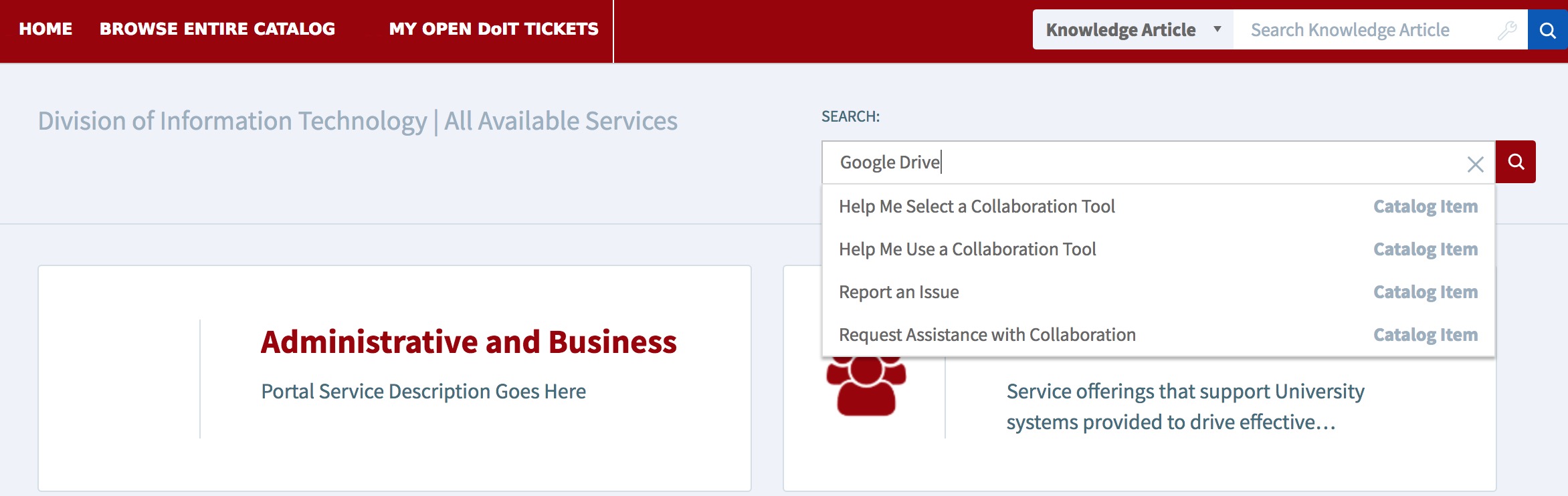
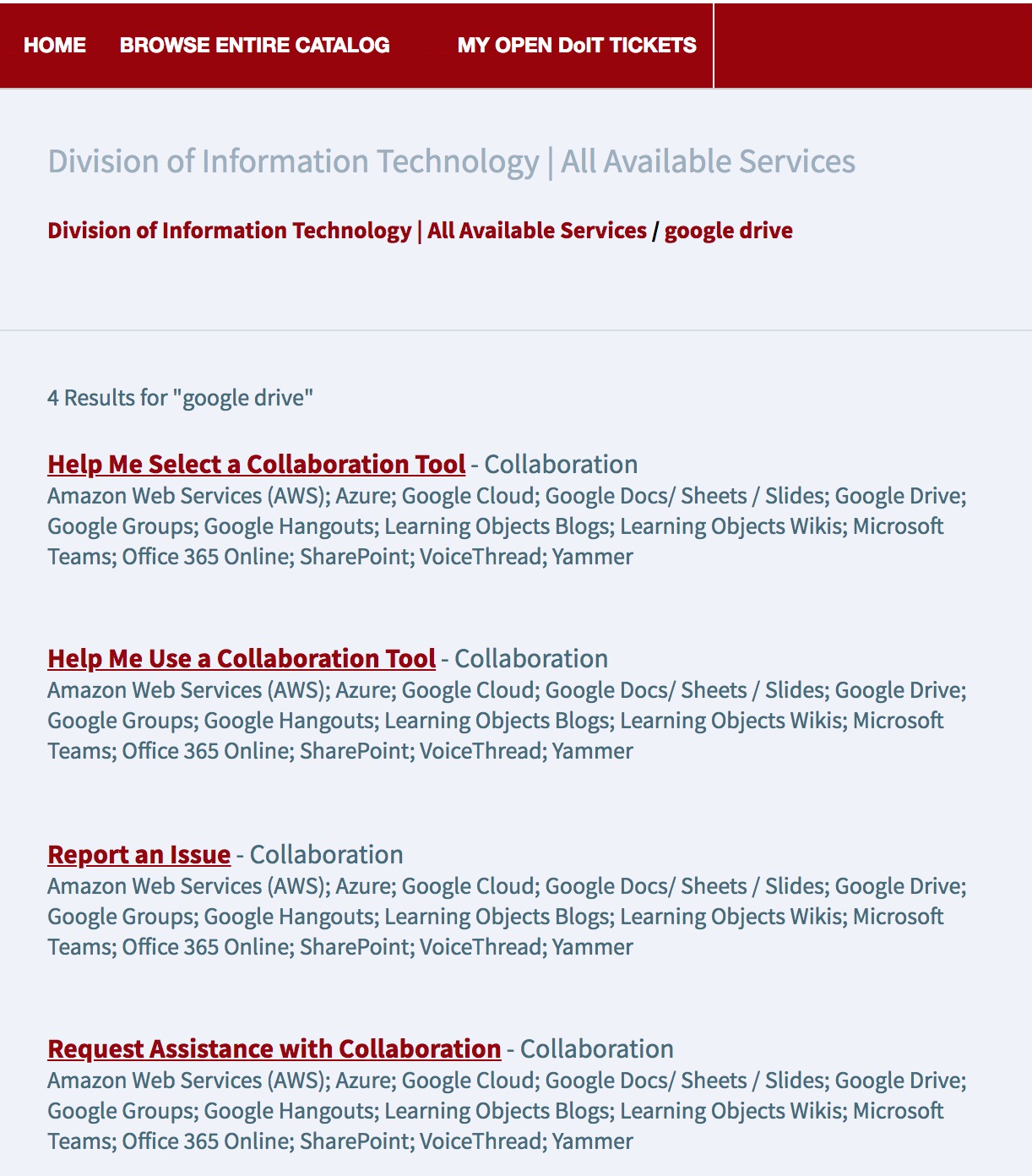
- Click to select the most appropriate option from the results, e.g., Report an Issue. (Select the most appropriate Service Catalog item to more quickly route your issue to the correct support team)
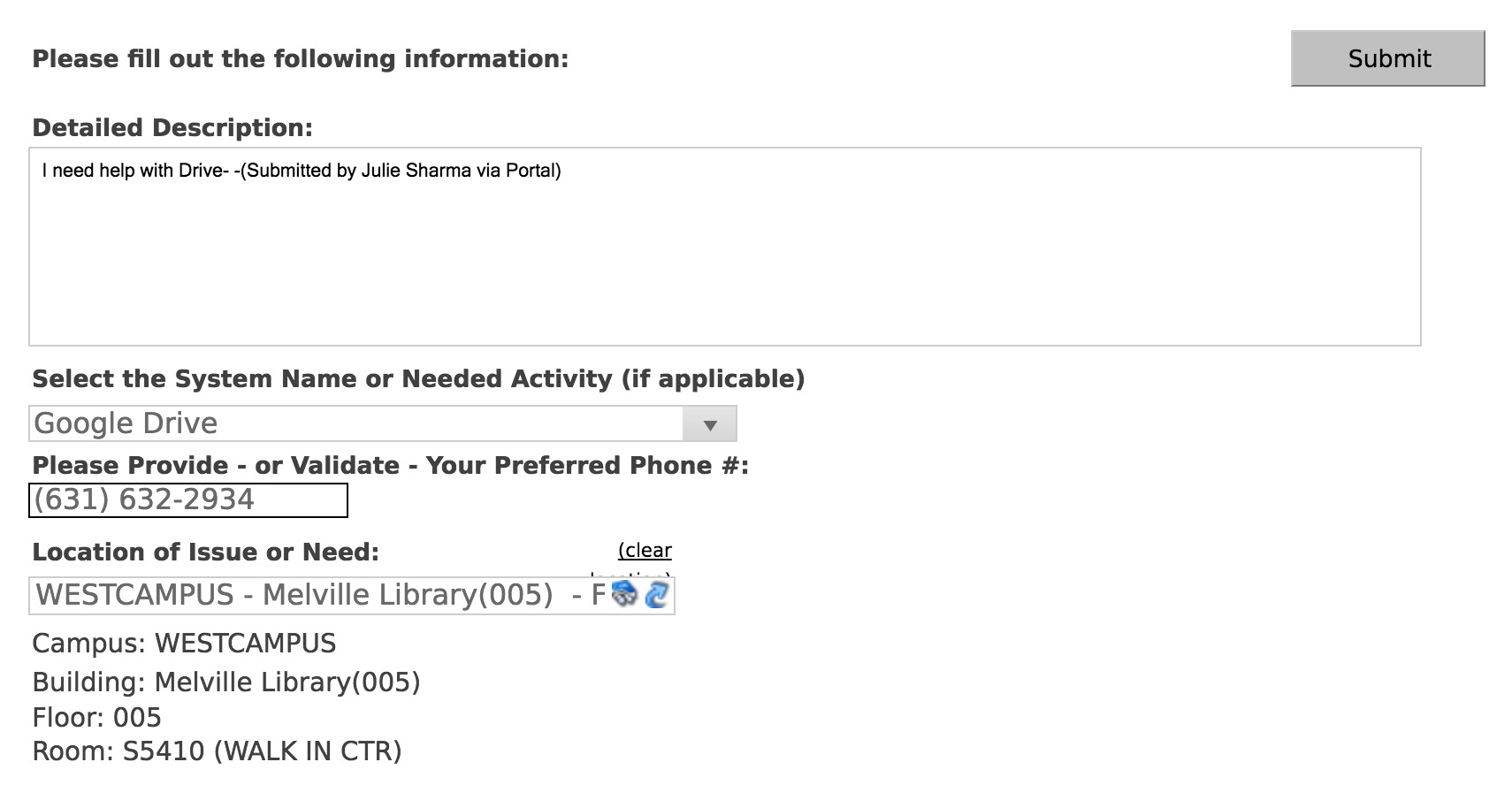
- A form will open; fill out the required information (options vary depending on the item you chose in step 4):
- For Location
- Enter a search term (e.g., a room number or building name; for partial words, use wildcard %, e.g., admin% for administration;) and then click the
 button or hit tab tab on your keyboard
 - If there is only one matching result, it will populate and you'll see the full location name in and/or below the Location field. Otherwise, the location search will open; click to select an option and the full location will populate
- Enter a search term (e.g., a room number or building name; for partial words, use wildcard %, e.g., admin% for administration;) and then click the
- For Location
- Click Submit, and the ticket is created and routed to the team responsible for the service type you submitted (if the Submit button isn't clickable, go back to make sure you filled in all the fields correctly)
- Click My Open DoIT Tickets to view ticket status
Supported By
Customer Engagement and Support