

Creating a Quiz in Brightspace
Use a quiz for graded exams and checks for understanding that Brightspace can score. This article covers building and publishing the quiz itself.
Create a Quiz
- Click Exams / Quizzes in the course navigation bar

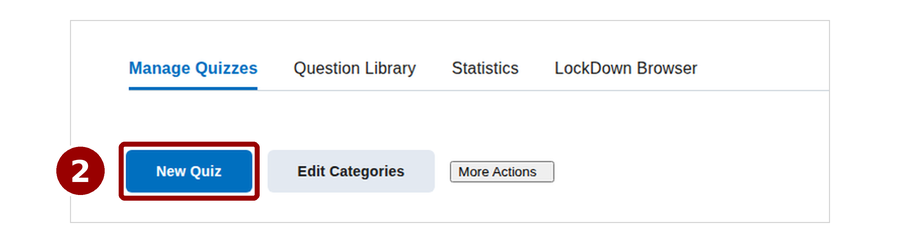
- Click the New Quiz button
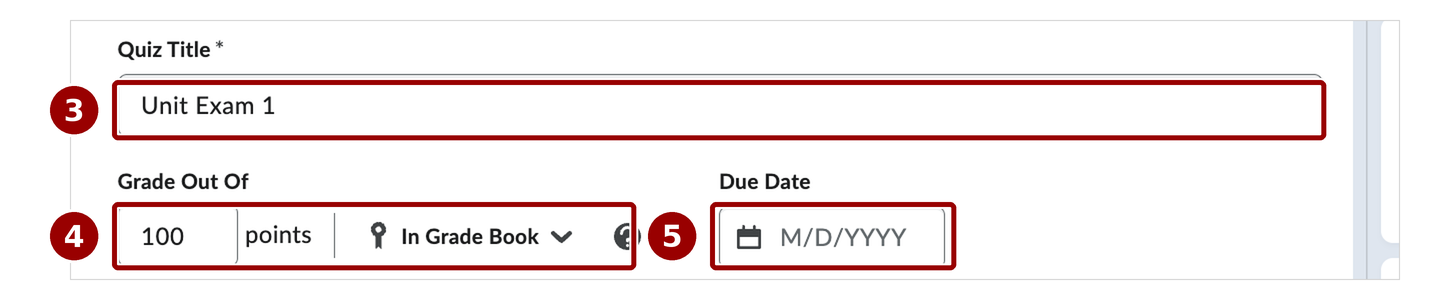
- Enter a name in Quiz Title
- In Grade Out Of, enter the point total, then click the grade book button and choose Edit or Link to Existing
- Enter a Due Date. Add Start and End dates under Availability if the quiz should only be open during a window
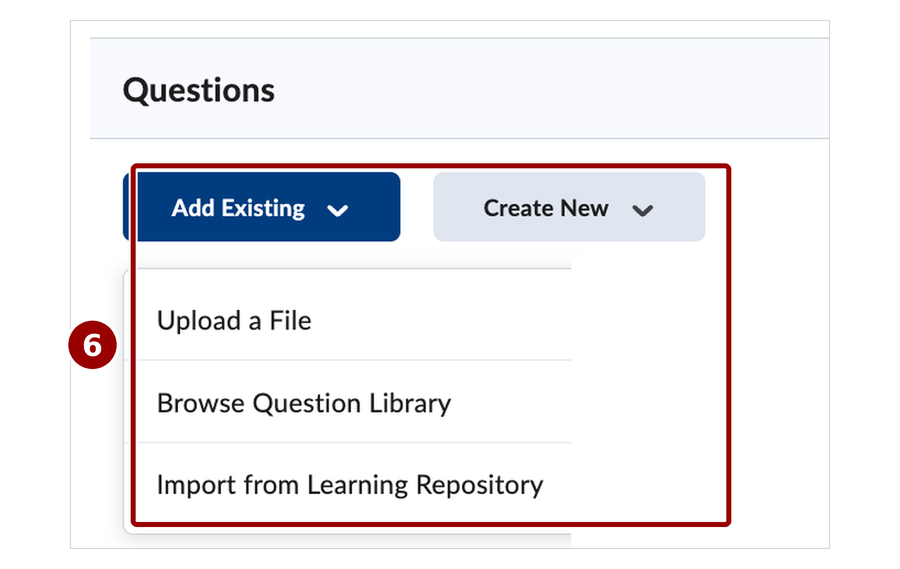
- Add questions with Create New, or Add Existing to pull from the Question Library
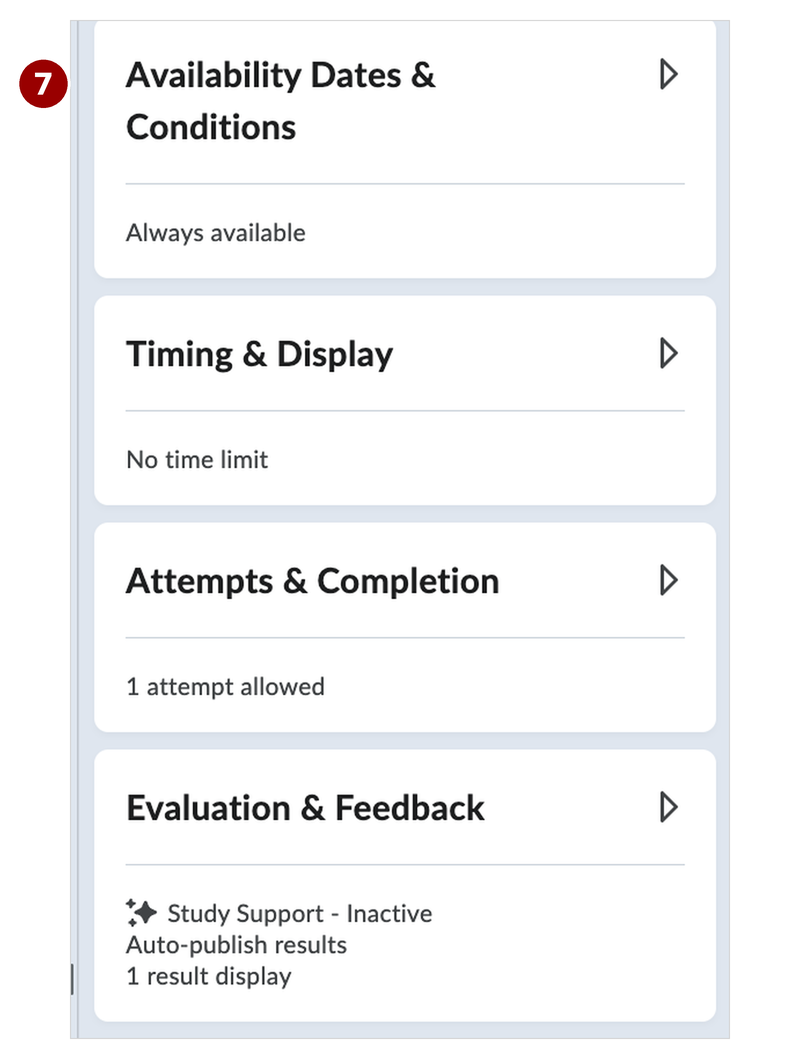
- Review the right panel: Availability Dates & Conditions, Timing & Display, Attempts & Completion, and Evaluation & Feedback (by default students see a score but not which questions they missed)
- For proctored exams, open the LockDown Browser tab on the Exams / Quizzes page and enable it for this quiz; see Adding Respondus LockDown Browser
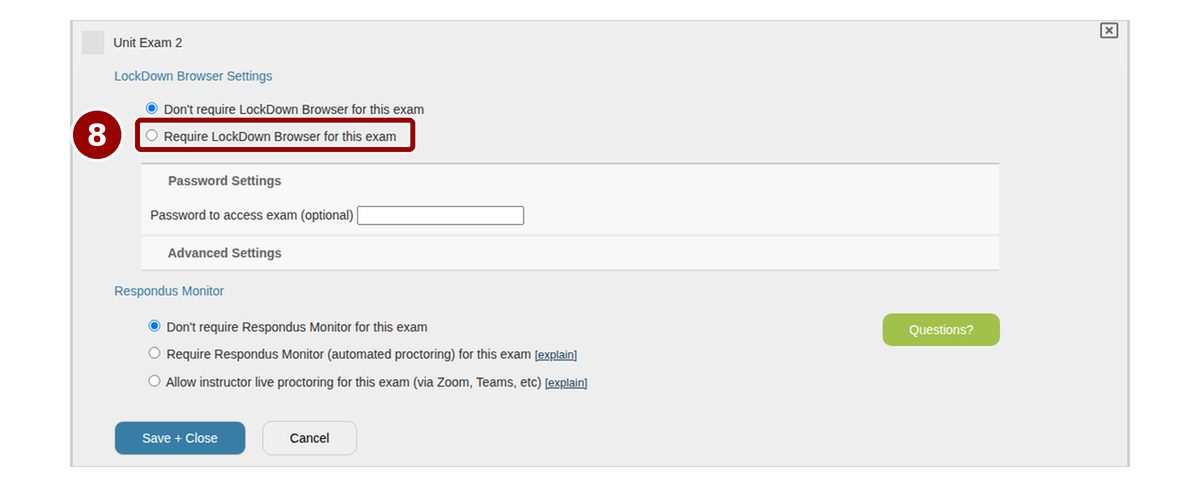
- Switch the visibility toggle to Visible, then click Save and Close

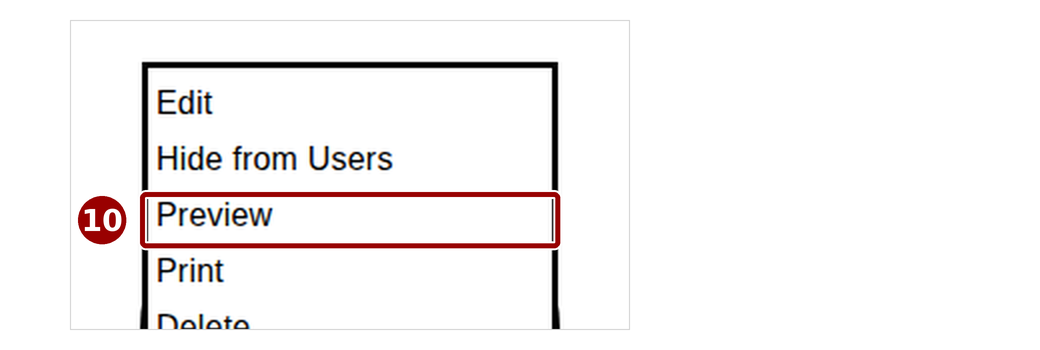
- Click the quiz’s dropdown arrow and choose Preview to take it yourself
Accommodations
To give one student extended time or different dates, use Special Access under Availability; see Providing Special Access for an Exam/Quiz.
Contact
Academic Technology Services
(631) 632-9800