

Accessing Quizzes/Exam Attempts
Access to students quiz and exam attempts allow instructors to review timestamps, saved answers in quizzes, question navigation, submission details, and any interruptions during an attempt.
Once you are on your course, head to Exam/Quizzes
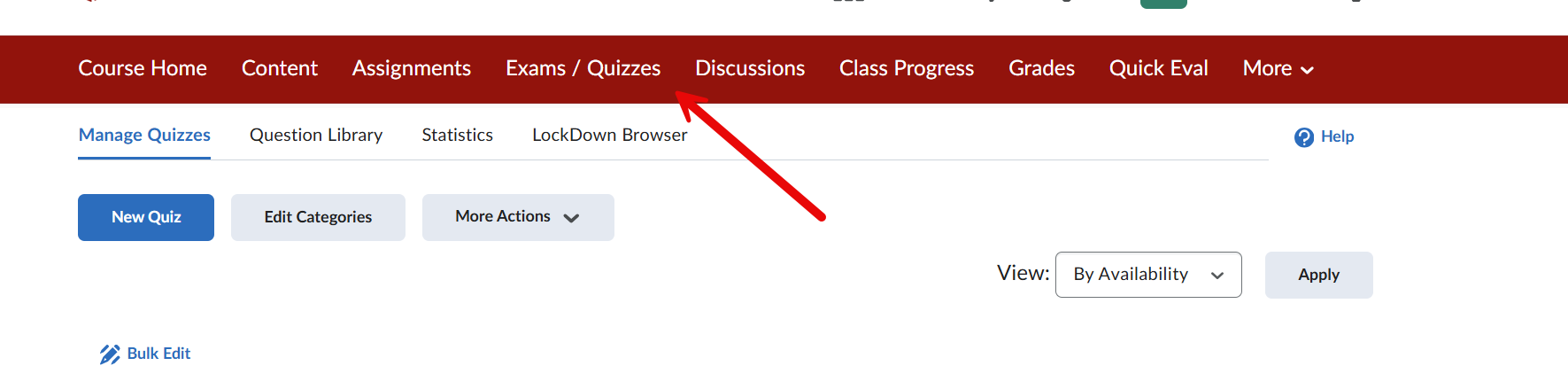
After heading to Exams/Quizzes, click on the drop-down arrow and hit grades.
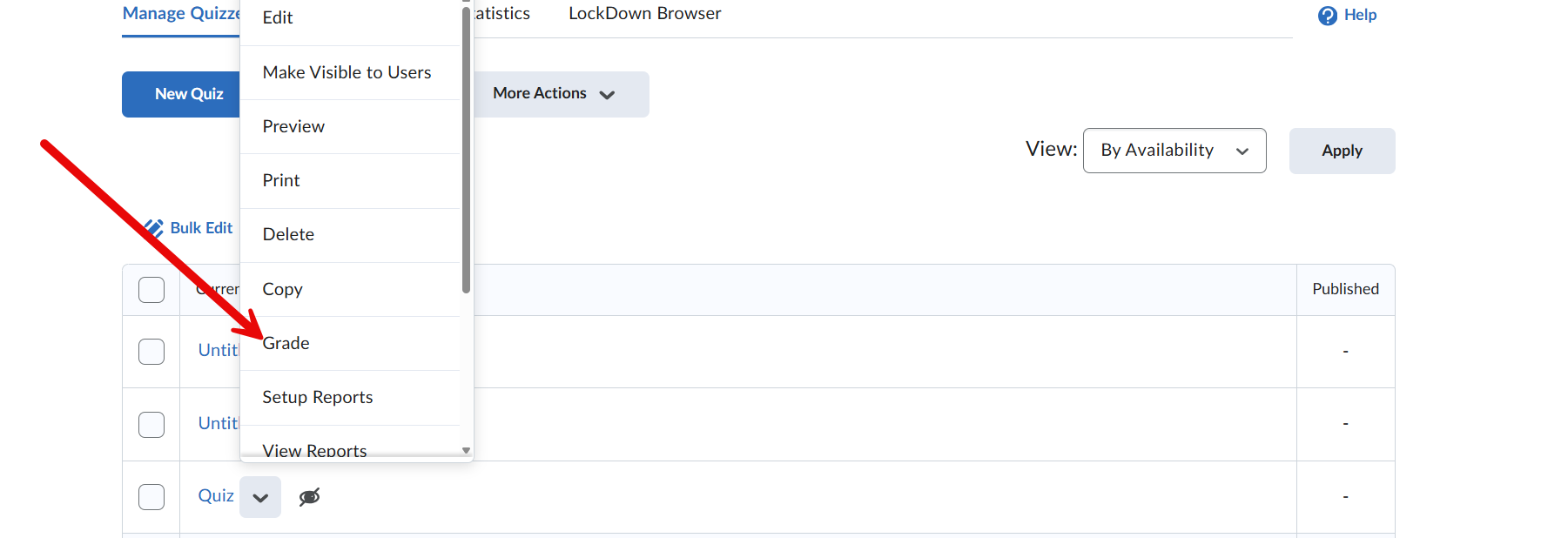
After clicking on grades, click on attempts. This screen shows each student's attempts on the quiz or tests you have assigned.

After clicking on one of the attempts, it should lead to this screen.
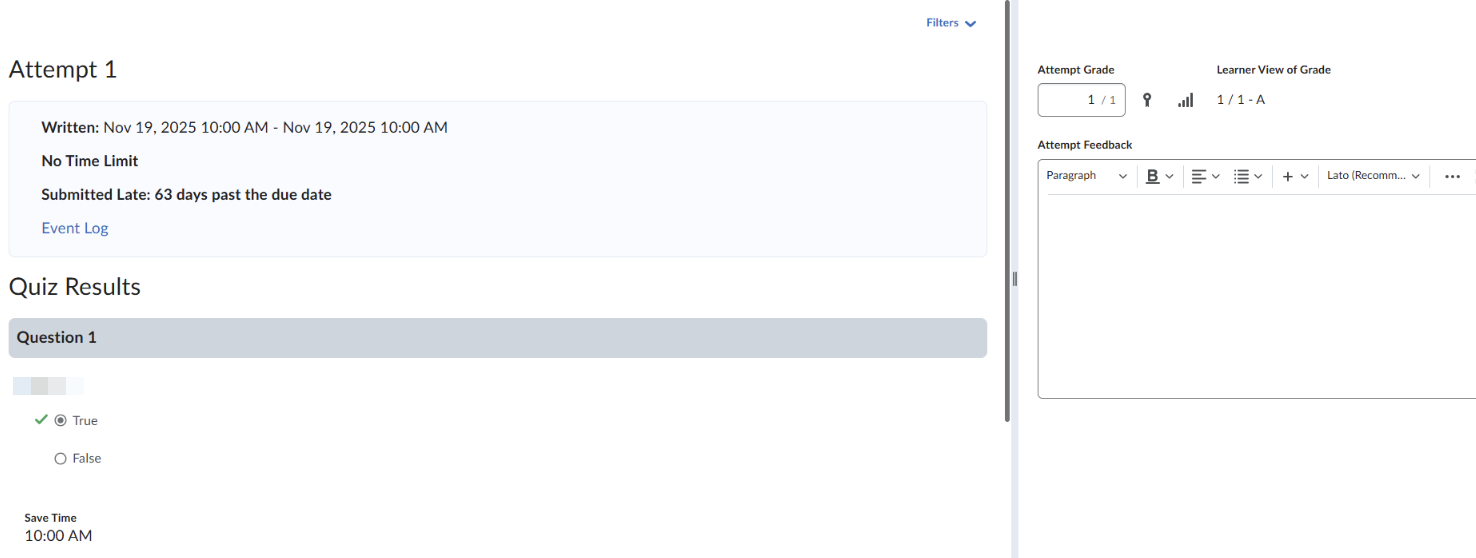
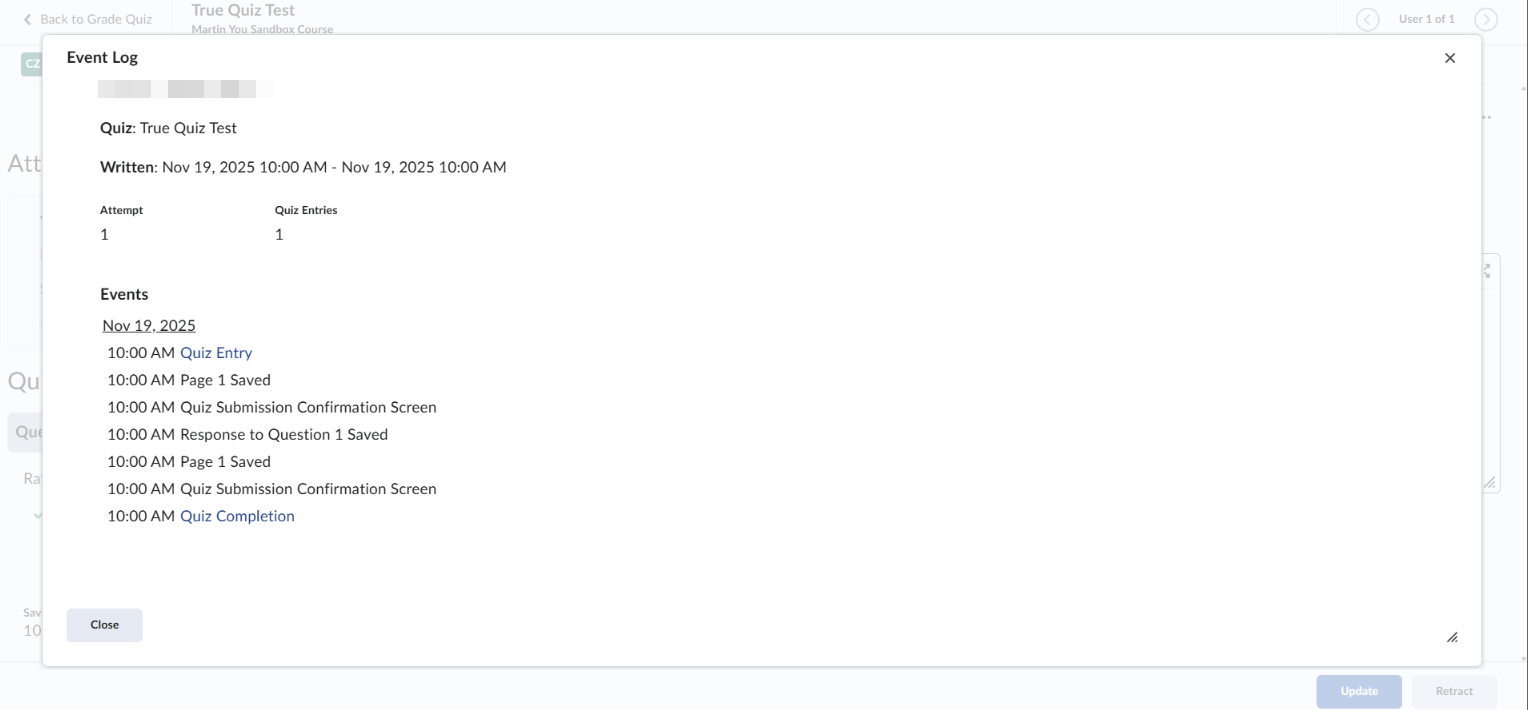
Click on Event log, and it shows a summary of each action taken during the quiz.
Supported By
Academic Technology Services
(631) 632-9800