

General Instructions for Logging In and Downloading From the KACE Self-Service Portal
You can download certain applications onto your workstation computer without having to have administrator privileges, like:
- Windows and Security updates!
- Drive Syncing Tools
- OnBase
- Zoom Desktop Client
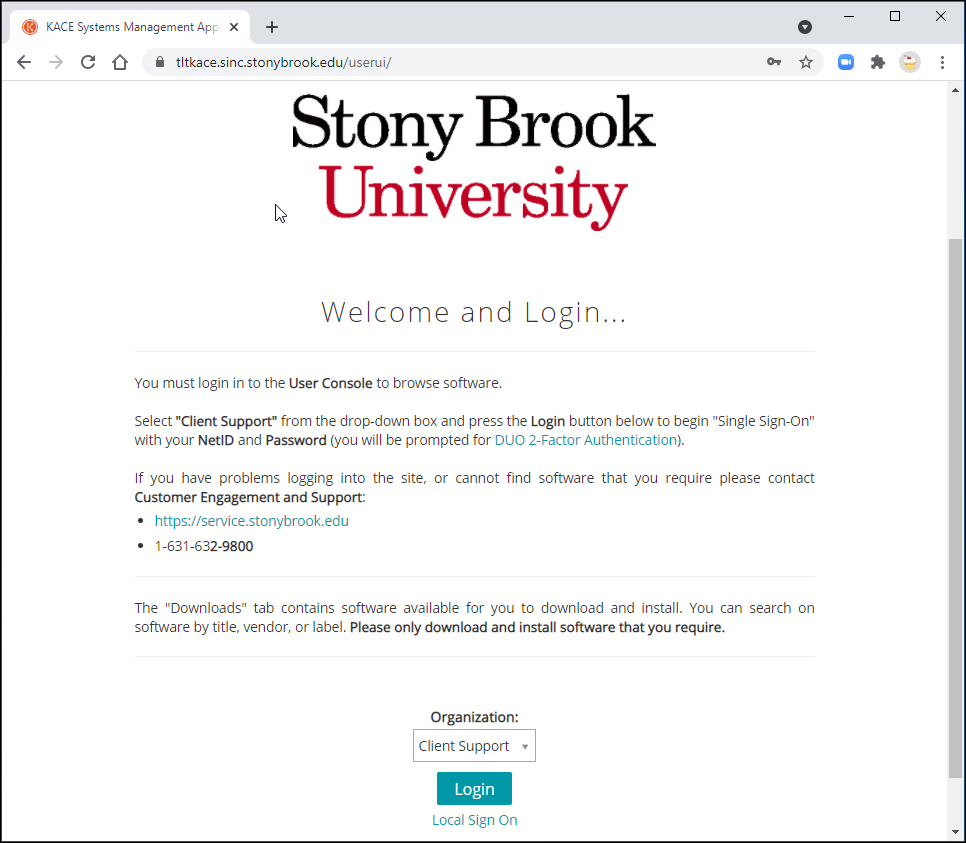
- Go to the KACE Self-Service Portal
- Choose your Organization and click Login
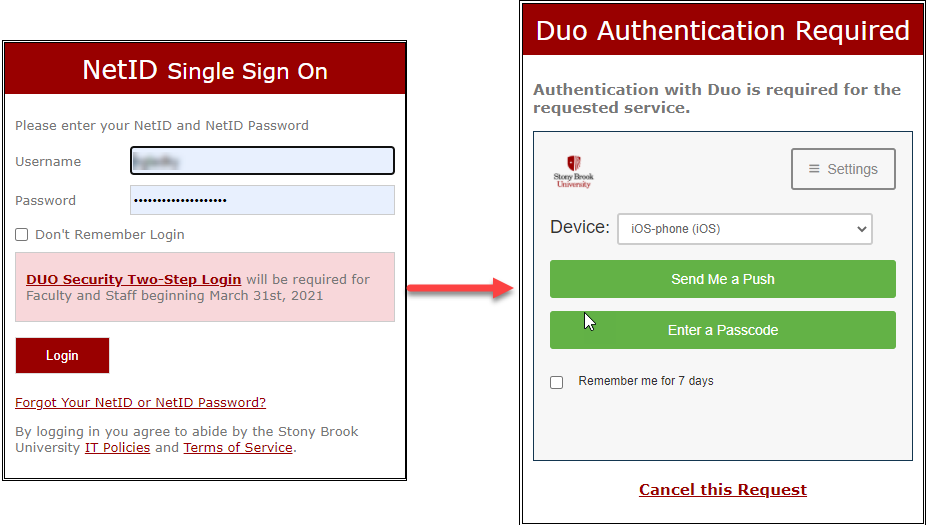
- Log in at the NetID screen with your NetID and password. Then approve the login:
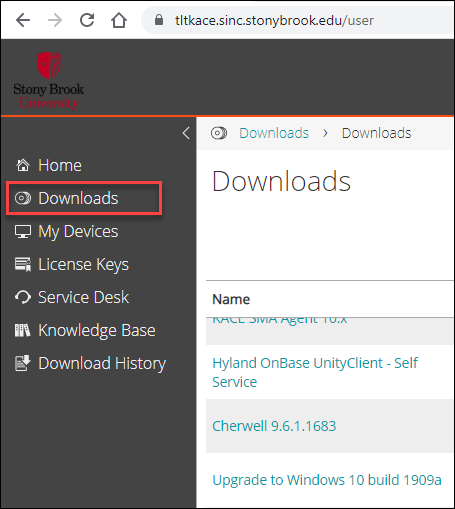
- To download software, click on the Downloads and click on a program to download:
Additional Considerations
- If you own more than 1 Stony Brook device*, you'll need to select the Device to install software on:
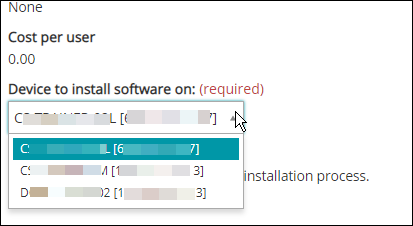
- You will need to find the name of your Windows Computer to select the correct device to install software on.
- When downloading from Kace, in the Downloads History, the status will say "install requested". The download is installing, but it may look like nothing is happening on your computer. Give it a few minutes, then click OK on the popup that will appear:

Supported By
Customer Engagement and Support