

Connecting to Your Work Mac from an Off-campus Mac
You can use Apple Screen Sharing to access your work Mac from an off-campus Mac:
Turn on Mac Screen Sharing on your work Mac
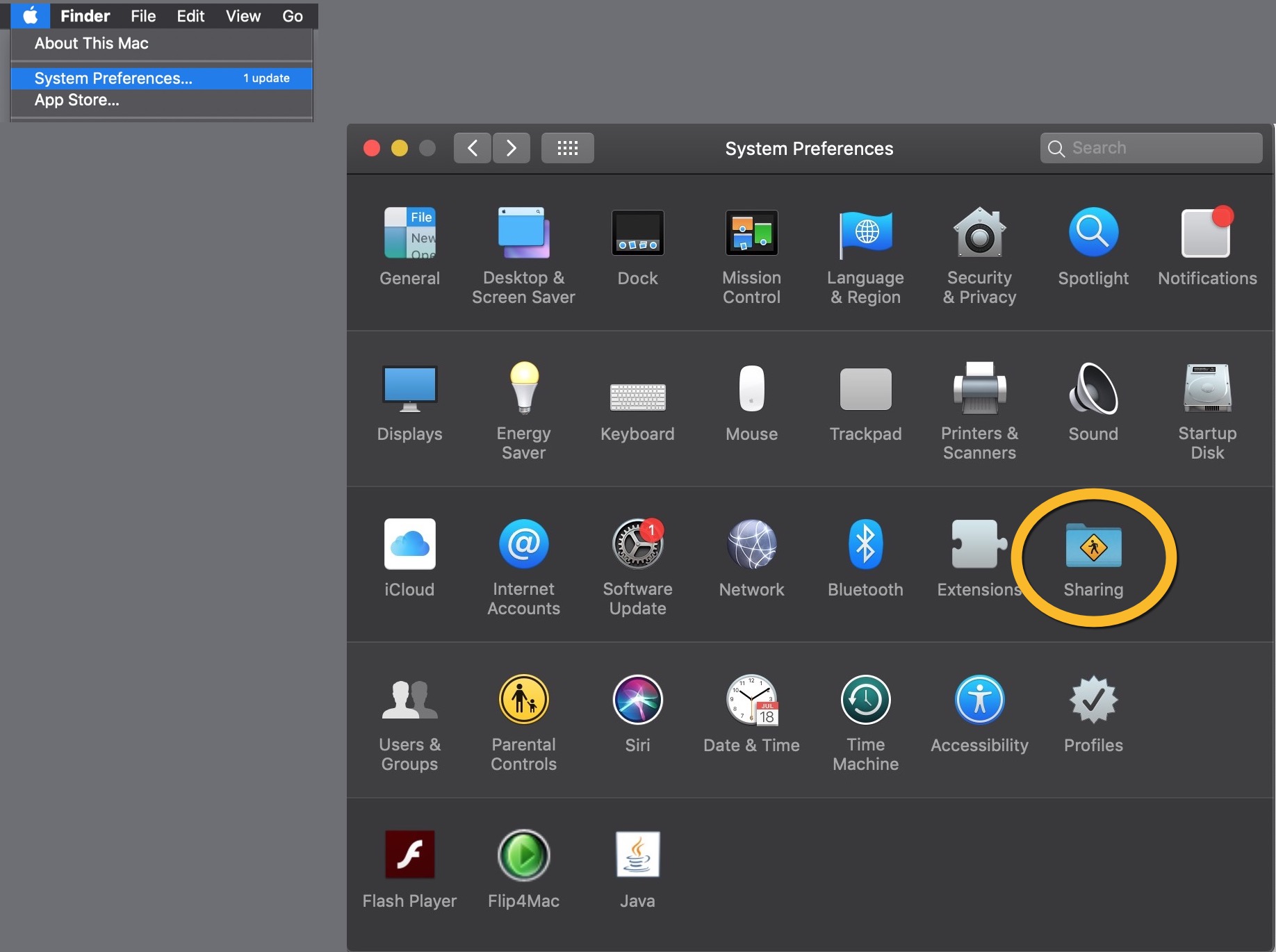
- On your work Mac, in the top-left corner, click the Apple menu and then click System Preferences and then click Sharing.
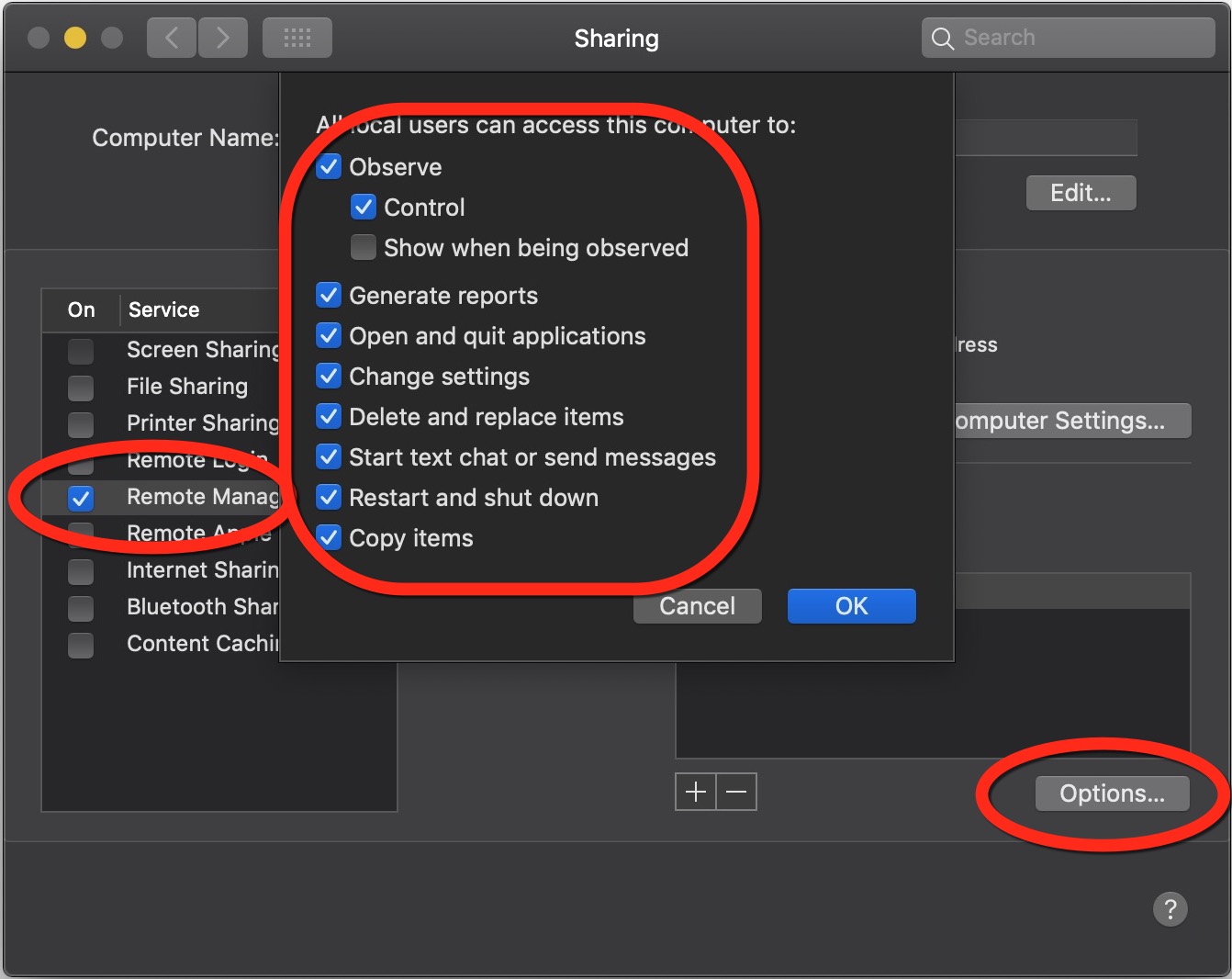
- Check the box for Remote Management. If prompted to select what users can access this computer, select the boxes for Observe, Control, Generate reports, Open and quit applications, Change settings, Delete and replace items, Start text chat or send messages, Restart and shut down, Copy items, and click OK. (If not prompted, click Options… near the bottom right, select Observe and Control, and click OK).
- For Allow access for, select Only these users.
- Click the Add button + at the bottom of the users list, select your name from the Users list, and click Select.* (If prompted to select what the user you added can access this computer to do, select Observe, Control, Generate reports, Open and quit applications, Change settings, Delete and replace items, Start text chat or send messages, Restart and shut down, Copy items, and click OK).
*If you don't see your name, create a help ticket for assistance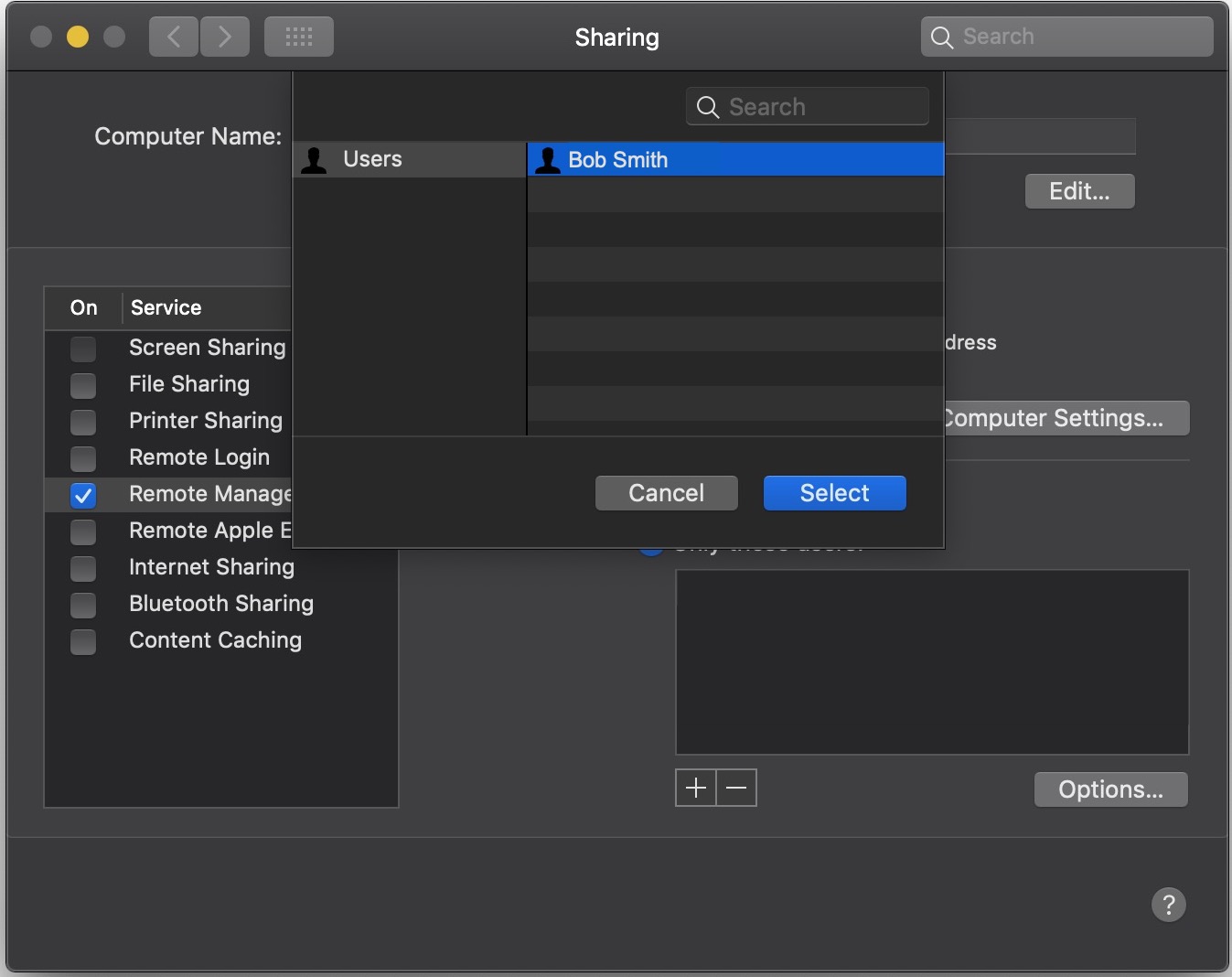
Find your Computer Address, IP Address, User Name, and Password and Make sure you Mac stays awake
- You'll need four things from your Work Mac to access it from an off-campus Mac. Make a note of these and be sure to have the note handy if you need to access your work Mac remotely: Computer Address, IP Address, User Name, and Password:
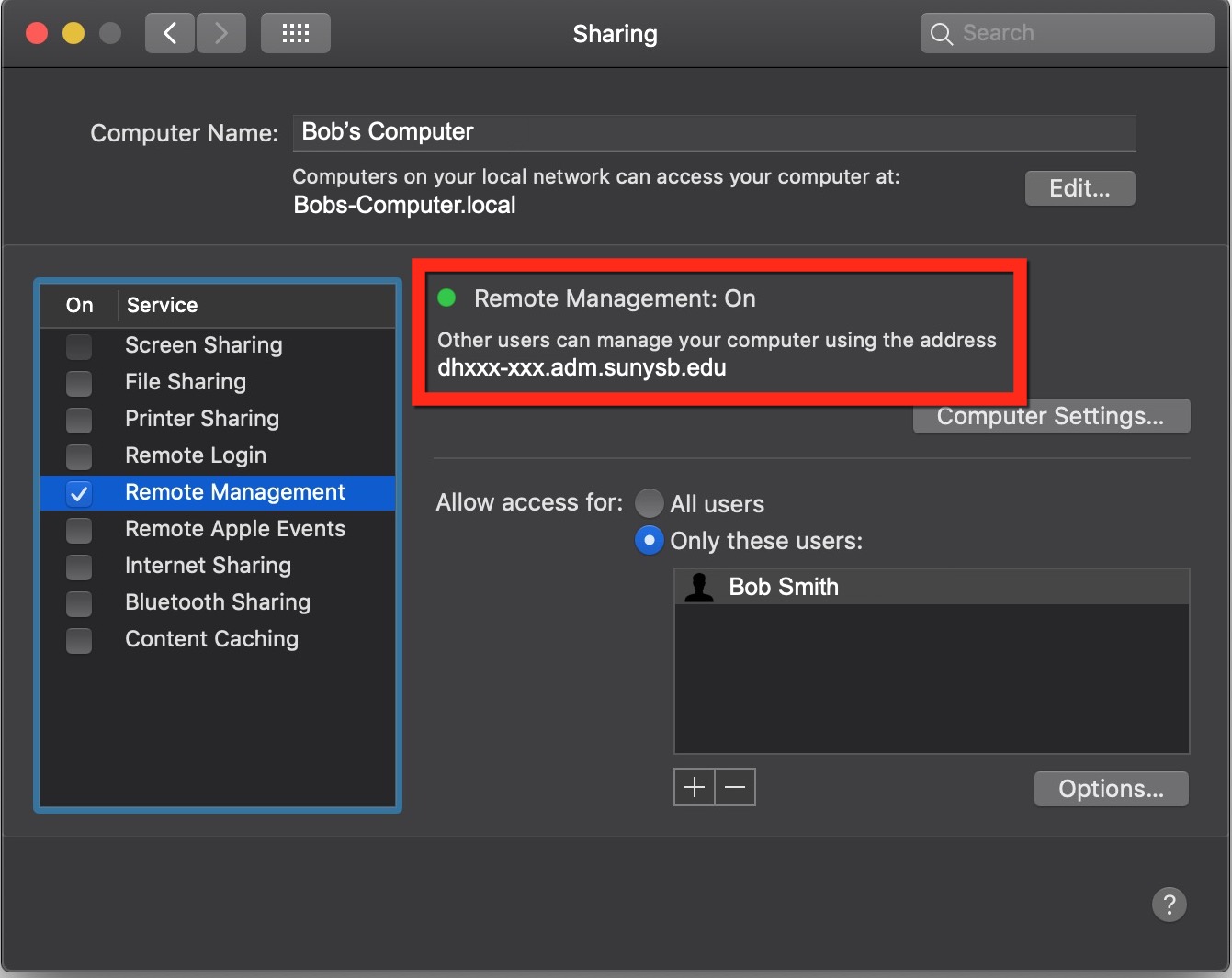
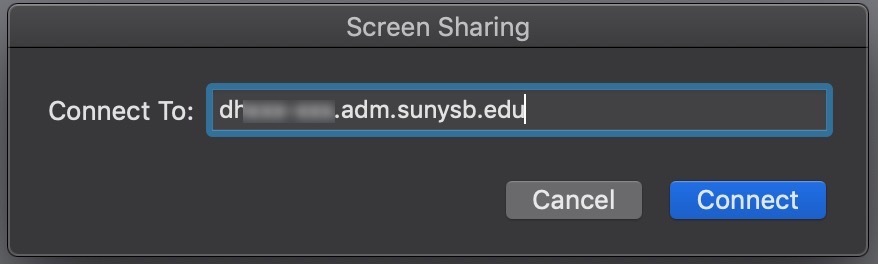
- Computer Address (e.g., dhxxx-xxx.adm.sunysb.edu) of your work Mac. Find this under Remote Management on the Sharing page
- IP Address (e.g., 129.xxx.x.xx) of your work Mac: Click
 in the top left and then click Network. Select the Connected (green light) service, and the IP Address is listed next to IP Address: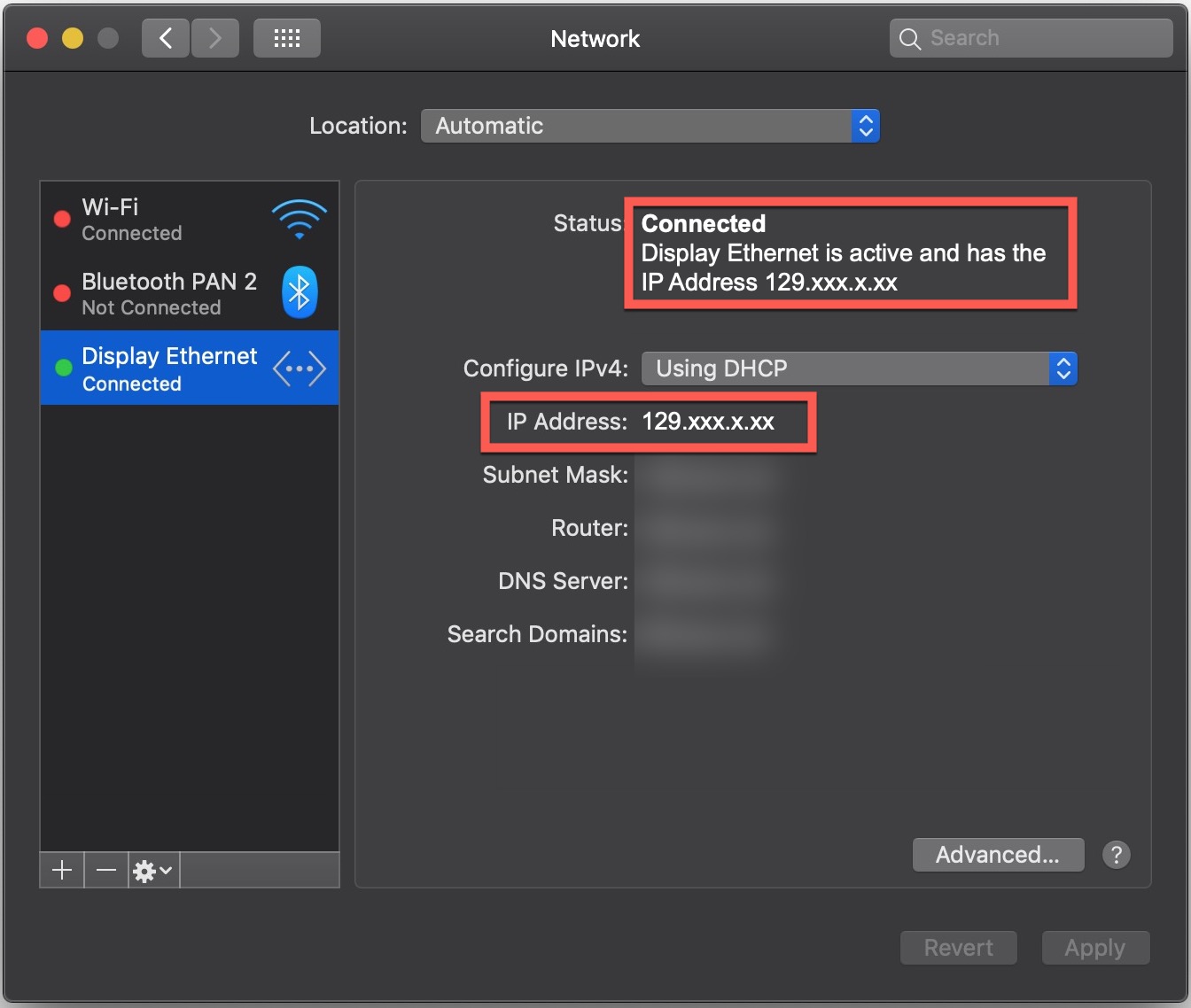
- User Name: If you log into your Mac with your NetID and NetID password, your user name is your NetID (e.g., bsmith)
Otherwise, your User Name is the name that appears in the Only these users list (e.g., Bob Smith) - Password: If you log into your Mac with your NetID and NetID password, your password is your NetID password (i.e., the password you use to sign into Google Mail).
Otherwise, your Mac password is the password you use to login into/unlock your Mac. If you're not sure of your password, create a help ticket or call 631-632-9800 for assistance.
- Computer Address (e.g., dhxxx-xxx.adm.sunysb.edu) of your work Mac. Find this under Remote Management on the Sharing page
- Click in the top left to return to the main System Preferences screen and select Energy Saver
 and, if you have the option, Power Adapter (for laptops)
 - Check the boxes for Prevent computer from sleeping automatically when the display is off and
Wake for Wi-Fi network access and/or Wake for network access
Uncheck the box for Put hard disks to sleep when possible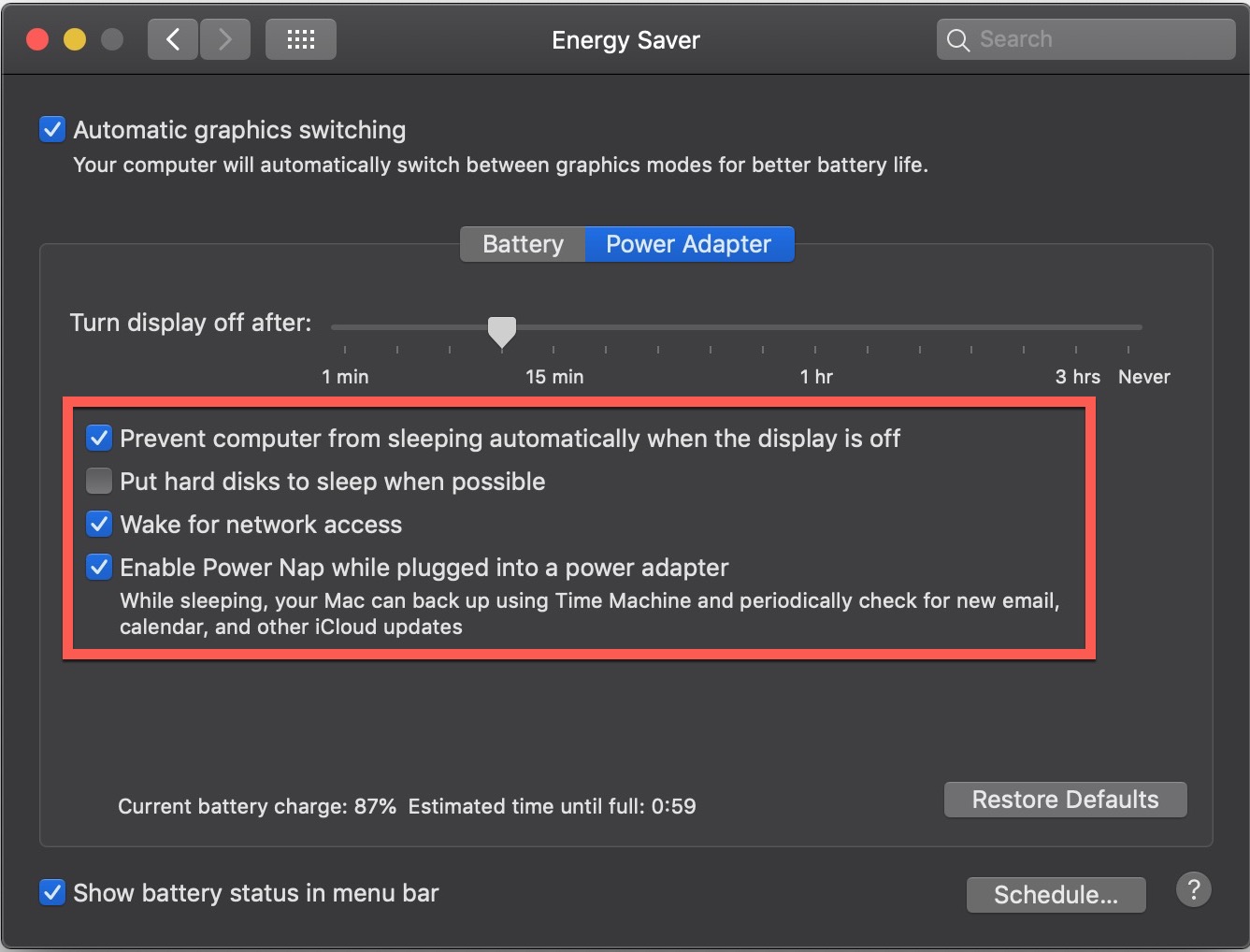
Connect to VPN From An off-campus Mac
- Set up and connect to GlobalProtect VPN on your other, off-campus Mac (DUO required).
- You'll know you're conneccted when you see
 in the menu bar and clicking on that shows Connected You are securely connected to the corporate network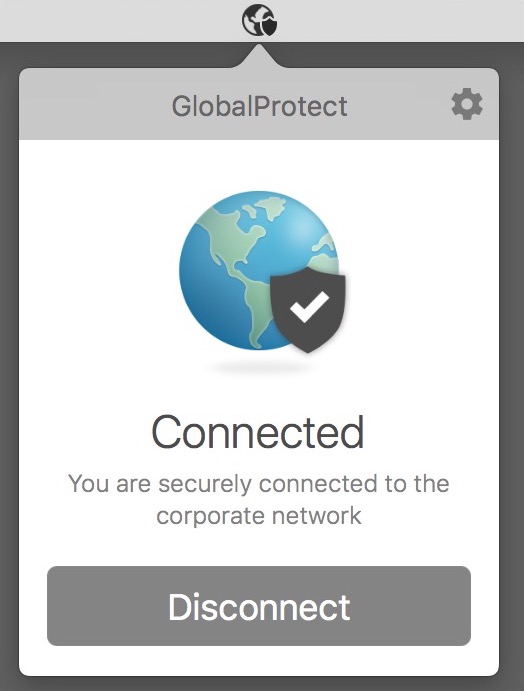
Start a screen sharing session from off campus Mac
- Have your work Mac's Address, IP Address, User Name, and Password ready (from step 5 above).
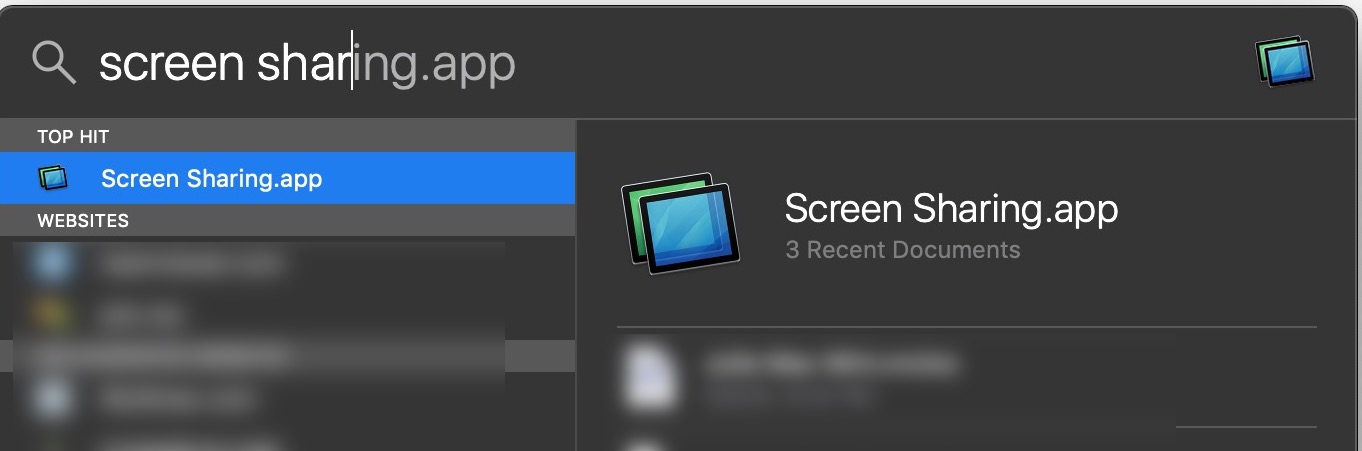
- On your off-campus Mac that is connected to SBU’s GlobalProtect VPN (you see in the menu bar). Then near the top right, click the magnifying glass icon and then type Screen Sharing, and then double click on Screen Sharing to launch it.
- Enter the Address or IP Address of your work Mac (e.g., dhxxx-xxx.adm.sunysb.edu OR 129.xxx.x.xx), and click Connect. (If Address or IP Address doesn't work, try the other or create a help ticket for assistance).
 OR
OR 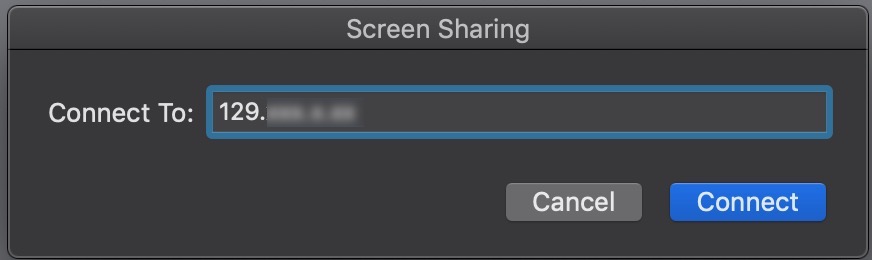
- If prompted, enter your User Name and Password, then click Sign In. (Your user name/password is your NetID/NetID Password OR the User Name/password you sign into your work Mac with--see step 5 above).
Supported By
Customer Engagement and Support