

Creating a Repeating Event in 25Live
You can create repeating or recurring events and they don't have to be the same day and time every week!
- Begin by creating an event and entering the Title, Type, your Department, Head Count, Description, Date and Time of initial event, and check the box for “This event begins and ends on the same day.”
- Under Additional Time, click the Repeating Pattern button and choose how the event will repeat and then Select Pattern.
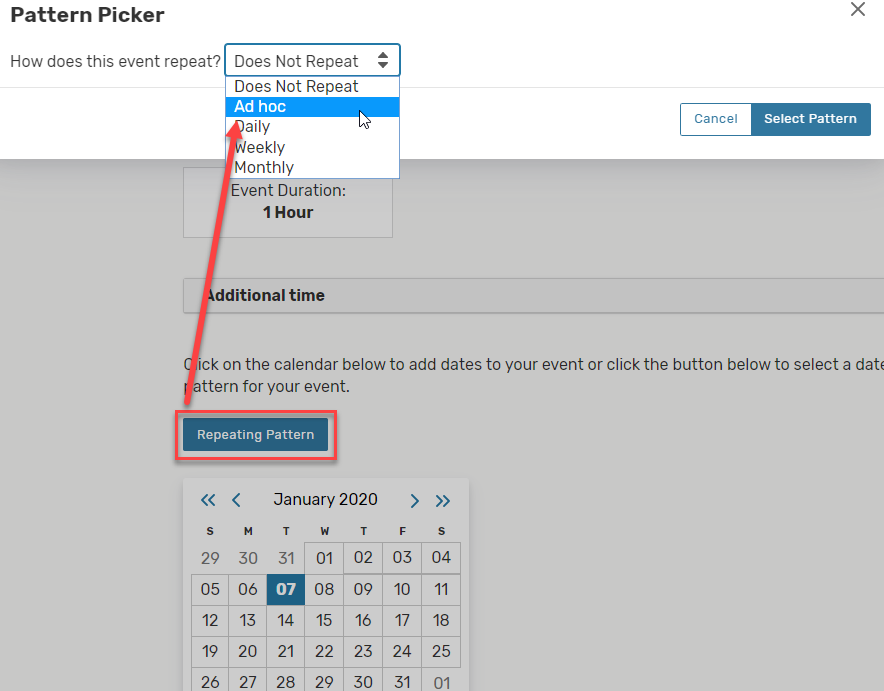
- Ad Hoc lets you pick dates with no distinct pattern.
- Daily is for locations every day through to a certain date.
- Weekly:
25live Weekly Meetings - Video: 25 Live Weekly Meeting Tutorial
- Choose the day of the week this will repeat on. You may also choose the repeat pattern, e.g. repeats every week, repeats every other week, repeats every 3rd week.
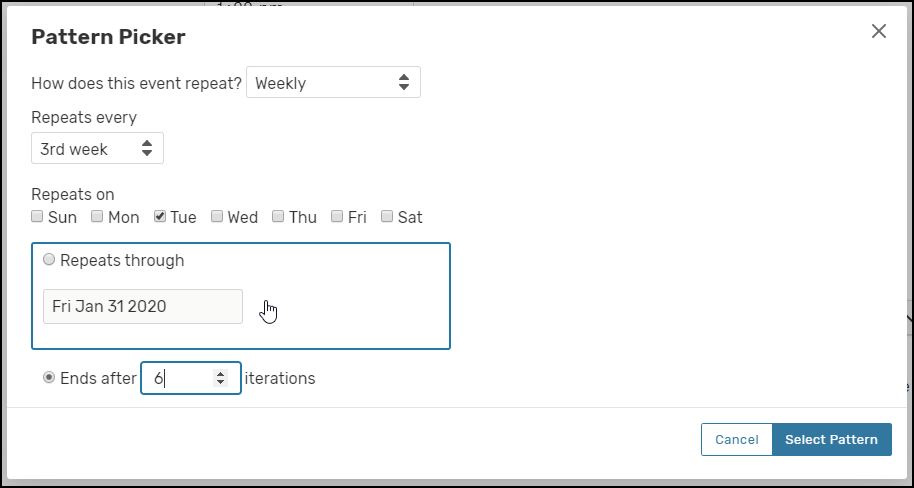
- Monthly:
- Monthly meetings can repeat by date or position of day, e.g. 2nd Tuesday of the month.
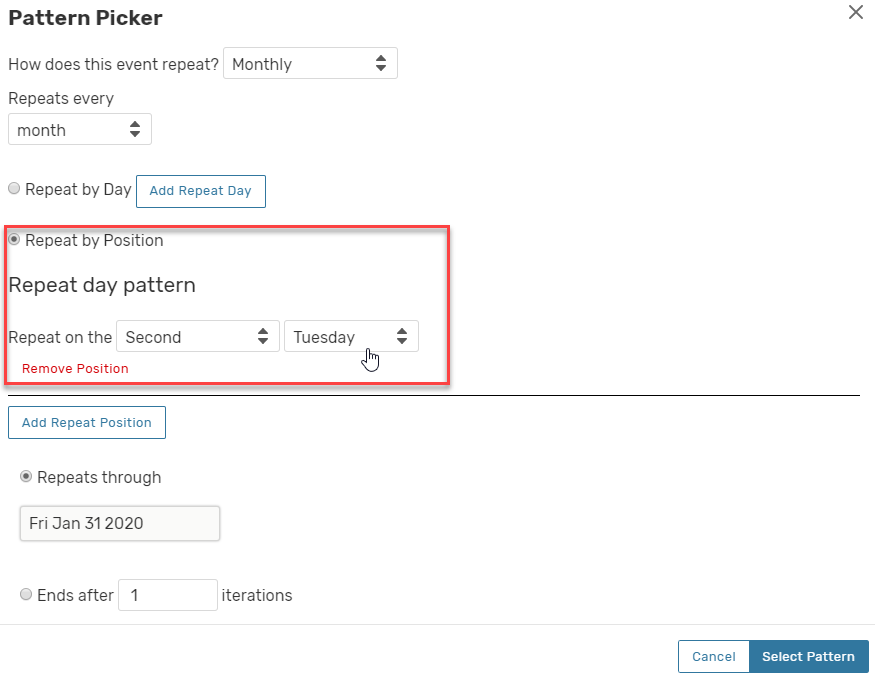
- You can also choose frequency like bi-monthly, every 3rd month, etc.
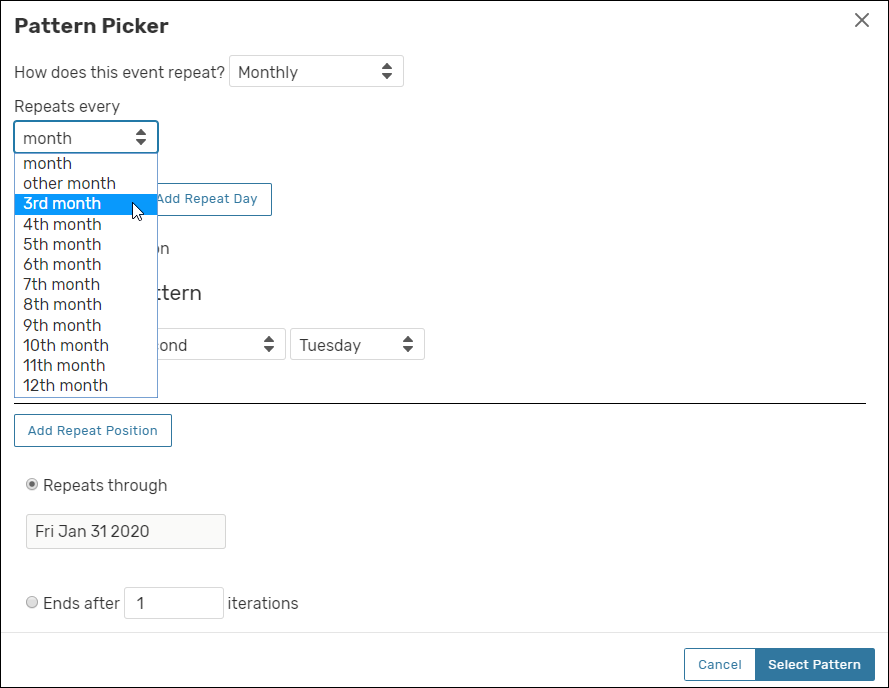
- Monthly meetings can repeat by date or position of day, e.g. 2nd Tuesday of the month.
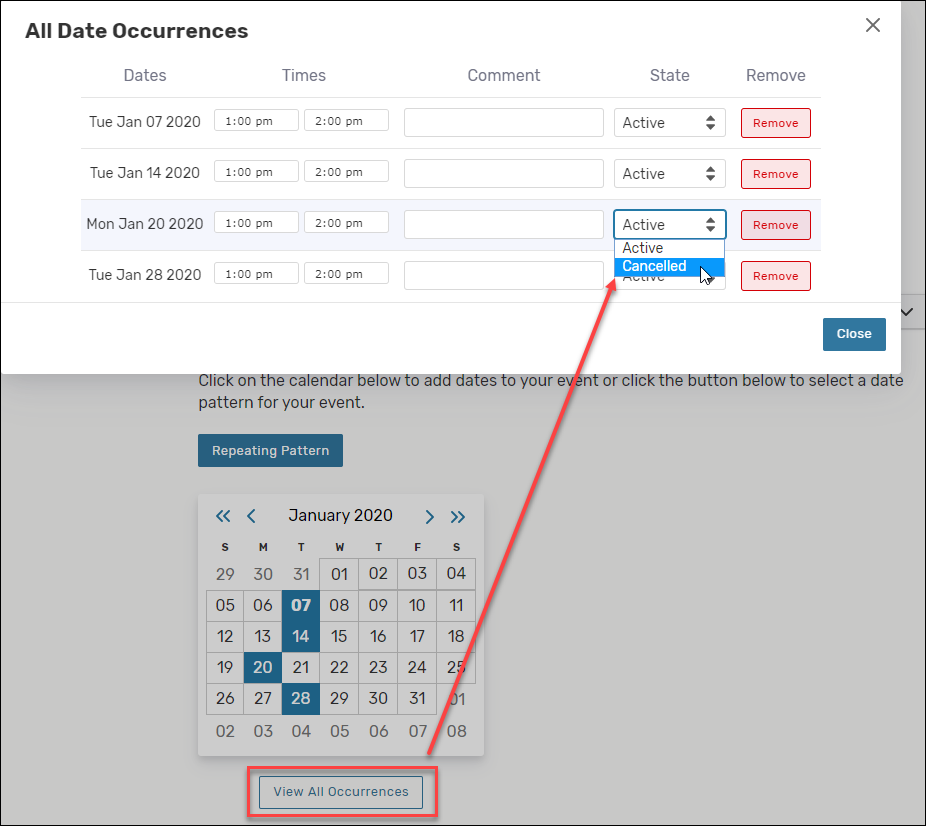
- IMPORTANT: If you have a reoccurring event, you should cancel any dates you don’t plan on meeting. For example, if you meet on Thursdays, you should cancel the meeting date of Thanksgiving as it is unlikely you will meet. To do this, View All Occurrences and then change state from Active to Canceled on the holiday or any date there will be no event.
- Finish creating your event by finding your desired Location, Instructor/TA Information, Comments/Questions, Event State and then Save.
Supported By
Customer Engagement and Support