

Accessing Previous Versions of a File from a Department Shared Folder or MySBfiles on a Windows Machine
"Snapshots" of MySBfiles and Department Shared Folders are saved every few hours. You can access a document you altered or deleted from these snapshots on a Windows machine.
Navigate to your Department Shared folder or MySBfiles:
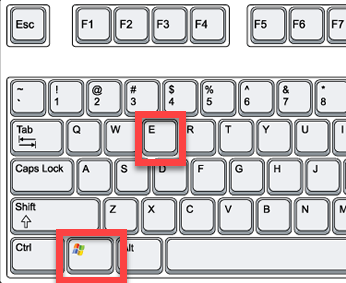
- Open This PC (Windows 10) or Computer (Windows 7) in File Explorer, by holding down the Windows button on your keyboard and tapping “E”:
- You should see your Department Shared Folder and MySBfiles under This PC or Computer.
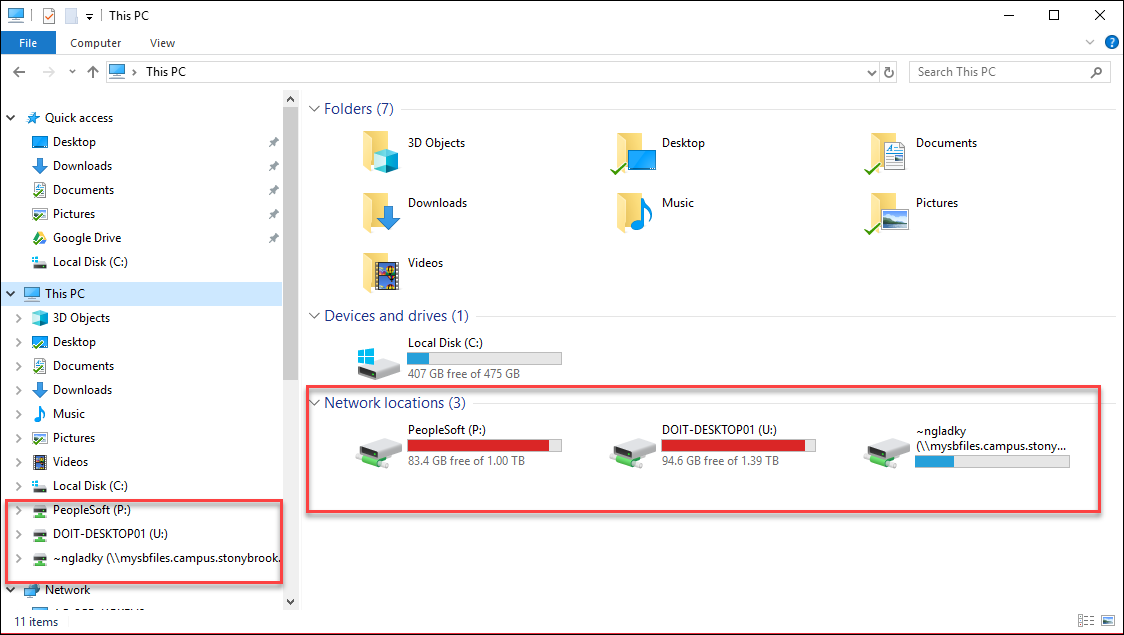
*For MySBfiles users who do not see~NetID (\\mysbfiles.campus.stonybrook.edu) listed under Computer, then you do not have MySBfile mapped on your computer. Call Customer Engagement & Support for help! - Navigate to the folder that contained the file you deleted or edited, but do not open it.
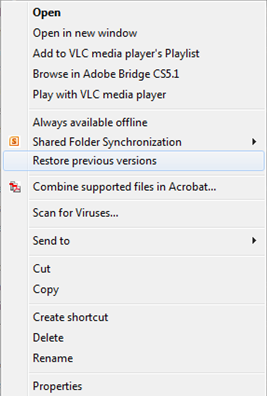
Right-click on the folder and select Restore Previous Version--it may take a few moments to appear.
Click to open the version (snapshot) of the folder that would contain the unaltered document based on the date modified.
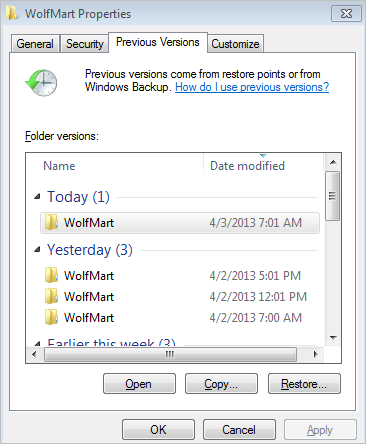
- Here you can open the document and save it.
For More Information Contact
Customer Engagement and Support