

Logging in to a Stony Brook SharePoint Site as an External User
When you invite non Stony Brook users to your site via their email, they will receive a message from the "Microsoft Online Services Team" containing the link to your site.
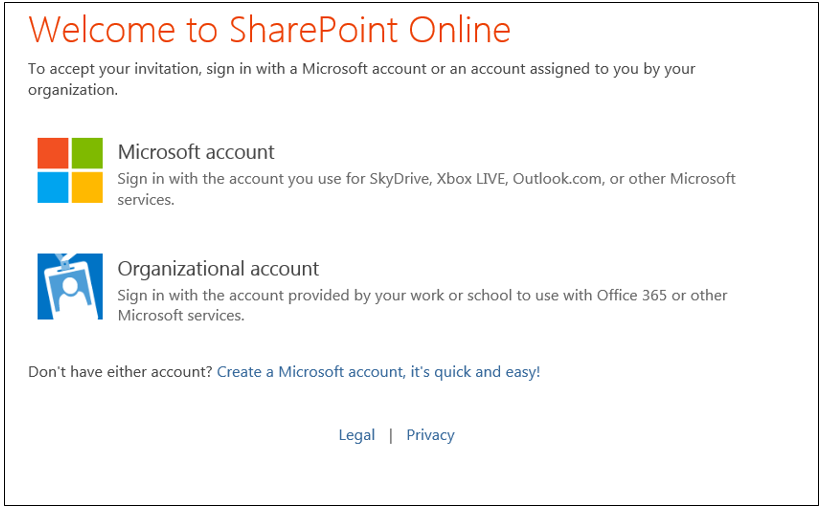
* Upon signing up, they may get an additional email to verify their account.
** If users to not see the Microsoft sign in page, they should clear their cache in their browser by pressing
Ctrl + Shift + Delete on their keyboard.
Ctrl + Shift + Delete on their keyboard.
Supported By
Customer Engagement and Support