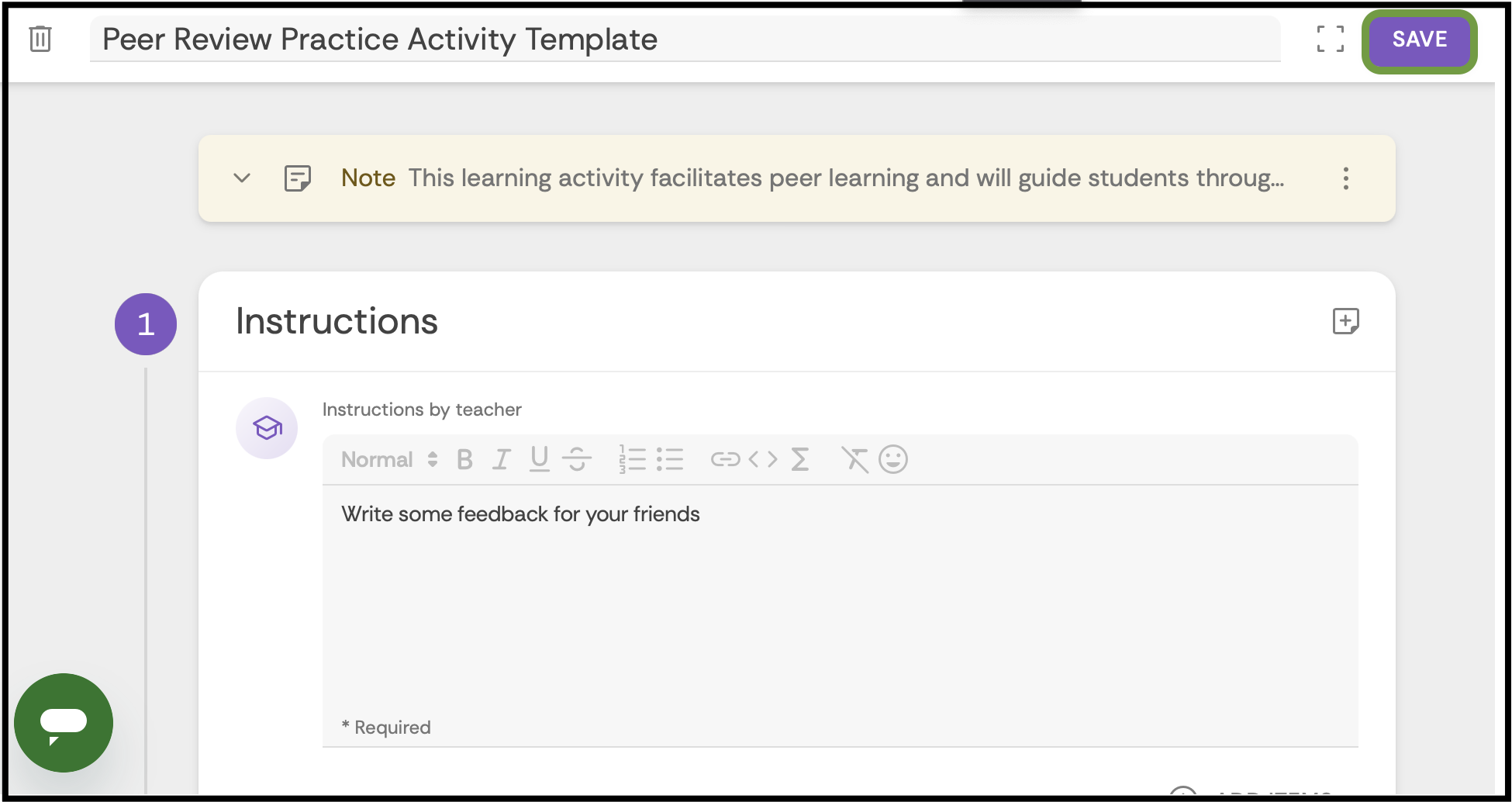
Transferring a FeedbackFruits Activity to a New Brightspace Course
The Brightspace transfer tool does not support transferring FeedbackFruits (FF) activities between courses. Instead, you need to manually create a template from the existing FF activity and then use that template to build a new activity in your new course. This article walks you through the steps to create a template, copy and edit the activity, and add it to your new course.
Go to the existing FeedbackFruits activity you want to transfer.
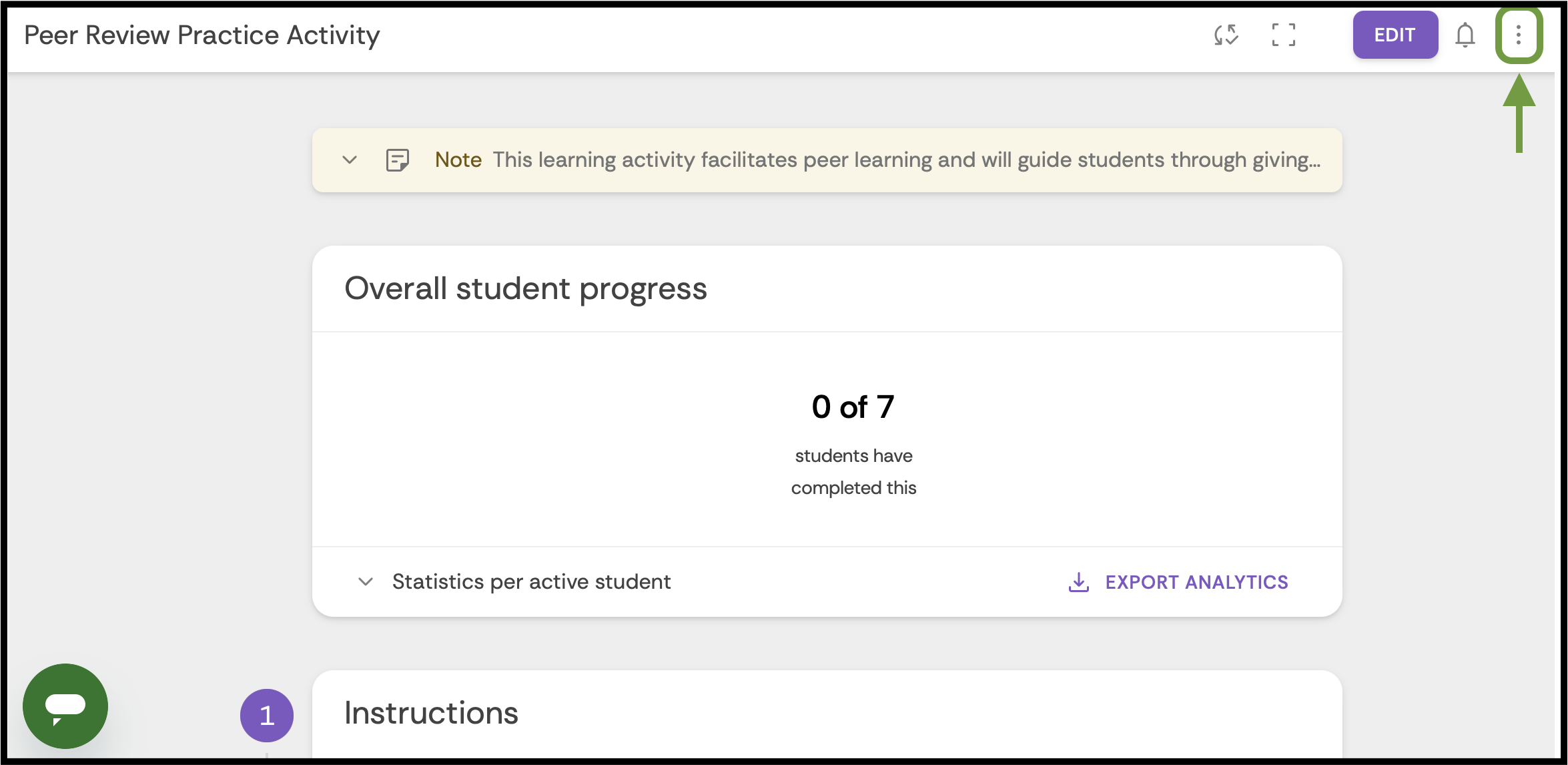
Click the three-dot menu in the top-right corner of the activity.
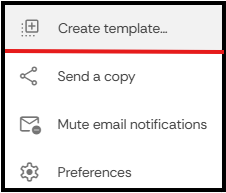
Select Create Template from the dropdown menu.
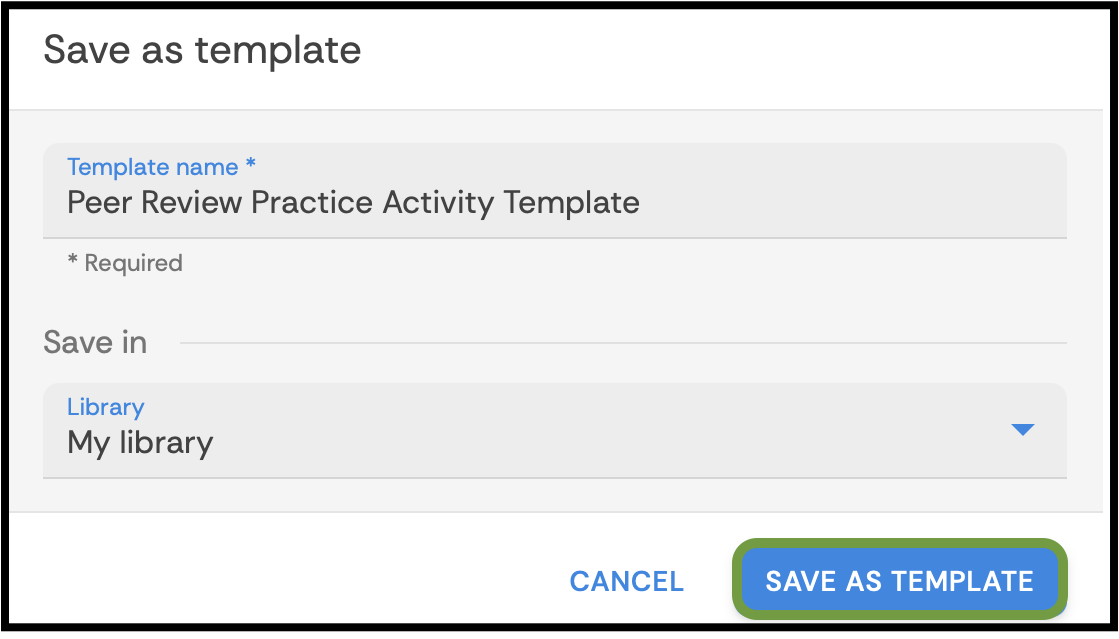
In the dialog box that appears, enter a name for the template, and Click Save as Template to save it to your library.
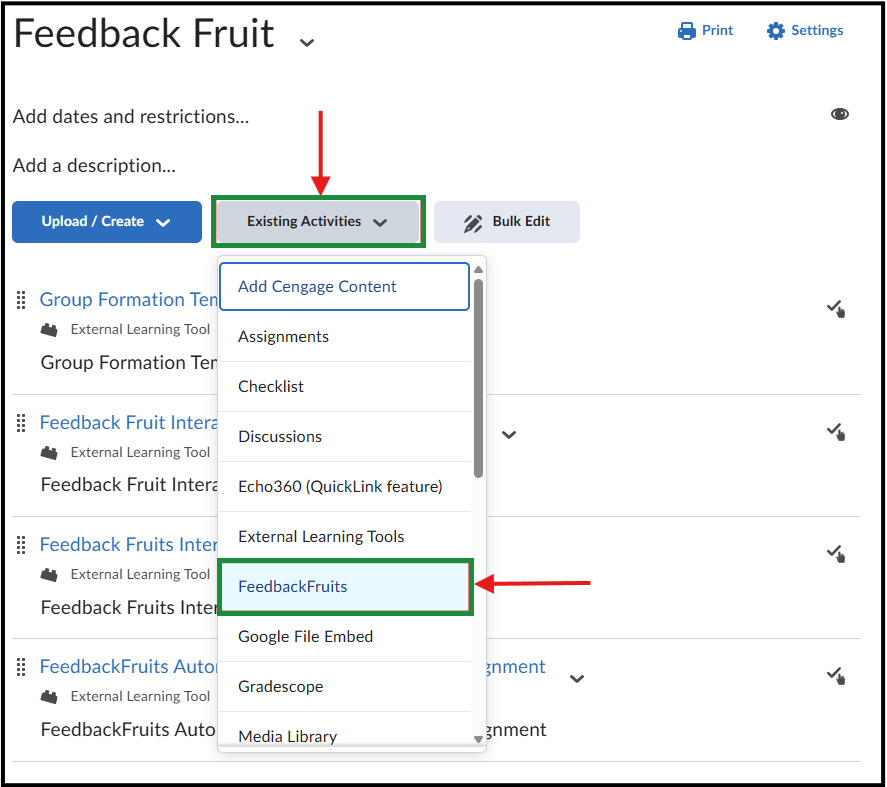
Navigate to the desired course and module, then click on Existing Activities.
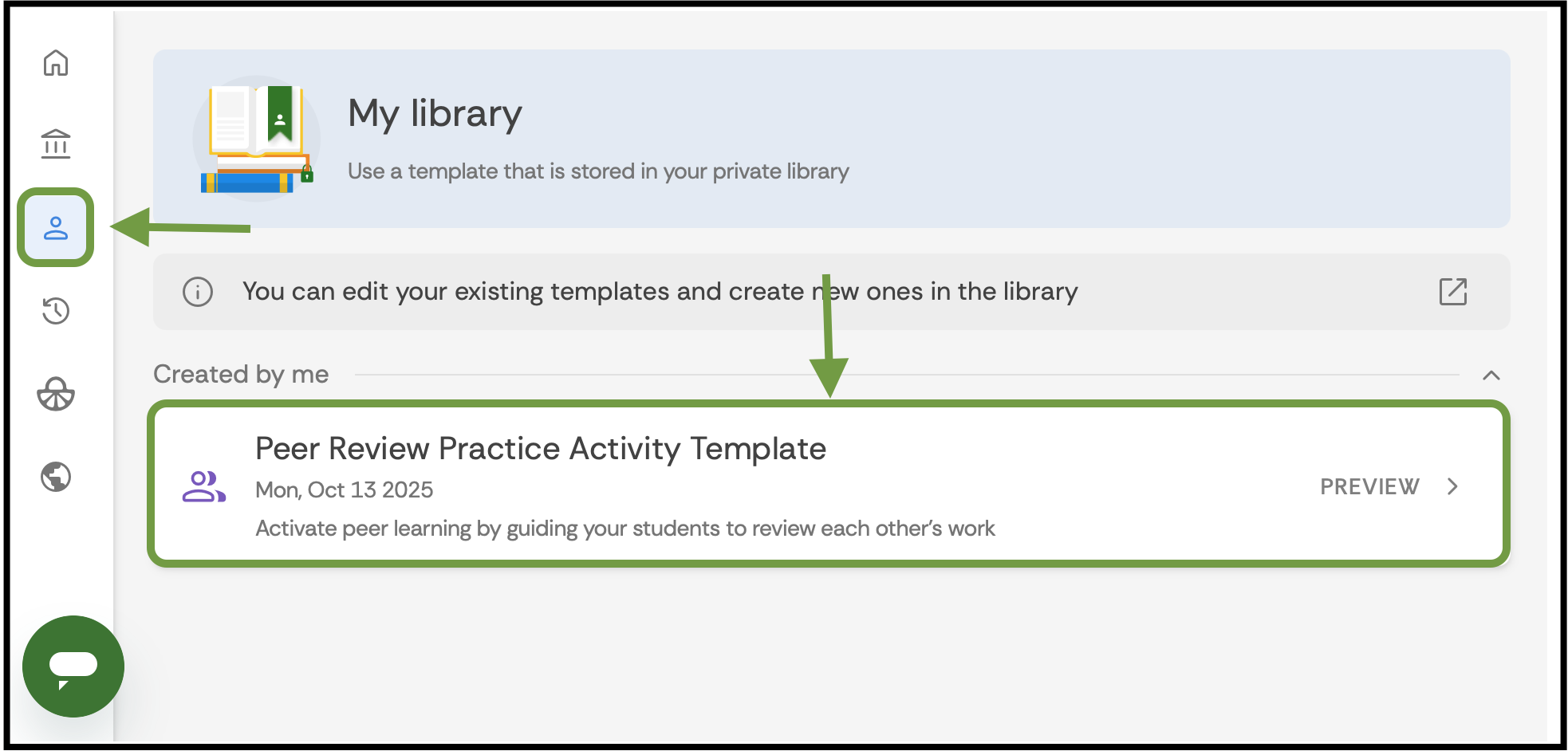
Go to the FeedbackFruits homepage and click My Library, find and open the template you just created.
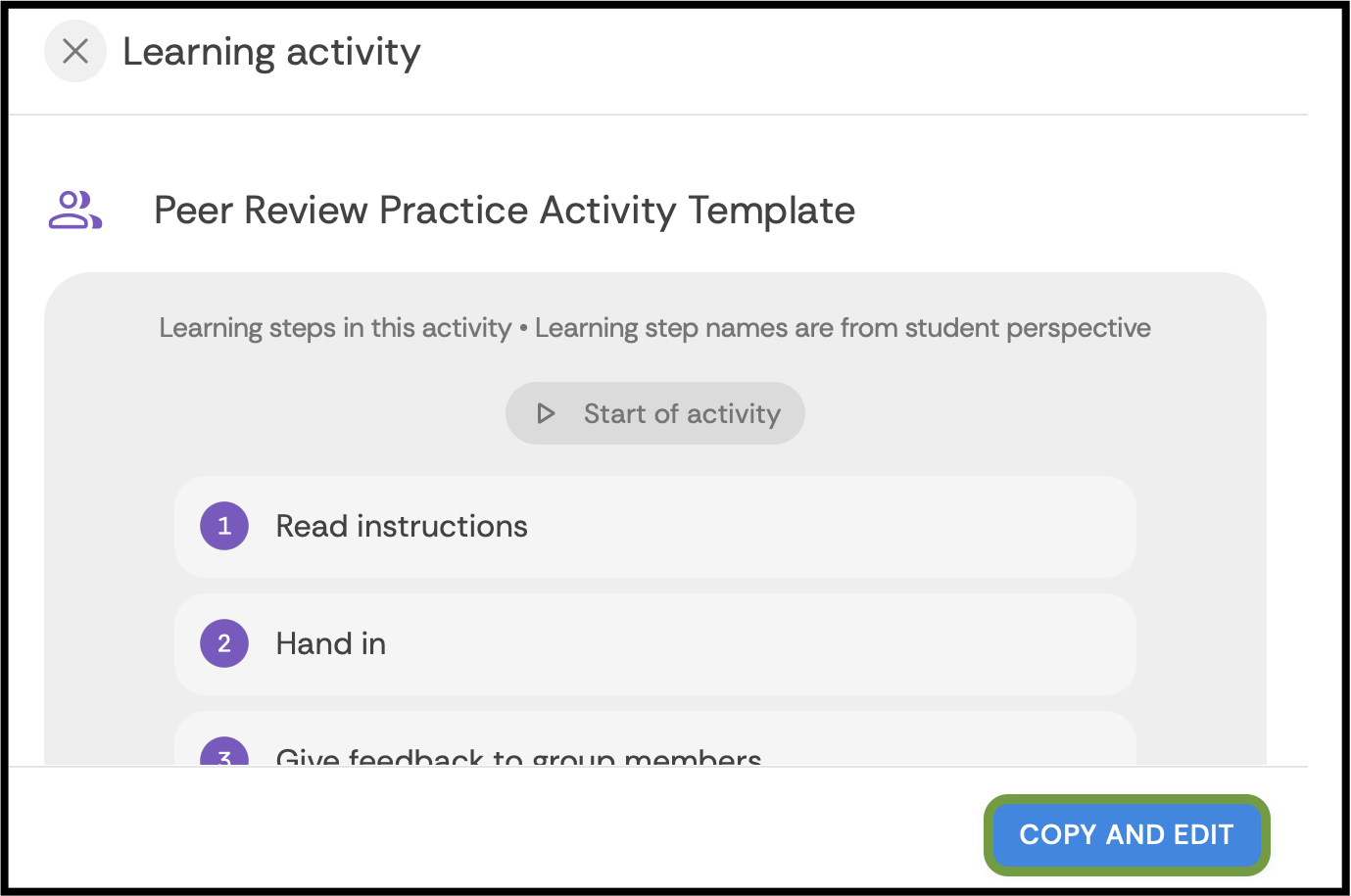
Click Copy and Edit to create a new activity from the template.
Make any necessary changes to the activity and click Save.