

Linux/Unix - Get Connected to Eduroam
To properly configure your Linux/Unix device to connect to Eduroam, please follow the instructions below.
This will help you configure your device in such a way to ensure that you connect to Eduroam securely without needing to sign in every time.
About SecureW2
SecureW2 is the university's recommended tool for connecting to the official campus Wi-Fi network. Using SecureW2 ensures that the correct security certificates are installed on your device. For your protection, be wary of unexpected Wi-Fi certificate prompts that appear as pop-ups, as they may not be legitimate or approved by the university.
Requirements
You will need to forget the old WolfieNet-Secure Wi-Fi network on your Linux/Unix device (and Eduroam as well, if you have connected before). Then follow the instructions below.
Instructions
Please note: you can also start this process on your home Wi-Fi, and finish the connection once you arrive on campus. Proceed from step 2.
- Connect to the SBU-GetConnected wifi network and use your browser to connect to the internet temporarily while onboarding.
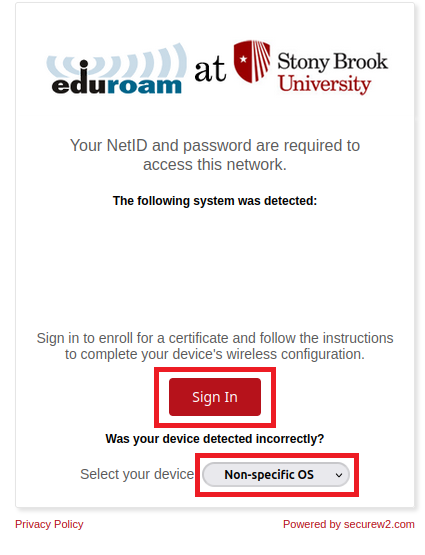
Navigate to the Stony Brook University SecureW2 certificate generation portal SecureW2 eduroam Portal. Once on the landing page, select Non-specific OS and click the Sign In button.
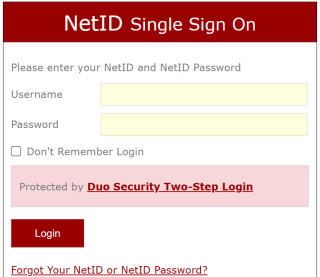
Login with your NetID name and password and authenticate with DUO mobile two-factor authenticator.
Before creating the certificate, you need to identify your device's MAC address (physical hardware address).
a. Open your terminal application.
b. Execute the following command:Bash
ip a
c. Locate your wireless interface (typically starts with wlan or wlp). Look for the string labeled link/ether and copy the 12-character alphanumeric physical address
Return to your web browser window.
a. Set the Operating System dropdown to User-Defined.
b. Enter a friendly identifier in the User Description field (e.g., research-laptop).
c. Paste the copied hardware address directly into the MAC Address field.
d. Click Create.

This will generate a pop-up asking you to generate a secure passphrase to protect your downloaded private key. Enter a strong password that meets the requirements (at least 6 characters, including uppercase, lowercase, numbers, and symbols). Important: Remember or write down this passphrase - you will need it during the final Wi-Fi authentication step. Click Submit.
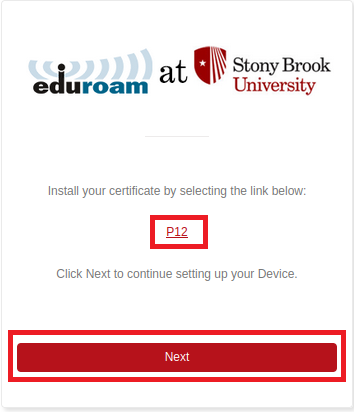
On the subsequent initialization page, click the P12 hyperlink to download your personal user certificate bundle. It will download straight to your computer's Downloads folder. Once saved, click the red Next button.
On the configuration summary page that follows, click on the CA Certificate links under the profile options list to save the required root authority certificates to your local storage. Use the emSign Root TLS - G1 (Feb 07 2049) on the list. It may not be in the same order seen below.
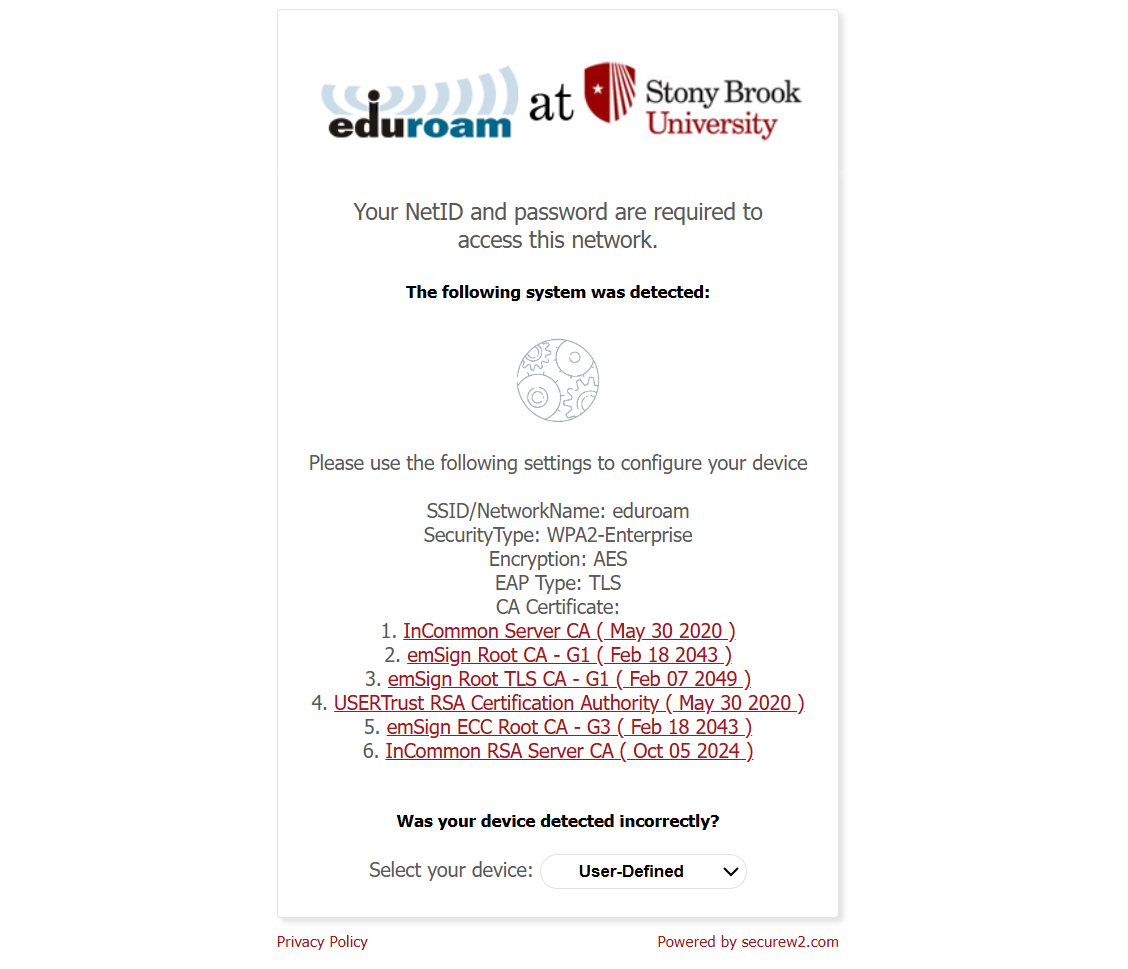
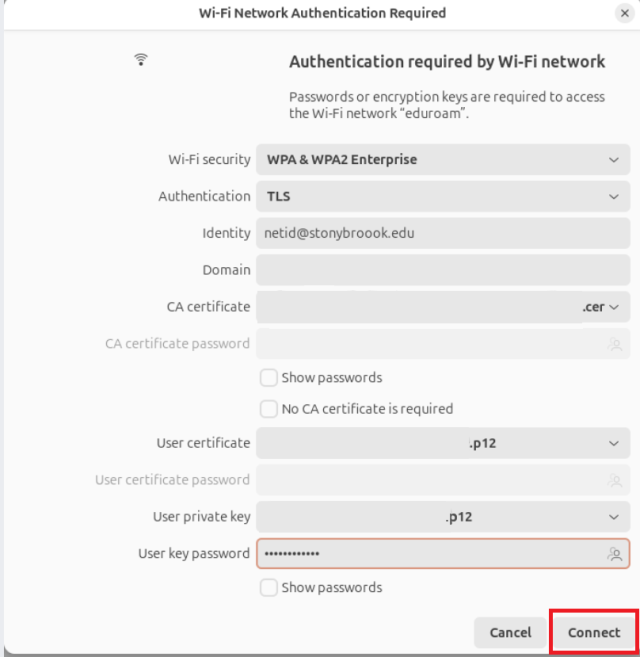
Open your Linux/Unix System Network Settings panel, select Eduroam, and configure the authentication modal utilizing the following parameters:
a. Wi-Fi security: WPA & WPA2 Enterprise
b. Authentication: TLS
c. Identity: netid@stonybrook.edu (*Replace ‘netid’ with your personal NetID username!)
d. CA certificate: Browse and select the root certificate file downloaded in Step 6 (.cer file)
e. User certificate: Browse and select the personal .p12 file downloaded in Step 6
f. User private key: Browse and select the same .p12 file path again
User key password: Type the security passphrase you manually created earlier during Step 5
g. Click Connect on the bottom right of the screen
Your computer should now negotiate a connection via secure TLS handshake. Open your system Wi-Fi tray to verify that Eduroam displays a status of Connected.
Finally, go back to your available Wi-Fi networks and forget/remove SBU-GetConnected. If you do not, SBU-GetConnected may interfere with reconnecting to Eduroam when moving around campus.