Creating and Configuring Assessments in FeedbackFruits
This article will detail how to add the option to grade in a FeedbackFruits assignment, along with showcasing various options related to grading in this tool.
In FeedbackFruits, some activity types will automatically have assessments applied to them, such as Peer Review, Group Member Evaluation, and Team-Based Learning. Other tools, such as Interactive Document, Interactive Video, and Automated Feedback, require grading to be manually added by the instructor.
Adding the Grading Option to FeedbackFruits Assignments
To manually add grading to FeedbackFruits activities, follow these steps:
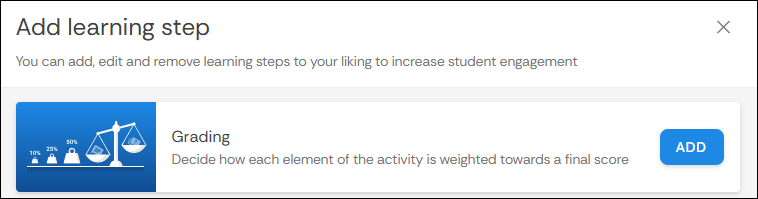
- After setting up your activity, select Add learning step

- Locate the Grading option and select Add
Configuring Grading
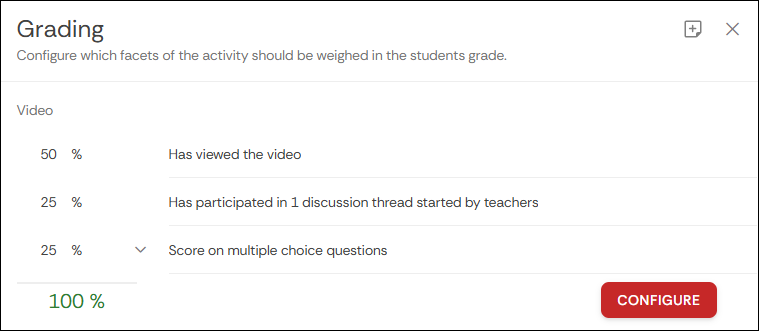
Instructors have the ability to allocate weights to different requirements of the activity to determine the student's score. In the image below, you can see how percentages are allocated for an Interactive Video assignment. Students receive 50% worth of credit for viewing the video, 25% for participating in a discussion thread started by the teacher, and 25% for their score on the multiple-choice questions in the activity.
To add requirements to add weights to, or to adjust the weights for each requirement, select the Configure button. Please note that your total weight must equal 100%.
Grading Options
After configuring the weighting for the assignment, you can then adjust the options for the grading in the Grading Options section. Here you have the following options:
- Publish grade as either:
- Percentage
- Pass/Fail
- Require participating for grade
- If disabled: All students receive a grade, regardless if they completed the activity or not (if incomplete a 0 will be applied)
- If enabled: Only students that open the learning activity receive a grade, and for any non-participants the grade is blank.
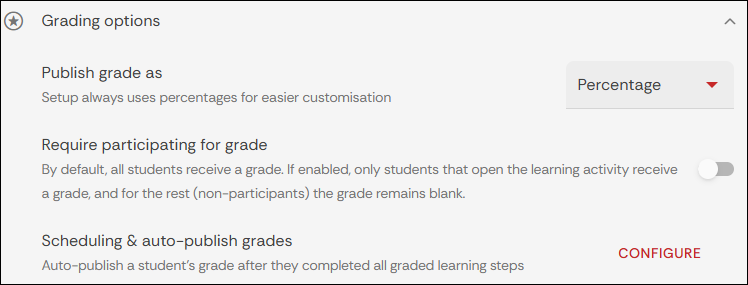
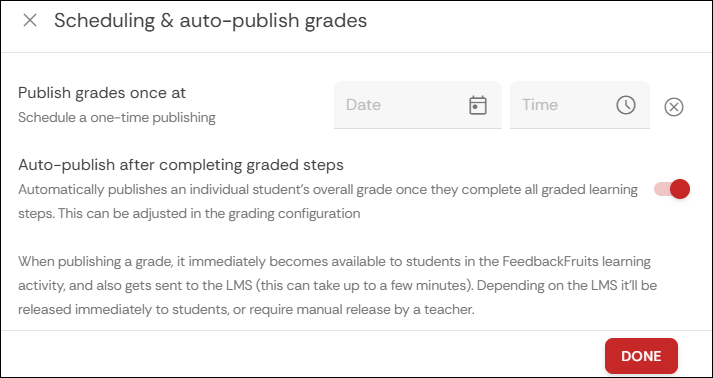
- Scheduling & auto-publish grades (select the Configure button to review options)
- Publish grades: Schedule a date and time for grades to be published
- Auto-publish after completing graded step: If enabled, it will publish scores automatically to students who completed all parts of the assignment.