Accessing FeedbackFruits in Brightspace

This KB Article References:
This Information is Intended for:
Instructors, Staff

FeedbackFruits can be accessed via the Content area in Brightspace by following these steps:

  1. Select Content on the navigation bar
Screenshot of the content option on the Brightspace navigation bar
  1. Choose an existing, or create a new module that the FeedbackFruits activity will be placed in
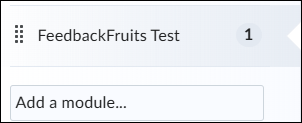
Screenshot of a module titled FeedbackFruits Test. Below this is the option to add a new module.
  1. Select Existing Activities within the module, and then choose FeedbackFruits. This will open FeedbackFruits and allow you to create an activity. 
Screenshot of the existing activities button selected in a Brightspace module, which shows the option for FeedbackFruits.
This Content Last Updated:
07/21/2025

Supported By


Academic Technology Services
This KB Article References:
This Information is Intended for:
Instructors, Staff
Estimated Read Time:
1 minutes
This Content Last Updated:
07/21/2025