

Accessibility Templates in FeedbackFruits
Accessibility Templates in FeedbackFruits help ensure that your activities are inclusive and meet accessibility standards. These templates are created and supported by CELT at celt@stonybrook.edu, and include notes on accessibility.
Please note that the materials you upload are not made accessible automatically and that it is your responsibility to ensure that they are.
- Open your course and go to Content.
- Click on the respective module in the Table of Contents.
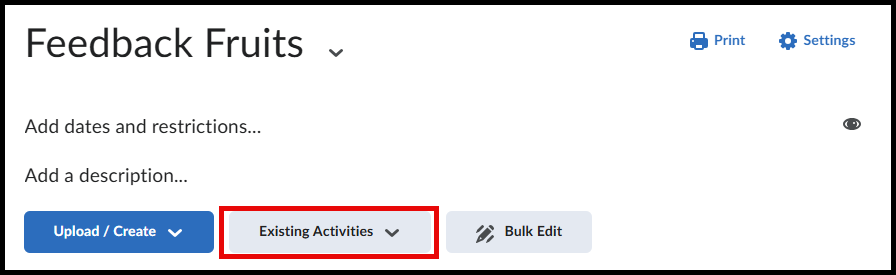
Click on Existing Activities.
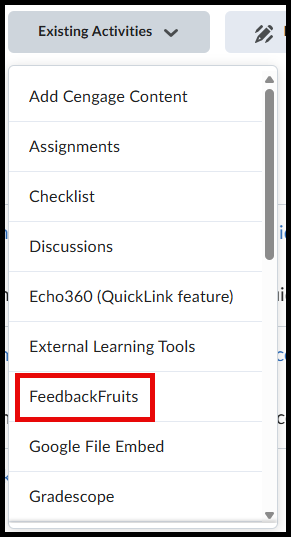
Click on FeedbackFruits.
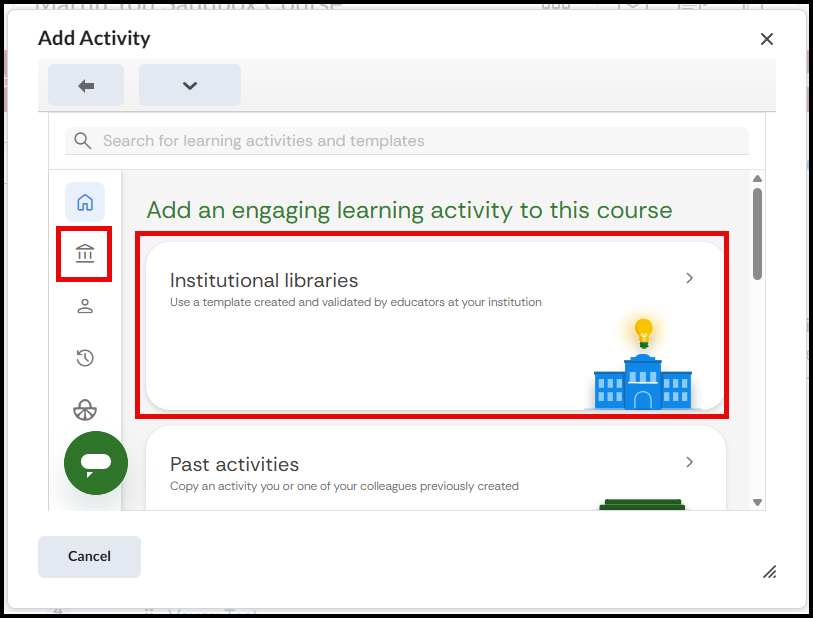
Select Institutional libraries.
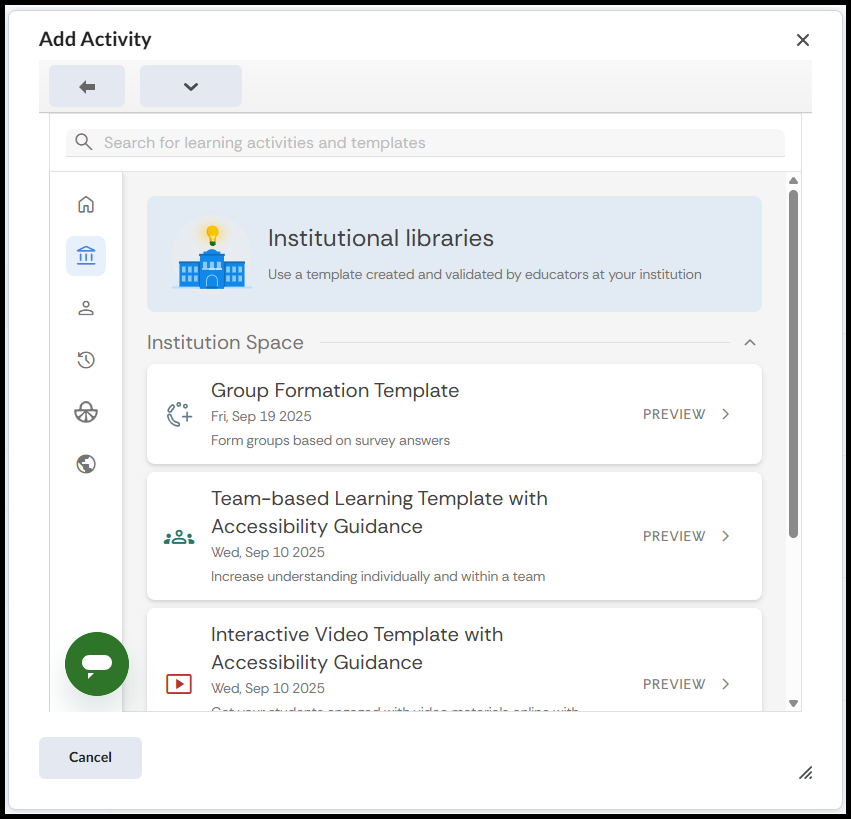
Select the desired activity.
Please note: These templates do not make the materials uploaded accessible as that is the responsibility of the instructor to ensure that.
Supported By
Academic Technology Services
(631) 632-9800