Putting Content Side-by-Side in SB You
Content can be split by using columns, having multiple blocks side by side. You can also have images be side by side with Gallery blocks, giving you more options to sort them.
- Go to your page or post.
- To create a column block, follow the Adding content to SB You page guide.
To modify an existing block into a column, select the block, then click the left-most button, and select Column.
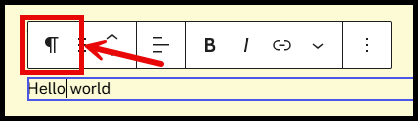
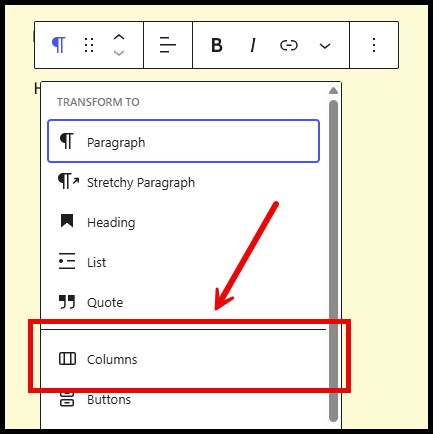
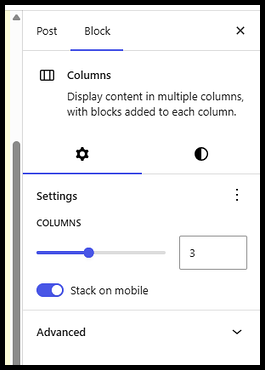
To modify the number of columns, click on the block, and then click on the options on top left.
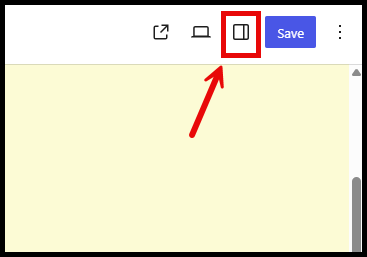
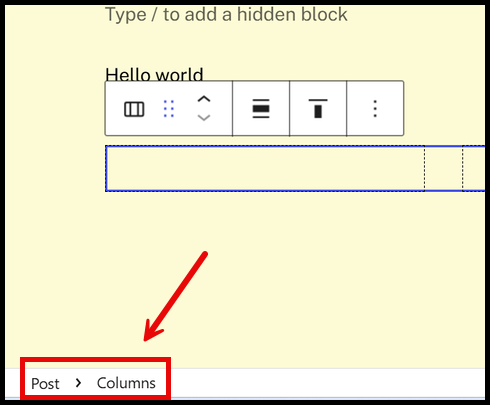
If you can’t see the columns option, make sure you are selecting the columns block. On the bottom left, it should look like this. If it doesn’t, click on “Columns”.
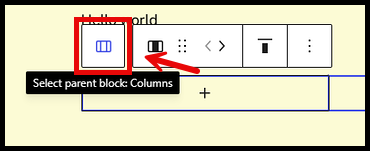
Another way you can do it, is by selecting the individual columns, and clicking on Select parent block: Columns.
To resize the columns, click on the individual columns, the breadcrumb should look like this:

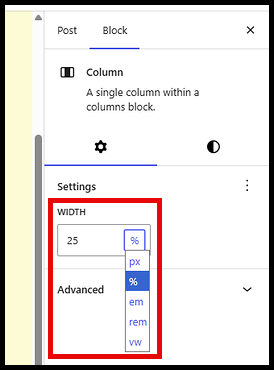
In Width, under Settings, input your preferred width, you can also change the denomination or the value type.