

Creating a Template on FeedbackFruits
The templates feature in FeedbackFruits allows you to save copies of your activities to be easily reused in future Brightspace courses
You can also share your custom templates on FeedbackFruits with colleagues, making it easier to collaborate and promote best practices across departments or teaching teams.
Creating a Template of an existing FeedbackFruits activity
- Go to your Brightspace course, and go to content.
Click on the appropriate module in the Table of Contents.
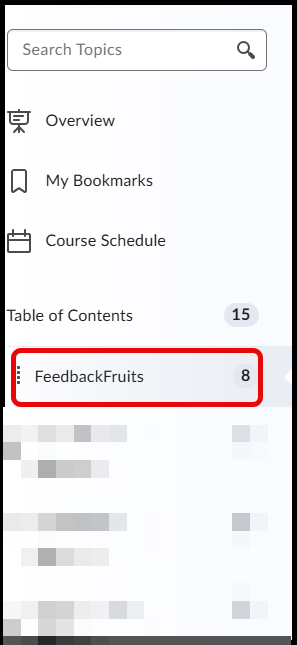
- Click into an existing FeedbackFruit activity.
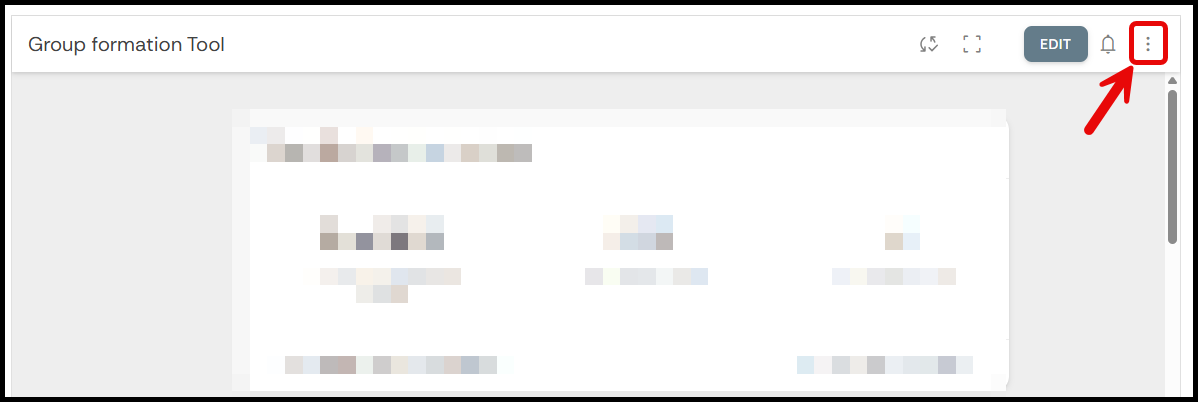
Click on the three dots at the top right of the activity.
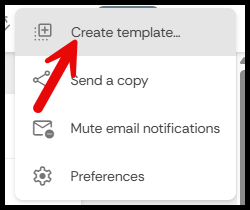
Click Create template.
Select which library the template should be placed in and give it a name.
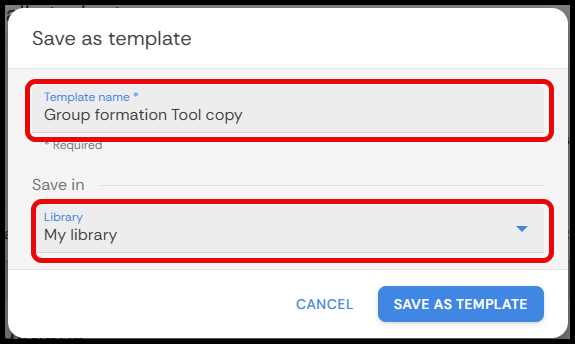
- Hit Save As Template.