

Emailing Instructors in Brightspace
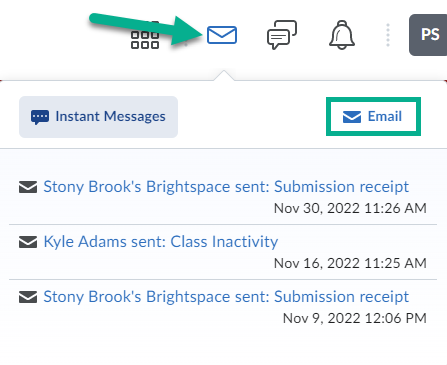
- Once you are logged into Brightspace, select the envelope icon at the top of the page
- Select "Email"
- Click on the "Address Book" button

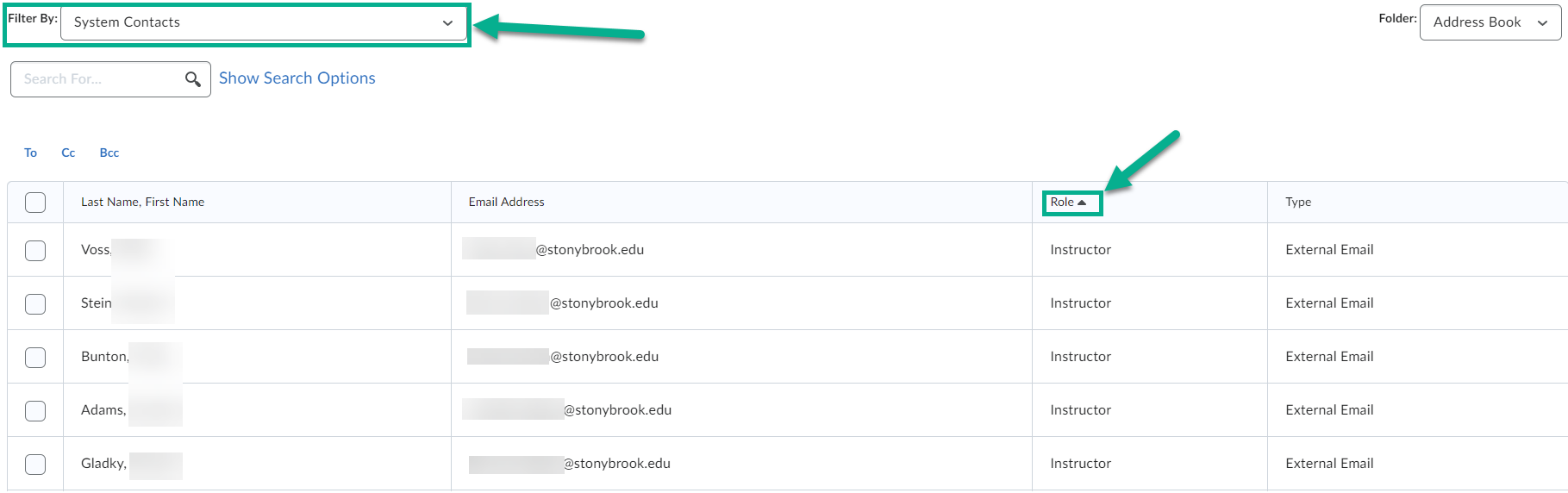
- Make sure you are filtered by "System Contacts"
- On the contact table, click on "Role" to filter each users role alphabetically. This will organize all Instructors together.
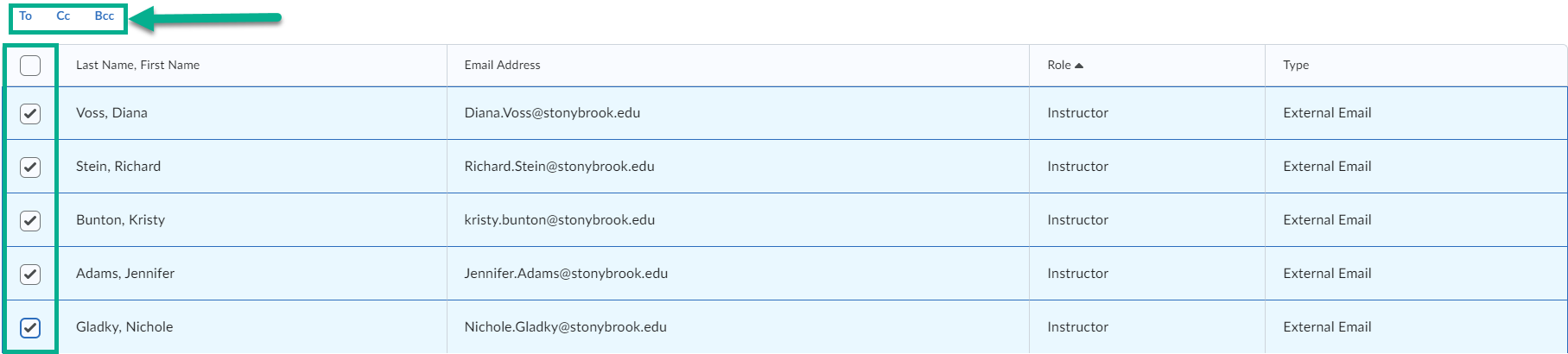
- Choose the select box for each of your instructors
- Click on the "To", "Cc", or "Bcc" buttons to choose which fields these contacts will be in
- Select "Add Recipients"
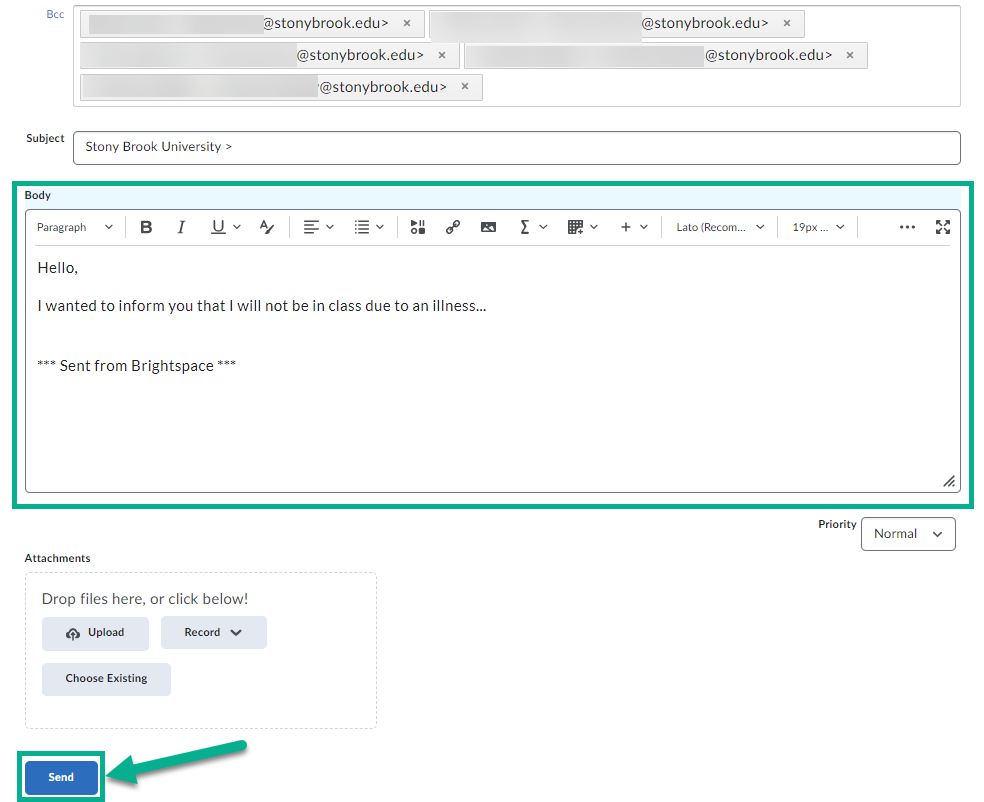
- Type your message in the "Body" field and then select "Send"
Video Instructions
Supported By
Academic Technology Services
(631) 632-9800