

Transferring Excel Macros From One Computer to Another
Macros used in Excel can be saved within the document or globally to be re-used in other Excel documents.
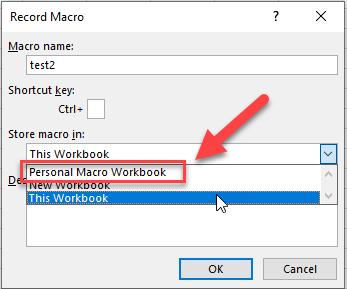
This article describes how to transfer global macros to other computers. This is helpful for when you receive a new computer but find that your Excel files do not have the macros you've been faithfully using. When created, global macros are saved in Personal Macro Workbook.
For Windows Based Computers
- On your old computer, open File Explorer on your old computer by pressing the Windows button and the letter E on your keyboard.
- Paste the following path into the address bar. Be sure to remove [NetID] and type your NetID between the slashes.
C:\Users\[NetID]\AppData\Roaming\Microsoft\Excel\XLStart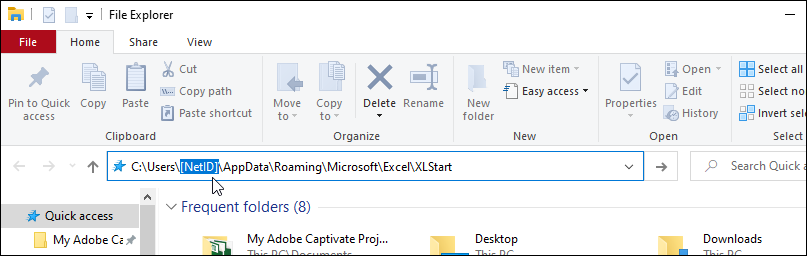
- If you have global macros, a file will be created called PERSONAL.XLSB. Move the PERSONAL.XLSB file to your new computer. You can do this by sending an email to yourself with the file attached.
- On your new computer, download the PERSONAL.XLSB file from your email or where ever you have it stored.
- Follow steps 1 and 2 to open the correct path on your new computer and drag the PERSONAL.XLSB file into the XLStart folder.
To test if this was done correctly, open Excel on your new computer, click View > Macros > View Macros.
Notes
- If you do not see the PERSONAL.XLSB file in the path provided, try switching out Roaming with Local C:\Users\[NetID]\AppData\Local\Microsoft\Excel\XLStart
- If you have macros embedded in a specific document and would like to make them available for use in other Excel files you can download them one by one using the VBEditor in Excel.
On Mac Based Computers
- Open Finder > Go > Go To Folder
- Type ~/Library and click Go
- Open each folder: Group Containers ▸ UBF8T346G9.Office ▸ User Content ▸ Startup ▸ Excel
- Move the PERSONAL.XLSB file to your new computer. You can do this by sending an email to yourself with the file attached.
- On your new computer, download the PERSONAL.XLSB file from your email or where ever you have it stored.
- Follow steps 1-3 to open the correct path on your new computer and drag the PERSONAL.XLSB file into the Excel folder. *If you do not have the Excel folder, you should create a Macro in Excel as a place holder so that one is created for you.
Notes:
Supported By
Customer Engagement and Support