

Enabling Flash for your Browser
Most web browsers by default have Adobe Flash disabled with ask permissions.
Chrome:
- Open up Google Chrome and log into Blackboard.
- In the top left corner of your browser click on the site information (the lock icon.)
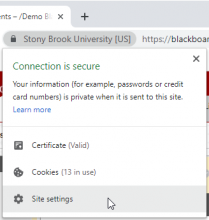
- Click "Site settings", scroll down to Flash, and either turn it "on" or on "ask"

Safari:
- Open up Safari, in the top left corner of the screen click on the Safari menu, and click on Preferences.
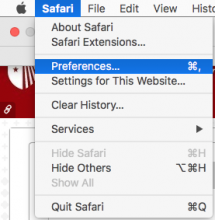
- In the pop-up window click on Websites and click on Adobe Flash Player in the Plug-ins submenu.
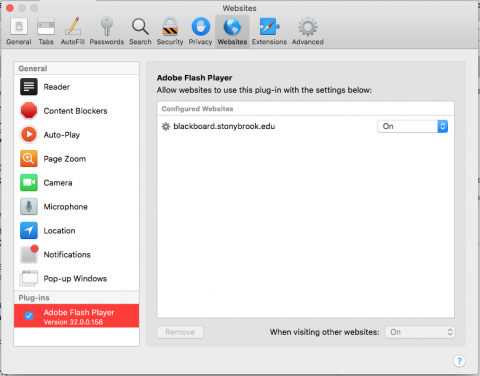
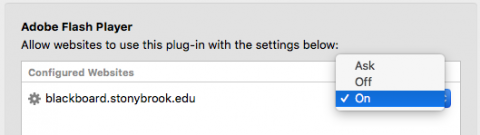
- Make sure Adobe Flash is set to "on" or "Ask" for blackboard.stonybrook.edu.
Firefox:
- Open Firefox and in the top right corner click the 3 stacked lines menu.

- In the drop-down menu click on Add-ons.
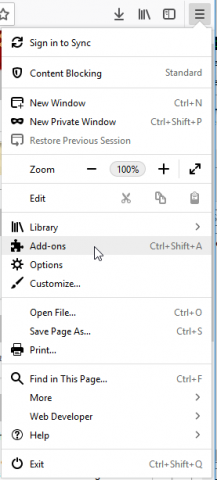
- Click on Plugins and turn on Adobe Shockwave Flash.

Also:
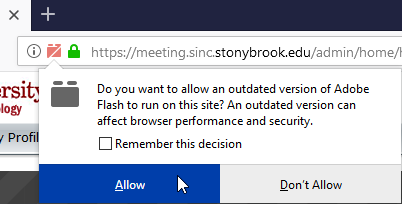
If you go to a website which says it requires Adobe Flash a red brick will appear in the top right corner. Click the brick and click
allow Adobe Flash.
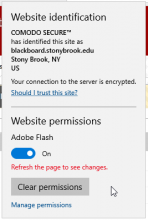
Edge:
- Open Edge and go to Blackboard.
- Click on the lock icon in the top left corner.
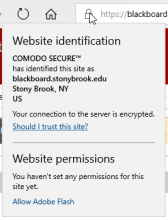
- In the drop-down menu click "Allow Adobe Flash"
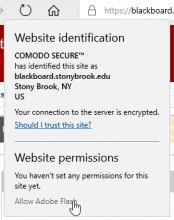
- Set Adobe Flash settings to "on" or "ask"
Supported By
Customer Engagement and Support
Need Help? The fastest way to get support is by submitting a request through our ticketing system.
Get Help With Echo360