

Hiring Students - Navigating SOLAR
Navigating SOLAR

- Click Home to go back to the Homepage.
- Click Add to Favorites (within SOLAR) to bookmark a page to refer back to it.
- Click Sign out to leave SOLAR.
Reviewing a List of Records

- Customize - the data by personalizing the columns and change the sort order
- Find - a keyword among the records
- View All - data with rather than scrolling through the pages
 - Pops data into its own window
 - Download the data into a spreadsheet. *You may have to scroll horizontally to see this button.
 - User the arrows to scroll through the pages of data
 Some of the report pages have a Download to Excel button. Click this button to download the information to an Excel spreadsheet.
At the bottom of most pages:
- Save – FREQUENTLY!!
- Return to Search - brings you back to the search page so that you can search for another record.
- Next in List - brings you to the next record in the search result list. This is especially helpful when you are approving time sheets.
 You may see the word Processing blinking in the right upper corner of the window. You cannot do anything until it stops blinking.
Using the Lookup Function
Some fields have a magnifying glass (Lookup button) next to them. Click this button to go to the Lookup page for this field.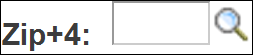
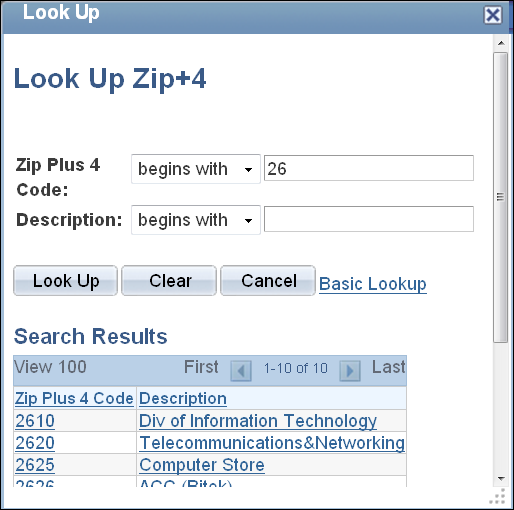
In this example we are looking up 4-digit Zips:
- Click the Lookup button on this page and a list of valid values will be displayed.
- Use the arrows or View All to scroll through the choices.
- Click a value to select it.
- Or, click Cancel to return to the original page without selecting a value.
Click Clear to clear the search and start over.
For More Information Contact
Customer Engagement and Support