

Windows - Get Connected to Eduroam
To properly configure your Windows device to connect to Eduroam, please follow the instructions below.
This will help you configure your device in such a way to ensure that you connect to Eduroam securely without needing to sign in every time.
About SecureW2
SecureW2 is the university's recommended tool for connecting to the official campus Wi-Fi network. Using SecureW2 ensures that the correct security certificates are installed on your device. For your protection, be wary of unexpected Wi-Fi certificate prompts that appear as pop-ups, as they may not be legitimate or approved by the university.
Requirements
Forget the WolfieNet-Secure and Eduroam network on your device to remove any outdated Wi-Fi profiles or security certificates.
Once you have forgotten the necessary networks (and uninstalled the SecureW2 app, if necessary) please follow the setup instructions below.
Instructions
Please note: you can also begin this process on your home Wi-Fi, and finish the connection once you arrive on campus. Enter eduroam.stonybrook.edu in your browser and proceed to step 4.
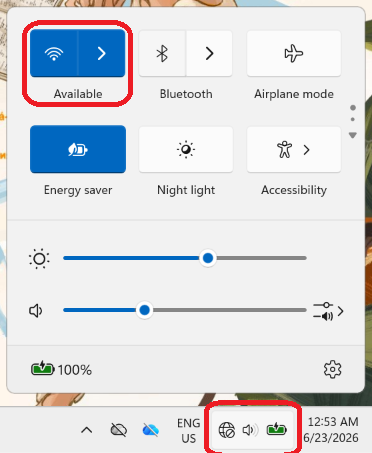
- Press the Wi-Fi tab in the bottom right corner of your desktop screen. Then, click the Wi-Fi icon that shows up in the top left of the pop-up.
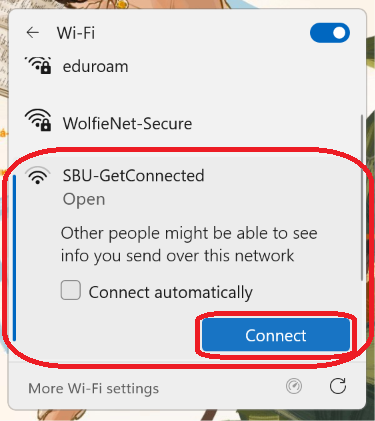
Navigate to the SBU-GetConnected network and click Connect.
For East Campus users: Connect to SBMED-Guest instead. You should then be redirected to a captive portal in your browser. Click on the Student/Faculty/Employee button at the bottom of the page. Once you're on the next page, please click on the Configure for eduroam button or the corresponding link below the button. Continue following along with these instructions by skipping to Step 4.
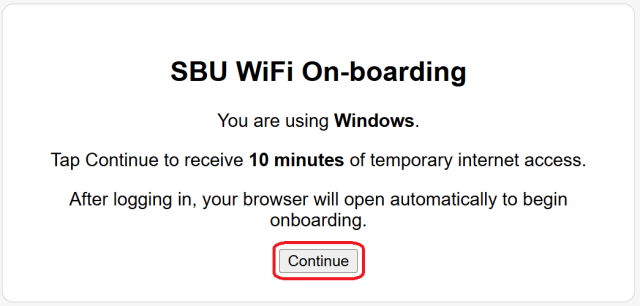
- The SBU WiFI On-Boarding page should automatically open in your browser. Click Continue to proceed.
- At this point, you should be automatically redirected to eduroam.stonybrook.edu in your browser. If not, type the address into your search bar or click on the link in the previous sentence to proceed.
- Select your Windows operating system.
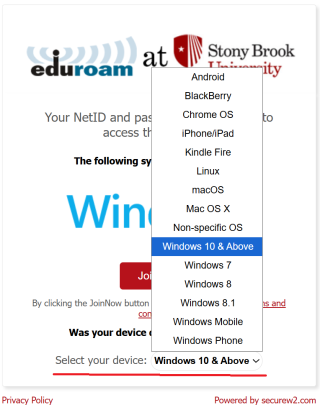
- Click JoinNow.

- The SecureW2 file will be downloaded onto your computer. Open/Run it from your browser or File Explorer.

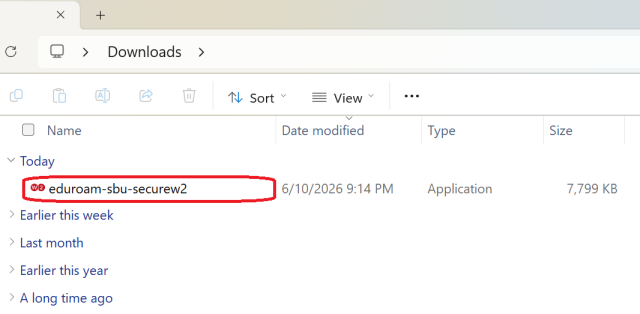
- The SecureW2 application will open the Eduroam at Stony Brook University configuration window. Click Next. It will then automatically redirect you to the NetID Single Sign-On page in your browser.

- Once the SSO Page opens up in your browser, enter your NetID and NetID Password and then click Login.

- You will then be redirected back to the application. Wait for the blue status bar at the bottom to show Joined, then click Done.

- You are now connected to the university's eduroam network!
- Finally, go back to your available Wi-Fi networks and forget/remove SBU-GetConnected. If you do not, SBU-GetConnected may interfere with reconnecting to Eduroam when moving around campus.
Configuring Your Wi-Fi Profile Before Arriving On Campus
If you are not on campus while setting up your Wi-Fi profile, you will not be connected to Eduroam upon getting to the success landing page. However, once you arrive on campus, you may select Eduroam as your Wi-Fi network in your device. It should then connect automatically as long as you have successfully followed the above steps before arrival.