

Sharing FeedbackFruits templates with colleagues
Sharing the FeedbackFruits templates with colleagues helps promote consistency and save time when designing interactive learning activities. It ensures everyone can easily build on proven formats and maintain a high standard of engagement across courses.
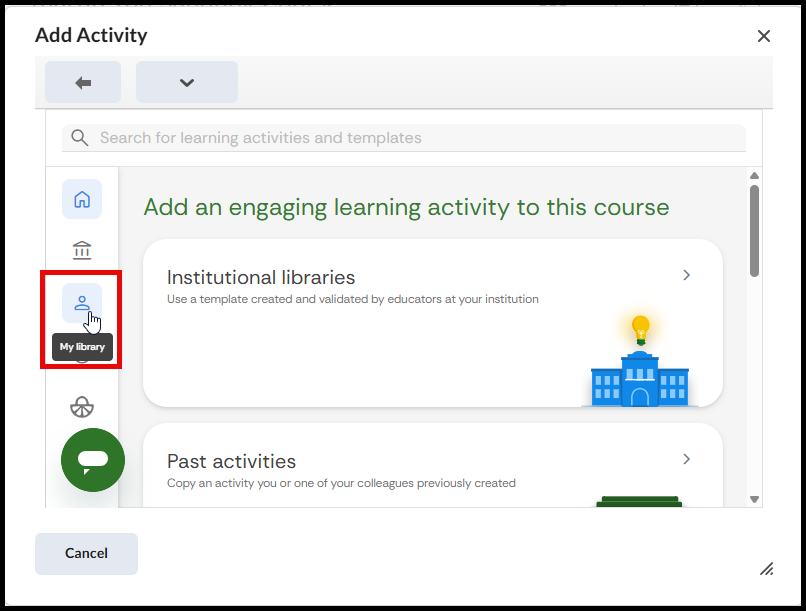
Once the FeedbackFruits menu opens, click on the person icon to access your library.
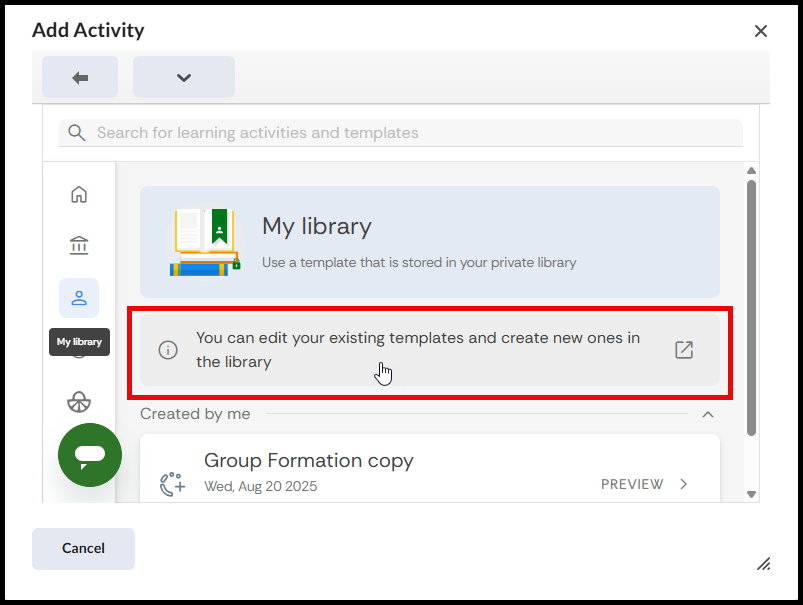
Click on the pop-up “You can edit your existing templates and create new ones in the library.” This will open up your library.
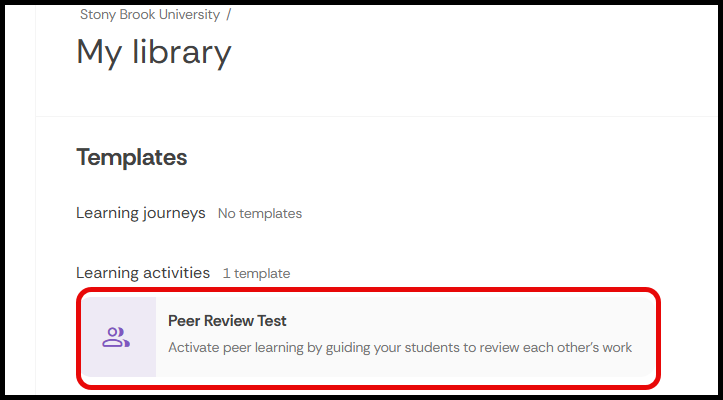
Select the template you wish to share.
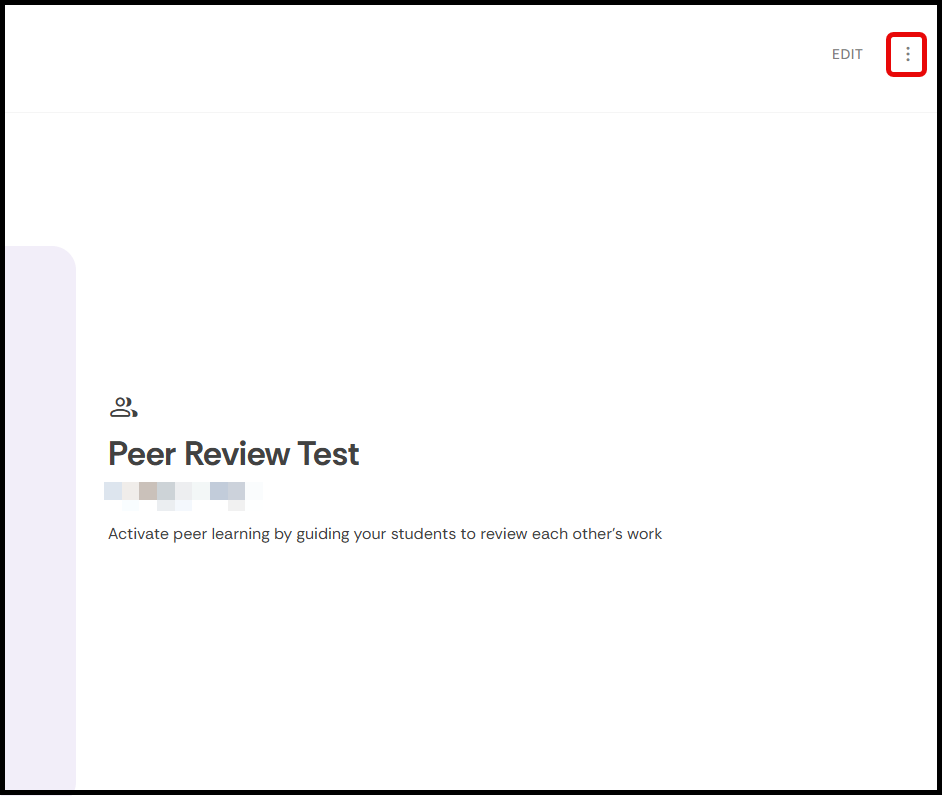
Once in the template, find the three dots at the top right of the template.
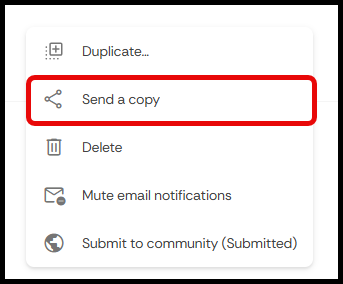
Select Send a copy.
Once the menu appears, enter the email address of the person you wish to share the template with.
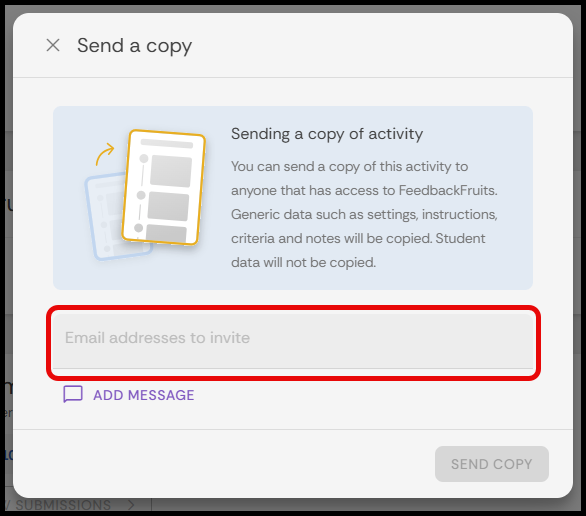
- Click on Send Copy (Optional: Add a message)