

Cisco IP Phone 7800 Series
The guide covers the phone’s buttons and common tasks such as placing, answering, holding, transferring, and forwarding calls, checking voicemail, and adjusting volume and settings.
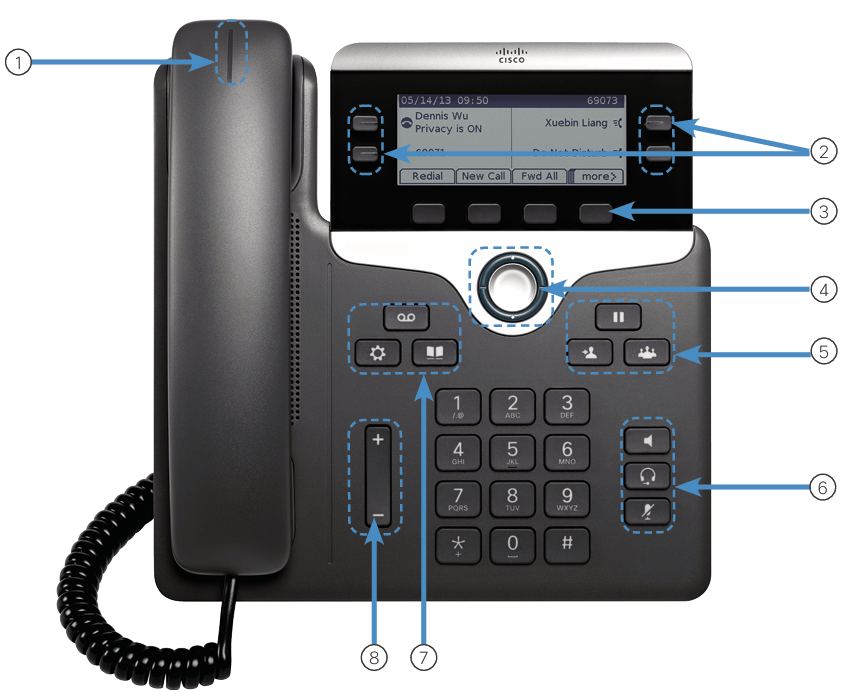
Your Phone
- Incoming call or voicemail indicator
- Line and feature buttons
- Softkeys
- Navigation (navigation ring and Select button)
- Hold, Transfer, and Conference
- Speakerphone, Headset, and Mute
- Voicemail, Applications, and Directory
- Volume
Line and Feature Buttons
Use line and feature buttons to view calls on a line, or access features such as Speed Dial.
Buttons illuminate to indicate status:
- Green, steady: Active call
- Green, flashing: Held call
- Amber, steady: Private line in use
- Amber, flashing: Incoming call
- Red, steady: Remote line in use
- Red, flashing: Remote line on hold
Place a Call
Enter a number and pick up the handset.
Answer a Call
Press the flashing amber line button.
Put a Call on Hold
- Press Hold.
- To resume a call from hold, press Hold again.
View Your Recent Calls
- Press Applications.
- Scroll and select Recents.
- Select a line to view.
Add Another Person to a Call (7811)
- From an active call, press Conference.
- Press Calls, select a held call, and press Yes.
Add Another Person to a Call (7821, 7841, 7861)
- From an active call, press Conference.
- Select a held call and press Yes.
Transfer a Call to Another Person
- From a call that is not on hold, press Transfer.
- Enter the other person’s phone number.
- Press Transfer again.
Make a Call with a Headset
- Plug in a headset.
- Enter a number using the keypad.
- Press Headset.
Make a Call with the Speakerphone
- Enter a number using the keypad.
- Press Speakerphone.
Mute Your Audio
- Press Mute.
- Press Mute again to turn mute off.
Listen to Voice Messages
Press Messages and follow the voice prompts. To check messages for a specific line, press the line button first.
Forward All Calls
- Select a line and press Fwd all.
- Dial the number that you want to forward to, or press Voicemail.
- When you return, press Forward off.
Adjust the Volume in a Call
Press Volume up or down to adjust the handset, headset, or speakerphone volume when the phone is in use.
Adjust the Ringtone Volume
Press Volume up or down to adjust the ringer volume when the phone is not in use.
Change Ringtone
- Press Applications.
- Select Preferences > Ringtone.
- Select a line.
- Scroll through the list of ringtones and press Play to hear a sample.
- Press Set and Apply to save a selection.
Adjust the Screen Contrast
- Press Applications.
- Select Preferences > Contrast.
- Press up to increase, or down to decrease, the contrast.
- Press Save.
Adjust the Screen Backlight
- Press Applications.
- Select Preferences > Backlight.
- Press On to set the backlight on or press Off to set backlight off.