

Changing font sizes and color
Changing the text font size and color in your SB You website is only possible in the block editor, not in the classic editor. Instructions on enabling and switching between different editor modes can be found in our Changing editor mode guide.
- Go to your page or post.
- Create a text block using the Adding content to SB You page guide, or use an existing one. Text blocks can be a Paragraph, Heading, or List block.
Click onto the block, and on the right side, you will see a sidebar with options. If it’s not focused on the block tab, click onto it.

- In the color section, you can change the color of the text and background. Select your desired by:
- Clicking on the transparent background block to select your own color.
- Using the preset template colors.

For font size, go to the Typography section, you can use the preset sizes, or adjust your own by clicking on the settings button and setting a custom size.
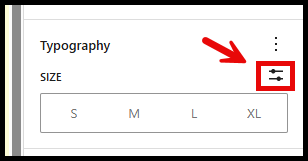
- You can use the slider, text input, and you can also change the measurement unit.

- There are other options to format your text if you click on the three dots on the top right of the Typography section.
Supported By
Academic Technology Services
(631) 632-9800