

Turnitin Draft Coach
Turnitin Draft Coach offers the opportunity to "develop citation, research and writing skills by providing feedback" for works written in Google Docs. All Stony Brook Google Apps users can run the tool to obtain instant feedback on issues identified by the application.
Frequently Asked Questions
Adding Draft Coach to your Google Doc
- Open Google Docs.
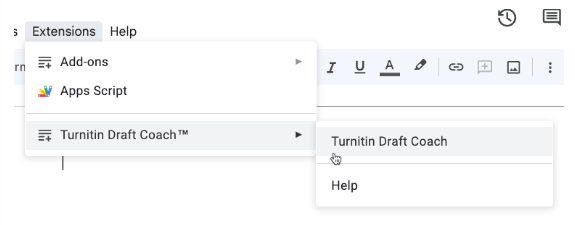
- Select Extensions, Turnitin Draft Coach, and then Turnitin Draft Coach again from the top menu bar.
3. The Draft Coach panel will appear on the right-hand side.
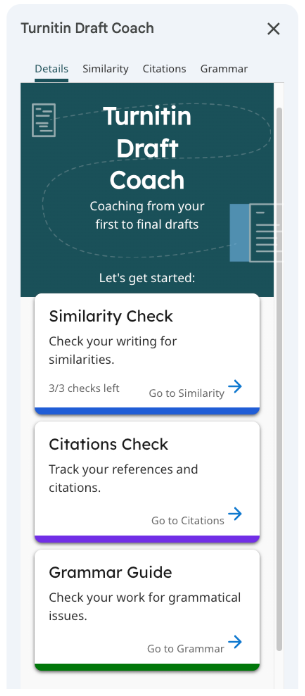
Similarity Check
You will be able to run a total of three Similarity Checks while drafting your assignment. We suggest using these strategically to get as much out of the reports as possible.
Create a plan for using your reports prior to beginning your assignment.
Think about the length of your assignment and the amount of source material you’re referencing when determining when to run your Similarity Checks.
We strongly suggest that you make an effort not to use your checks all at once. Spread them out to help you improve your writing and citations over multiple drafts.
To run your Similarity Check:
Add Draft Coach to your document.
Select the Similarity tab at the top of the panel or the Similarity Check card in the middle of the panel.
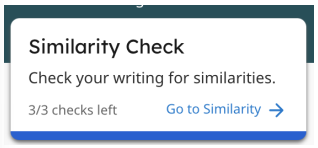
Select Run Similarity Check.
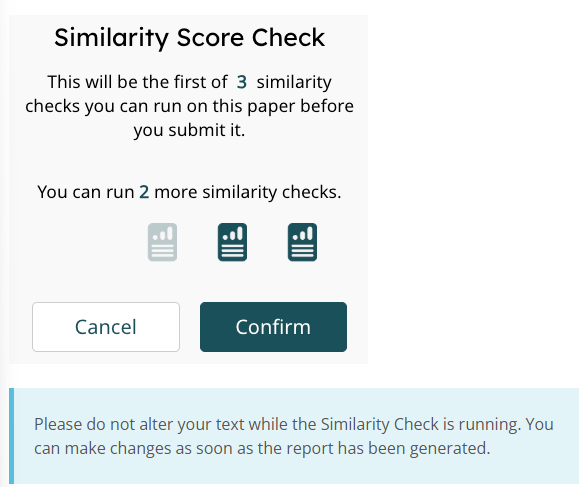
You will be shown how many reports you have left to run. Select Confirm if you would like to continue, or Cancel if you would like to continue working on your assignment.
If you received matches to your draft, don’t worry! It is normal to receive some matches in a well-referenced paper, and it doesn’t always mean that it is plagiarism.
If you have made changes to your assignment and would like to run a new report, select Run New Similarity Check. Draft Coach will tell you how many checks you have left to use.

You can open an interactive version of your Similarity Report by selecting View Full Report at the bottom of the side panel.
Citations Check
You will be able to run as many Citation Checks as you like while you draft your assignment. You can either wait until you have finished and make any suggested corrections at the same time, or you can run a few checks throughout your drafting process and do it in stages.
To run your Citations Check:
Add Draft Coach to your document.
Select the Citations tab at the top of the panel or the Citations Check card in the middle of the panel.
Select Run Citations Check.
If you have made changes to your assignment and would like to run a new report, select Run New Citations Check.
Grammar Guide
You will be able to run as many Grammar Guide checks as you like while you draft your assignment. You can either wait until you have finished and make any suggested corrections at the same time, or you can run a few checks throughout your drafting process and do it in stages.
To run your Grammar Guide:
Add Draft Coach to your document.
Select the Grammar tab at the top of the panel or the Grammar Guide card in the middle of the panel.
Select Run Grammar Check.
If you have made changes to your assignment and would like to run a new report, select Run Grammar Check.
View full report
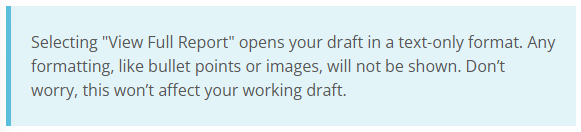
Once you have run at least one Similarity Check, you will be given the option to view the full report. Selecting the View Full Report button at the bottom of your Draft Coach similarity report will launch your draft into a new window. Here you will be able to:
Switch between the Sources Overview and a list of All Sources.
What's the difference? Source Overview provides a list of the top matching sources, excluding overlapping matches. It is also the view shown in Draft Coach. All Sources lists every match we have found in your draft.
Temporarily exclude search repositories.
By selecting the settings cog, stop any matches showing that were found either on the internet, from publications, or submitted works from students globally. These exclusions do not save or pass back to Draft Coach.
Temporarily exclude matches to your draft
By selecting the settings cog, choose to exclude any matches found within a bibliography, quotes, citations, or small matches. These exclusions do not save or pass back to Draft Coach.
Download or print your similarity report
If you have made any temporary exclusions in this report view, they will not be reflected in your download.
You will be able to run a total of three Similarity Checks while drafting your assignment. Turnitin suggests using these strategically to get as much out of the reports as possible.
Turitin Draft Coach checks for MLA & APA. Read Turnitin's Citations Check guide to learn more.
DraftCoach is only available for Google Docs, it is a Google extension.