

Manager Task: Creating Employees Schedules in myTIME
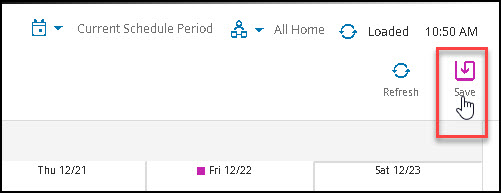
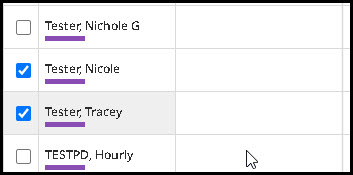
Managers can add individual work hours (shifts) to single or multiple employees. Be sure to click Save when you've added a shift.
Adding individual shifts to an employee's schedule
- In myTIME, from the home menu,
 go to Schedules > [Select from the schedules listed]. This will list your direct report employees.
 - Right-click on an employee's name
- Choose Add Shift.

- Add a Start time and End time, add a comment if necessary, then click Apply.
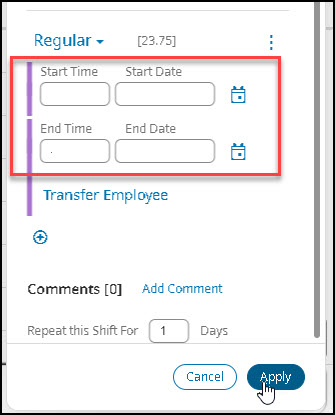
- If the date is incorrect on your screen you can change it by clicking on it.
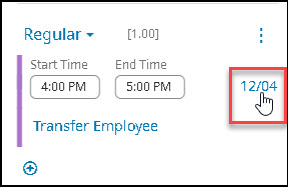
- If the date is incorrect on your screen you can change it by clicking on it.
- After clicking Apply, click Save on the next screen
Supported By
Customer Engagement and Support