

Scanning to Email on HP Printers
Step-by-Step instructions to use the scanning function of the HP printers/scanners/copiers located throughout campus.
- Before you begin, make sure you have your original document in either of the following locations:
Top of the printer: The original document should be facing up, and the top of your document goes into the feed first. You will hear a “beep” sound, that sound will indicate that your document is ready for copying.
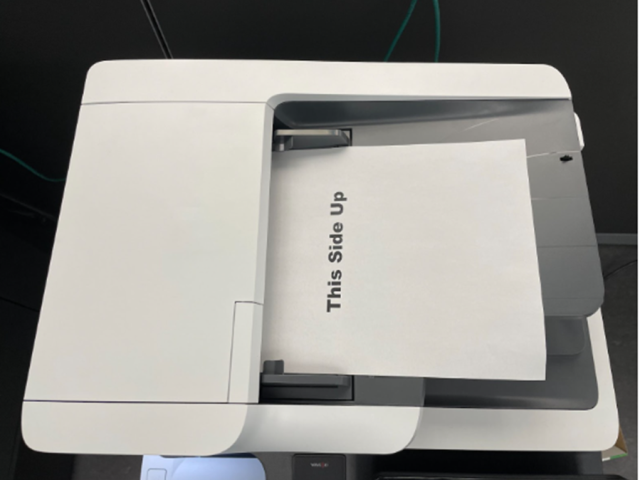
Inside the Printer: The original document should be facing down, and the top of your document should be lined up with the small white triangle on the top left. Once you have finished placing your documents, please close the lid.

Please tap your student ID above the ID scanner.
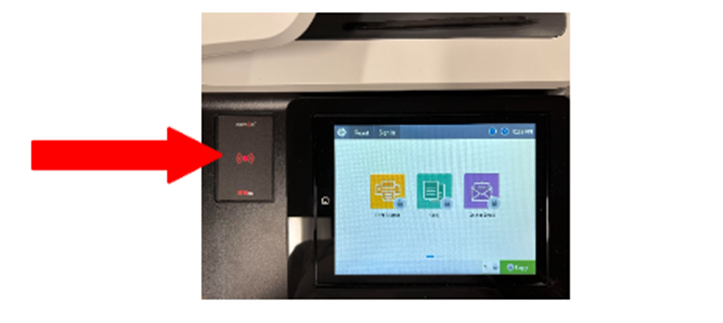
The display will inform you of the amount of quota you have left for the corresponding semester. Press “OK” to continue

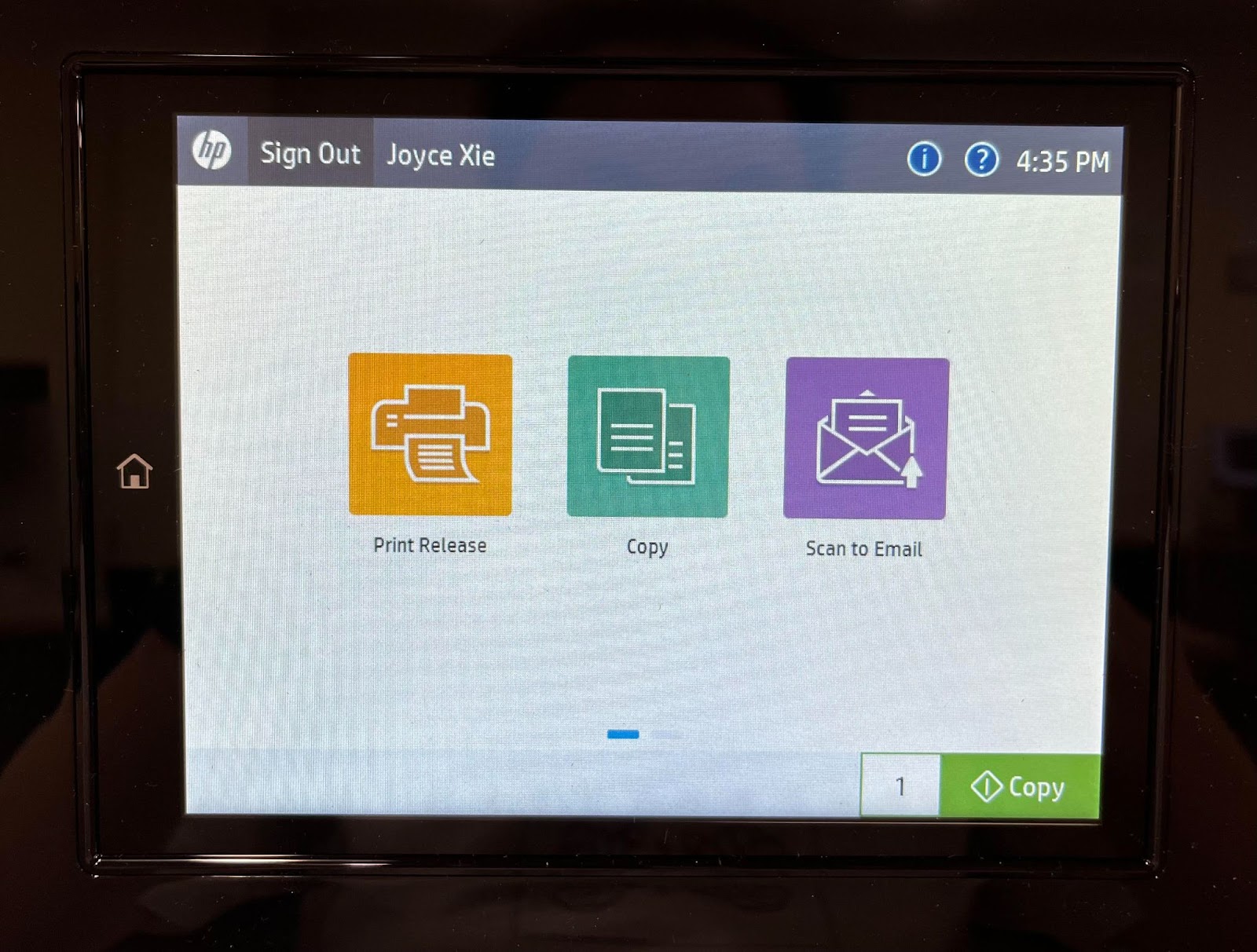
Click “Scan to Email”
Review the e-mail settings, and you may optionally “Scan and preview” your document for review befoire sending.
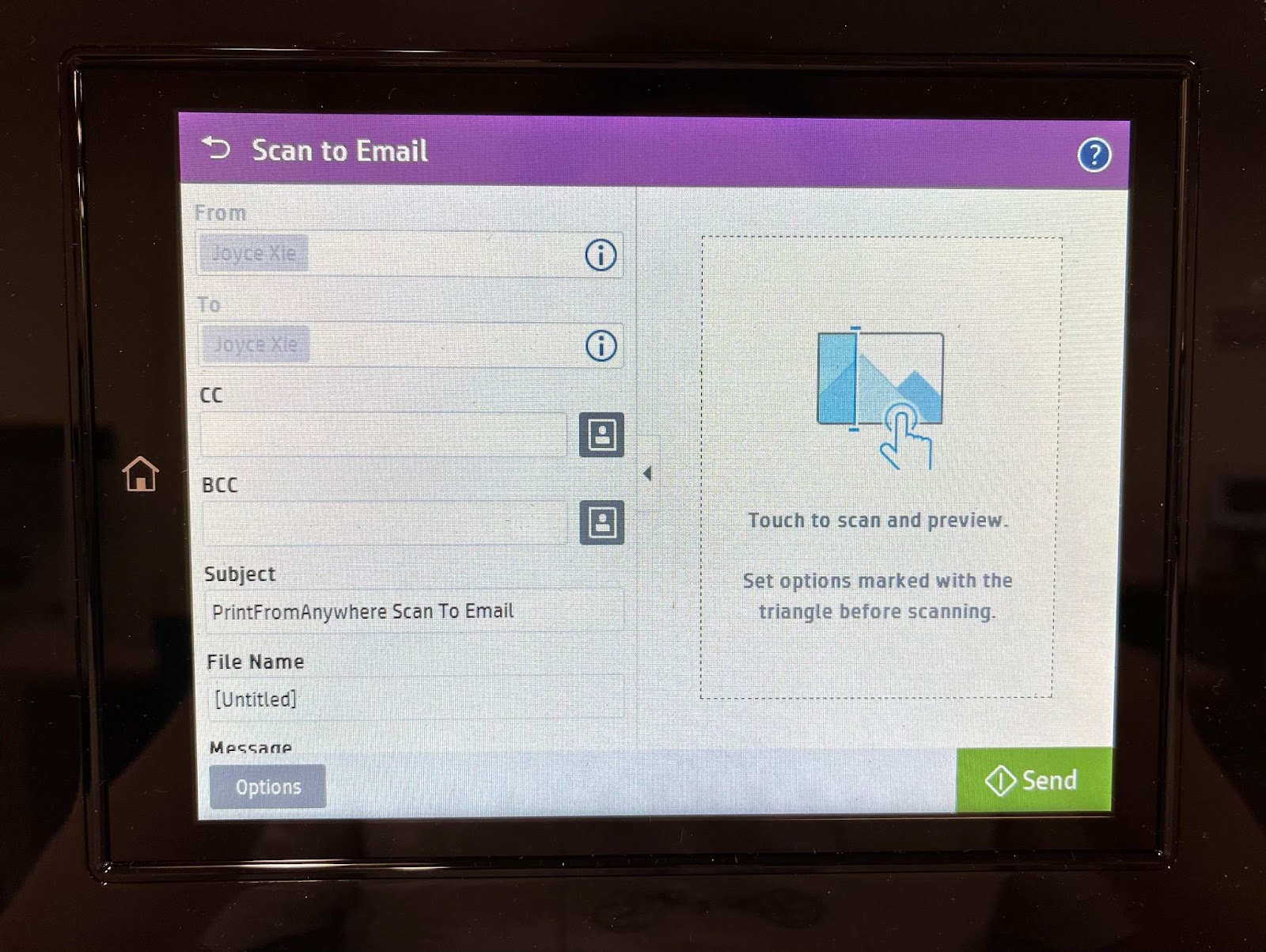
- Once you are satisfied with your preview, click “send” and you will receive your document in your email as a PDF file.
- Please remember to log out after each use!
Learn More about using HP printers, scanners and copiers.
Supported By
Need Help? The fastest way to get support is by submitting a request through our ticketing system.
Get Help With Printing