Changing an Incomplete (I) Grade in the SOLAR Faculty Center
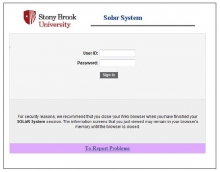
- Log into SOLAR
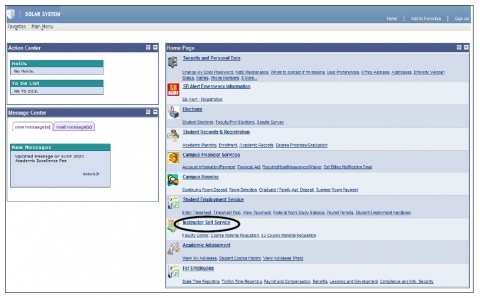
- Select Instructor Self Service
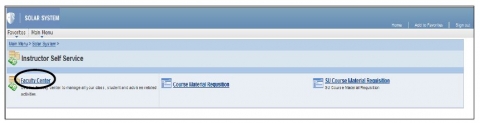
- Select Faculty Center
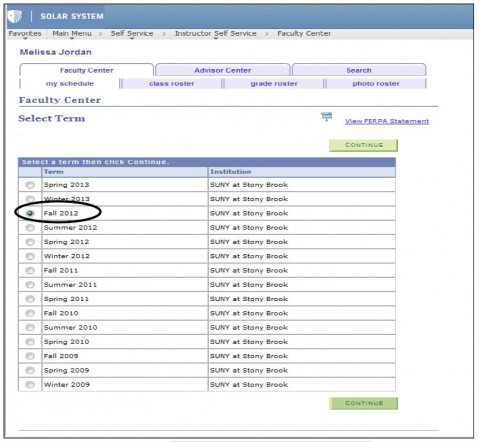
Change the term as needed by clicking
 and selecting the button next to the appropriate term.
For all terms prior to Fall 2012, a grade change form will need to be submitted to change an "I" grade on a student's record. You will NOT be able to change a student's "I" grade via Faculty Center for any terms prior to Fall 2012.
- Click on the grade roster icon
 next to the appropriate course.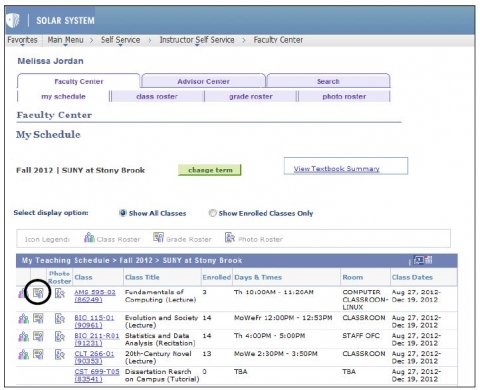
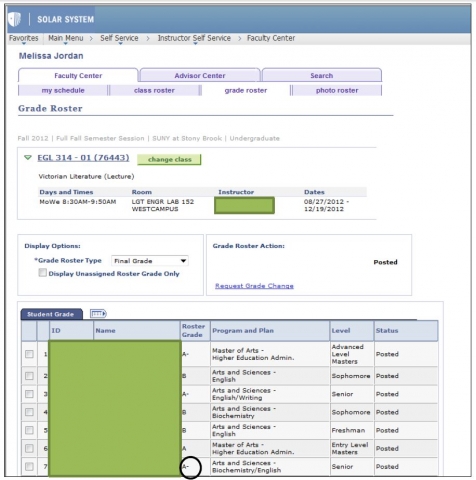
Click on the "Request Grade Change" link located in the Grade Roster Action box.
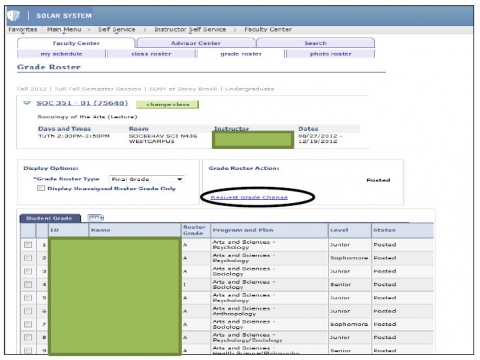
If the drop-down menu does not appear under the Official Grade column of the grade roster grid for an "I" grade, this could mean that the student's degree has been awarded and therefore no changes can be made to the academic record, or that your approval status to the grade roster does not give you permission to change this grade via Faculty Center.Under this circumstance, you should contact your department to have your Grade Roster access updated if needed and appropriate or to inquire about how to submit a manual (paper) grade change form to update the student's grade.
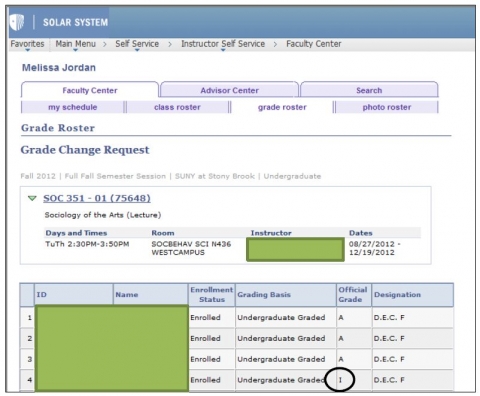
If your Grade Roster access allows you to change an "I" grade via Faculty Center and the student's degree has not yet been awarded, you will see a drop-down menu for the "I" grade under the Official Grade column on the grade roster grid.
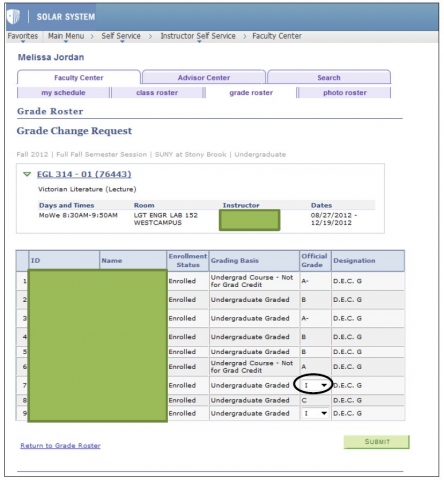
- Using the drop-down menu, select the new grade from the list and click
 found at the bottom of the grade roster grid.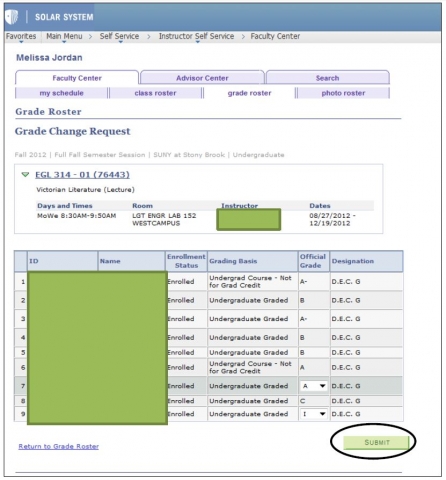
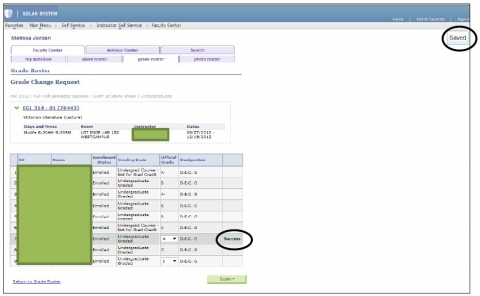
The last column on the grade roster grid, on the row where the "I" grade was updated, will read Success and you will see SAVED at the top right corner of the page. This means the grade has officially been changed on the student's academic record.
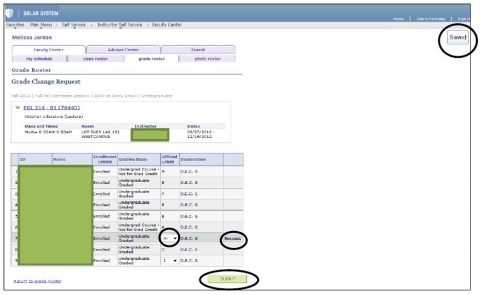
If you find that you have made an error after you have clicked "Submit," the system will allow you to update the grade again for the same student, as long as you have not left the page.
Click the drop-down menu again, select the appropriate grade, and click "Submit" again.
The last column on the grade roster grid, on the row where the "I" grade was updated, will read Success and you will see SAVED at the top right corner of the page.
Once you leave the page, the grade will be changed. In order to update any official grade that is not an "I," a manual (paper) grade change form is needed. Please visit your department office to obtain this form.