

Navigating SOLAR Tips and Tricks
SOLAR's Primary Navigation

- Click Home to go back to the Homepage.
- Click Add to Favorites to bookmark a page to refer back to it (within SOLAR).
- Click Sign out to leave SOLAR.
Additional Features & Functions
- Use the options at the top right of the records list when viewing records..

- Customize - the data by personalizing the columns and change the sort order
- Find - a keyword among the records
- View All - data with rather than scrolling through the pages
 - Pops data into its own window
 - Download the data into a spreadsheet. *You may have to scroll horizontally to see this button.
 - User the arrows to scroll through the pages of data
 Some of the report pages have a Download to Excel button. Click this button to download the information to an Excel spreadsheet.
- At the bottom of most pages..

Save – FREQUENTLY!!
Return to Search - brings you back to the search page so that you can search for another record.
Next in List - brings you to the next record in the search result list. This is especially helpful when you are approving time sheets. - You may see the word Processing blinking in the right upper corner of the window. You cannot do anything until it stops blinking.

- Using the Look up Function:
 Some fields have a magnifying glass (Lookup button) next to them. Click this button to go to the Lookup page for this field.
In this example we are looking up 4-digit Zips:
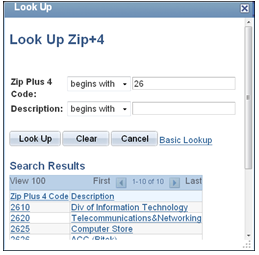
- Click the Lookup button on this page and a list of valid values will be displayed.
- Use the arrows or View All to scroll through the choices.
- Click a value to select it.
- Or, click Cancel to return to the original page without selecting a value.
- Click Clear to clear the search and start over.
Supported By
Customer Engagement and Support
Need Help? The fastest way to get support is by submitting a request through our ticketing system.
Get Help With SOLAR