How to Select the Grade/Pass/No Credit (G/P/NC) Option
Learn more about the Grade/Pass/No Credit (G/P/NC) option, and how to select it via SOLAR.
Important Information About the G/P/NC Option
- Earning a P or NC in a course does NOT fulfill DEC, SBC, major, or minor requirements.
- Earning a P counts toward the University requirements of 39 upper division credits and the total credits toward graduation.
- You cannot G/P/NC a class that is S/U or A,B,C/U graded.
- If you are a TAP recipient, "P" grades are accepted as degree applicable credits as of Fall 2024.
- The G/P/NC option cannot be selected for 2nd or more attempts of the same course.
- The G/P/N/C option is available for only one course per semester.
- Neither the P nor NC is factored into your GPA.
- View the Academic Calendar for the deadline to select the G/P/NC option. Students are not eligible to petition to change their G/P/NC selection after the deadline has passed.
Is the G/P/NC option right for you?
- For financial impact, academic impact, or eligibility concerns, we strongly recommend that you meet with your academic advisor to see if the G/P/NC option is right for you.
If you are a veteran or the dependent of a veteran receiving benefits from the GI bill, earning a "P" or "NC" grade will have a significant financial impact. Speak with the Office of Veteran Affairs if you are considering the G/P/NC option.
How to Select the G/P/NC Option on SOLAR:
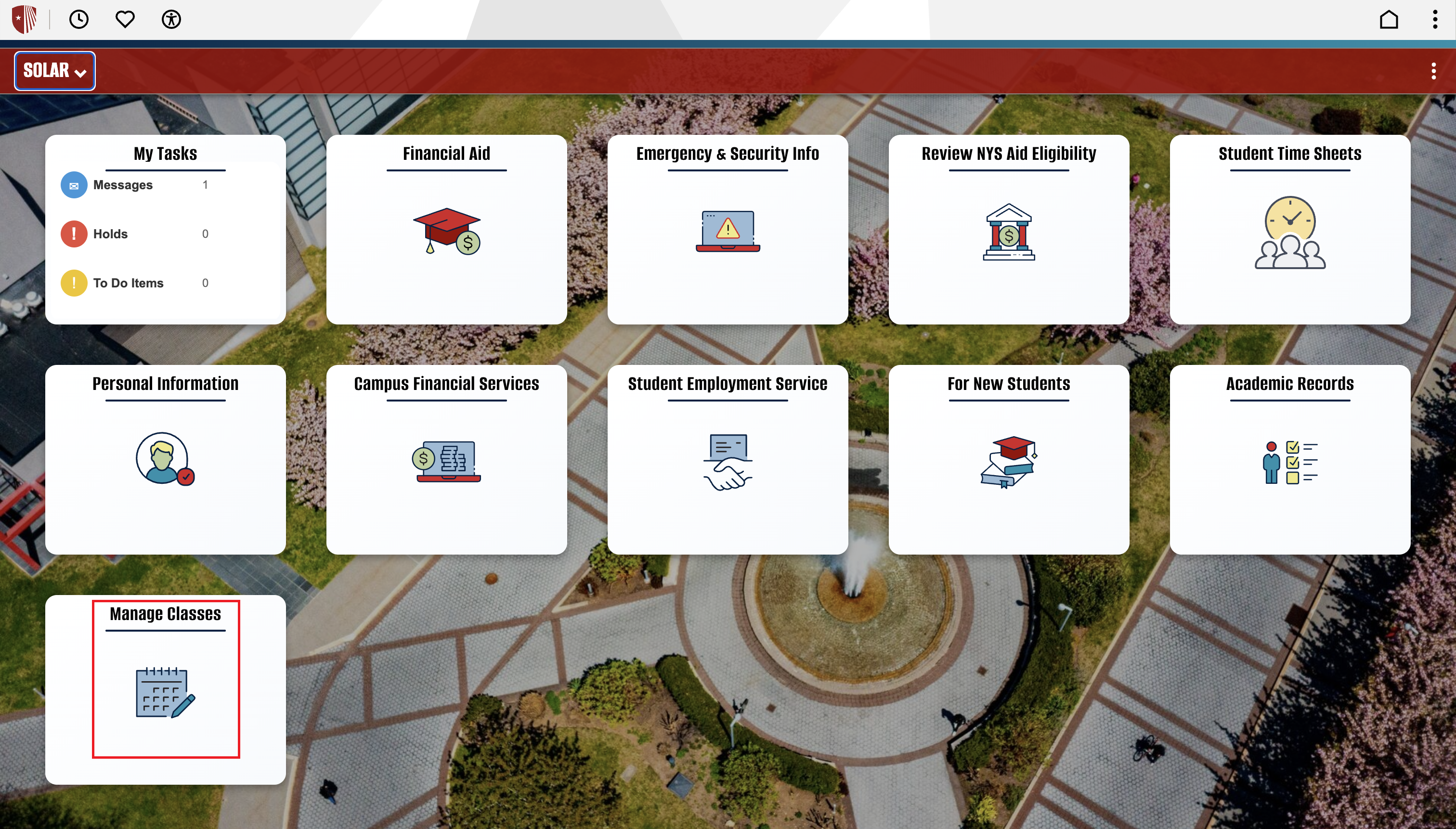
Getting Started: Once logged into SOLAR, select the “Manage Classes” tile.
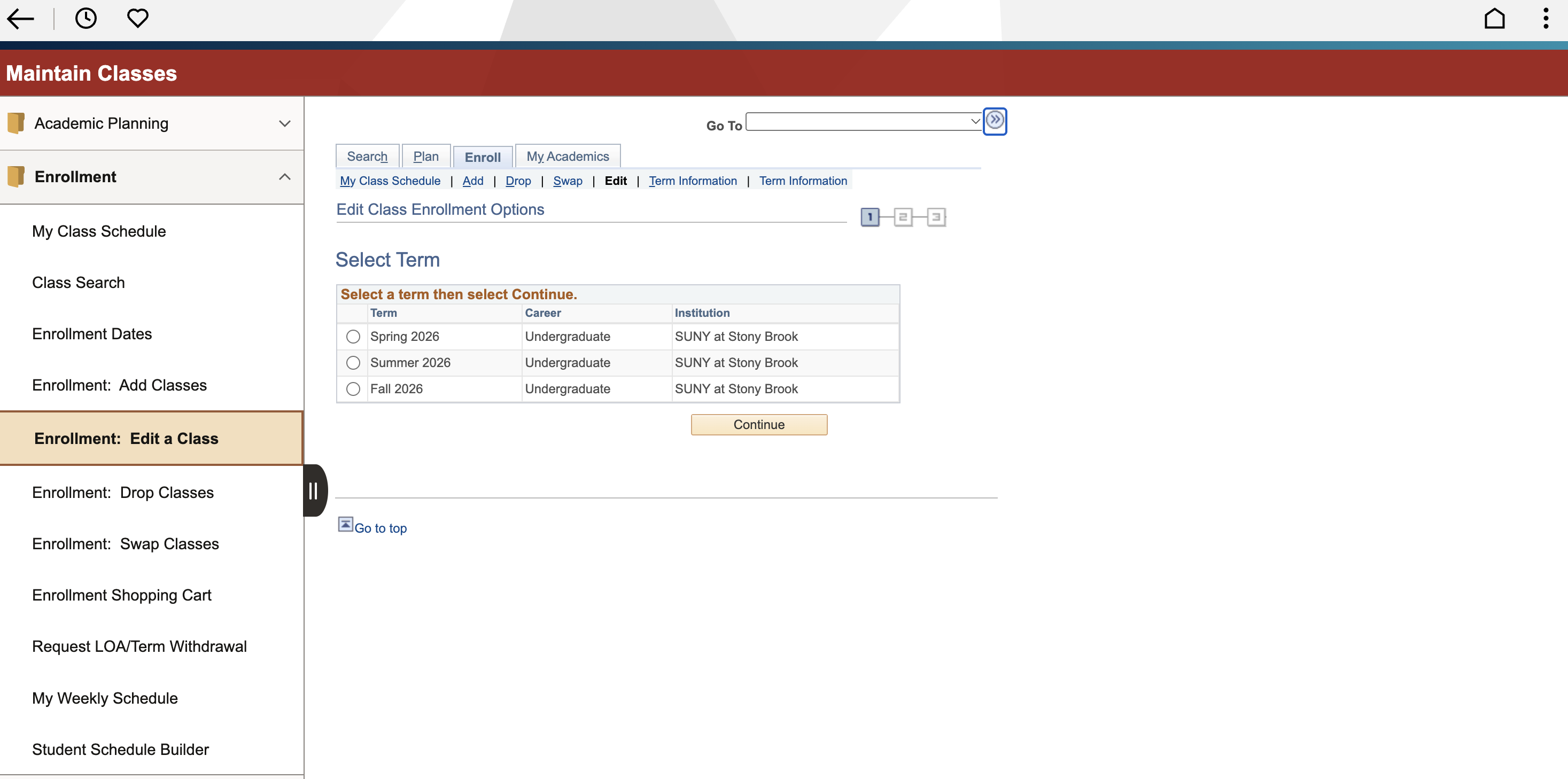
Step 1: On the left side Enrollment navigation, select Enrollment: Edit a Class. Select what term you would like to edit a class in and continue.
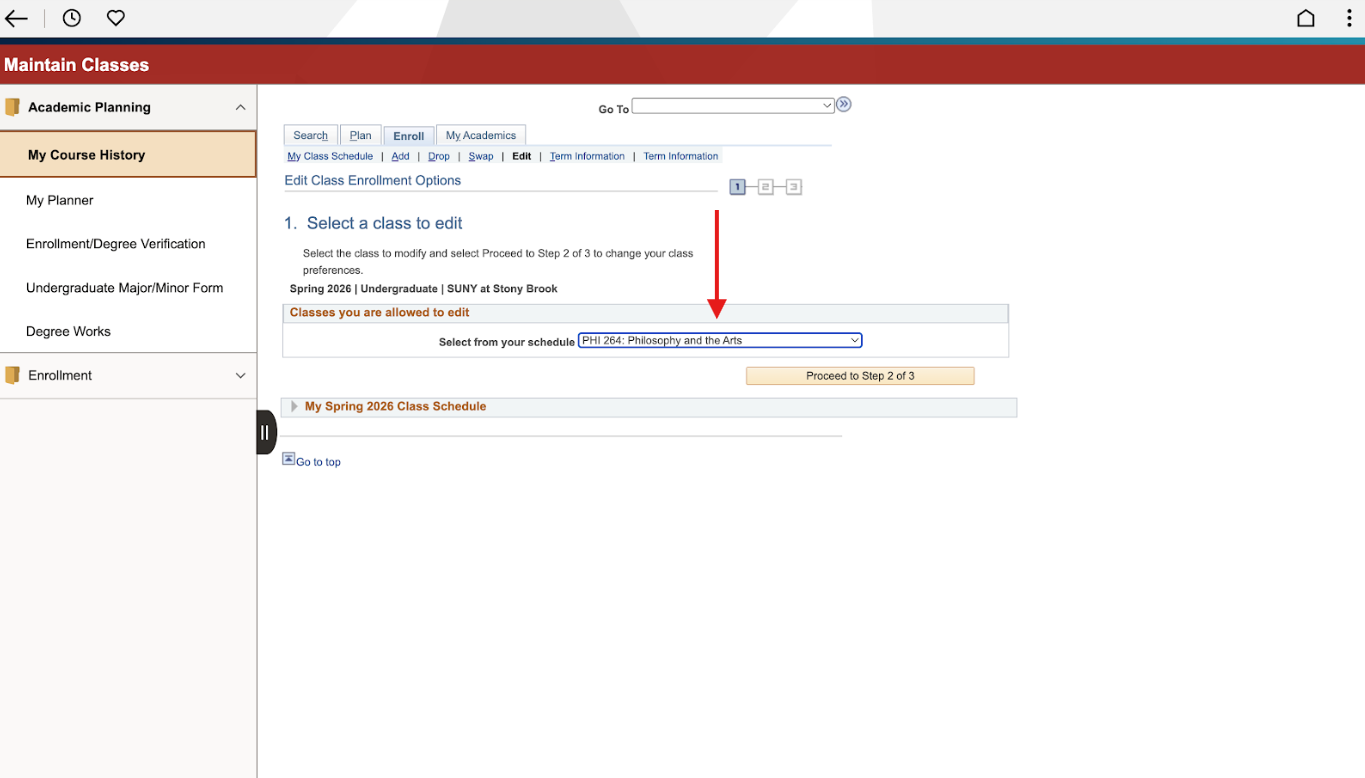
Step 2: In the dropdown list provided, select a class from your schedule that you wish to edit, and proceed to Step 2 of 3.
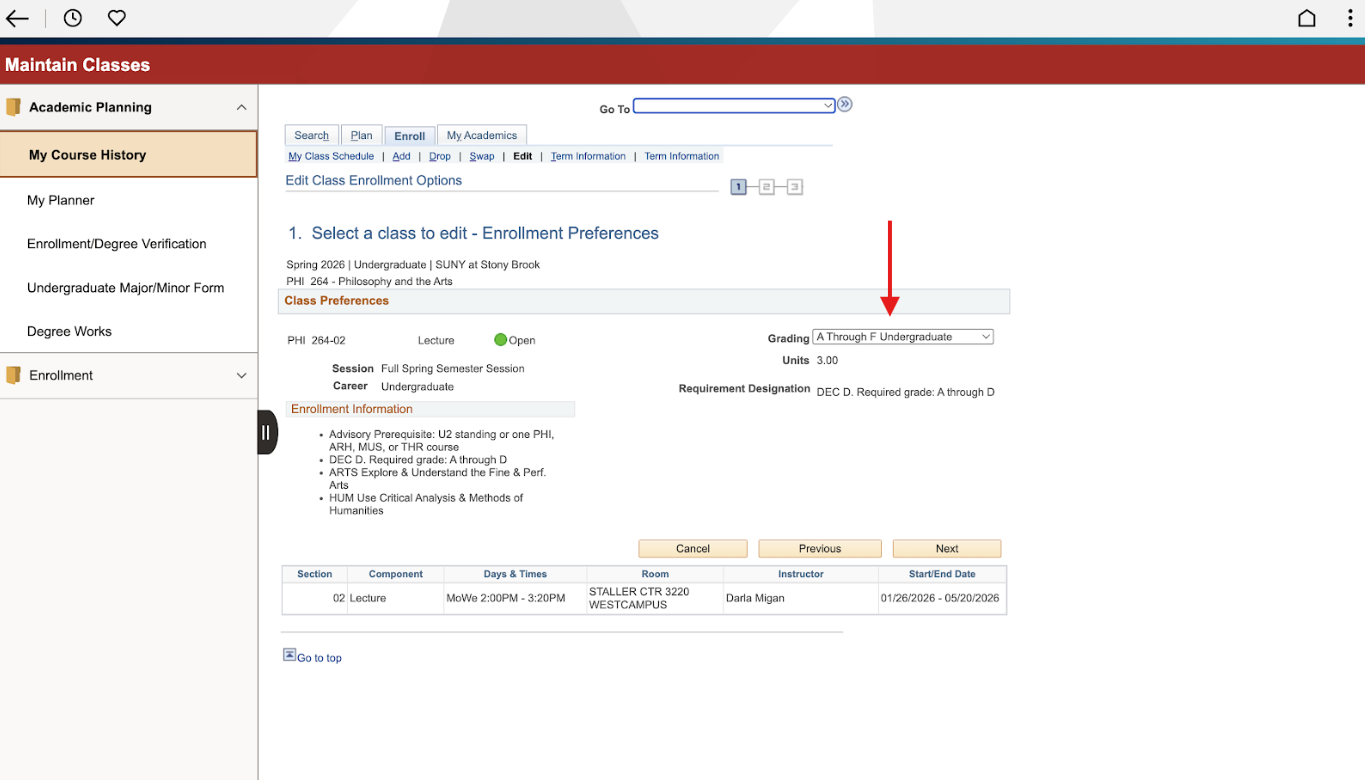
Step 3: After confirming that the information on the next screen is correct, expand the “Grading” dropdown menu that typically lists “A Through F Undergraduate”.
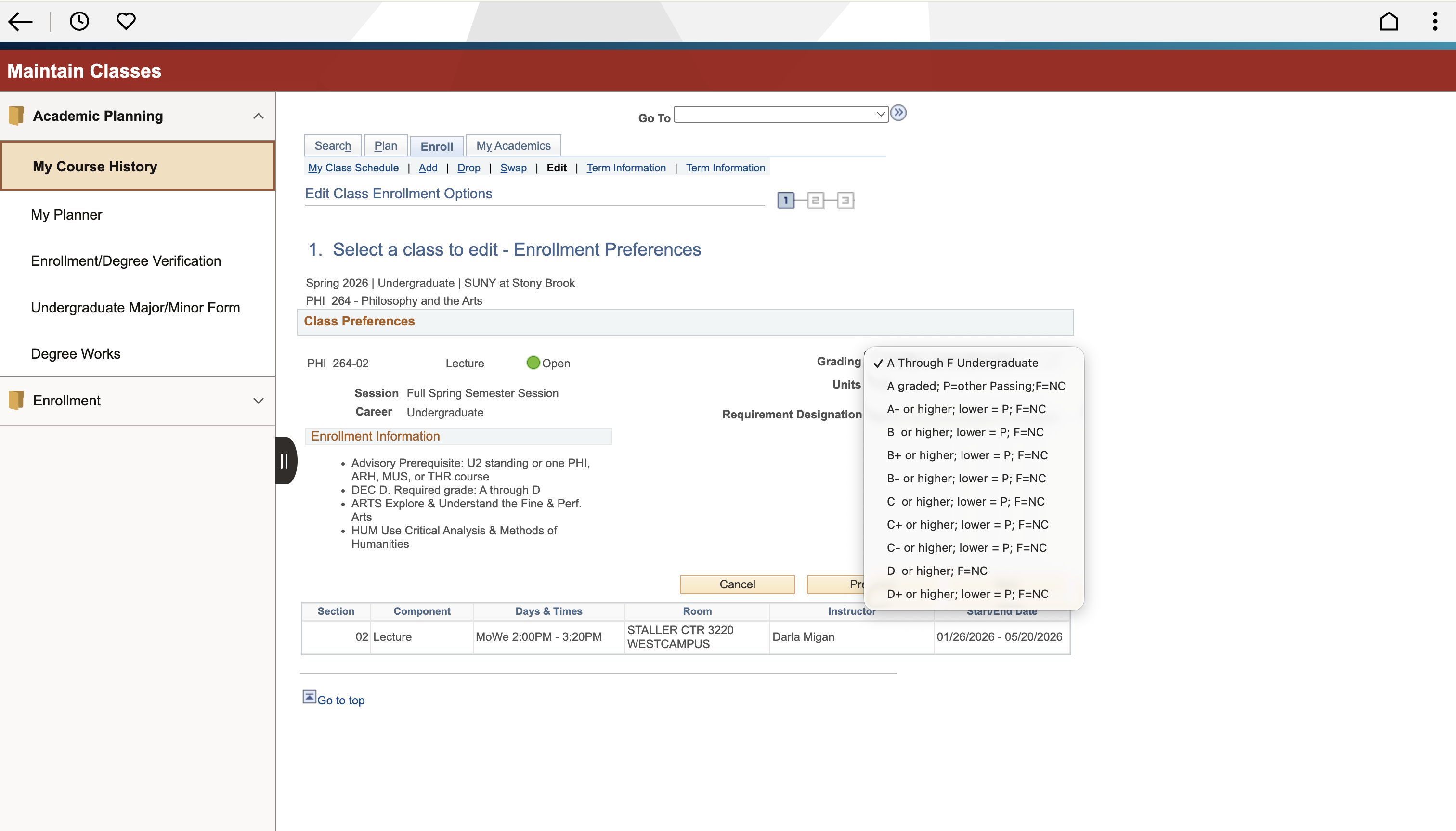
Step 4: Select which Grade letter you are willing to accept on your transcript from this list. Each selection will indicate which grades will earn a Pass or No Credit grade.
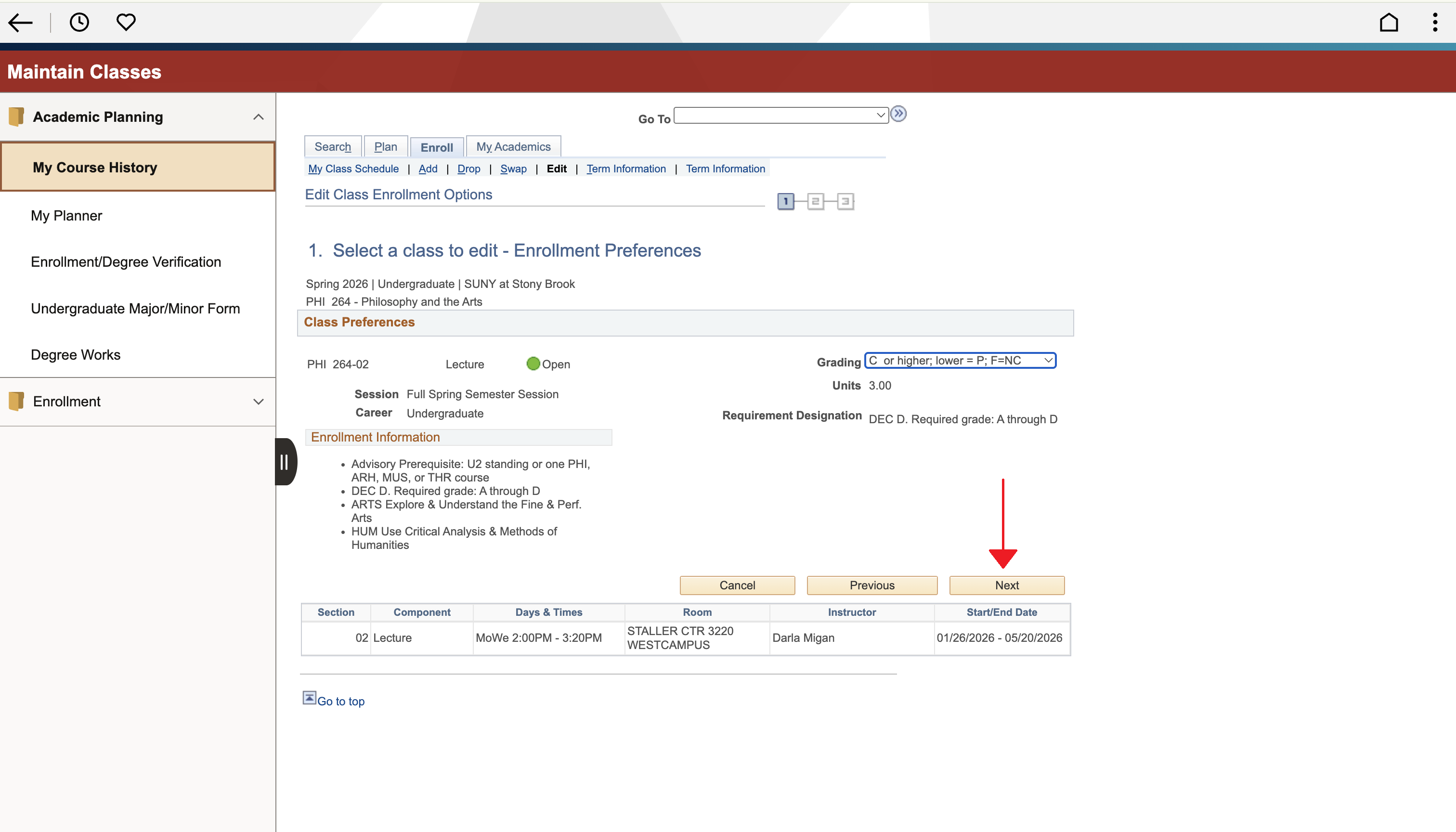
Step 5: Once you have selected your GPNC option, press Next to proceed.
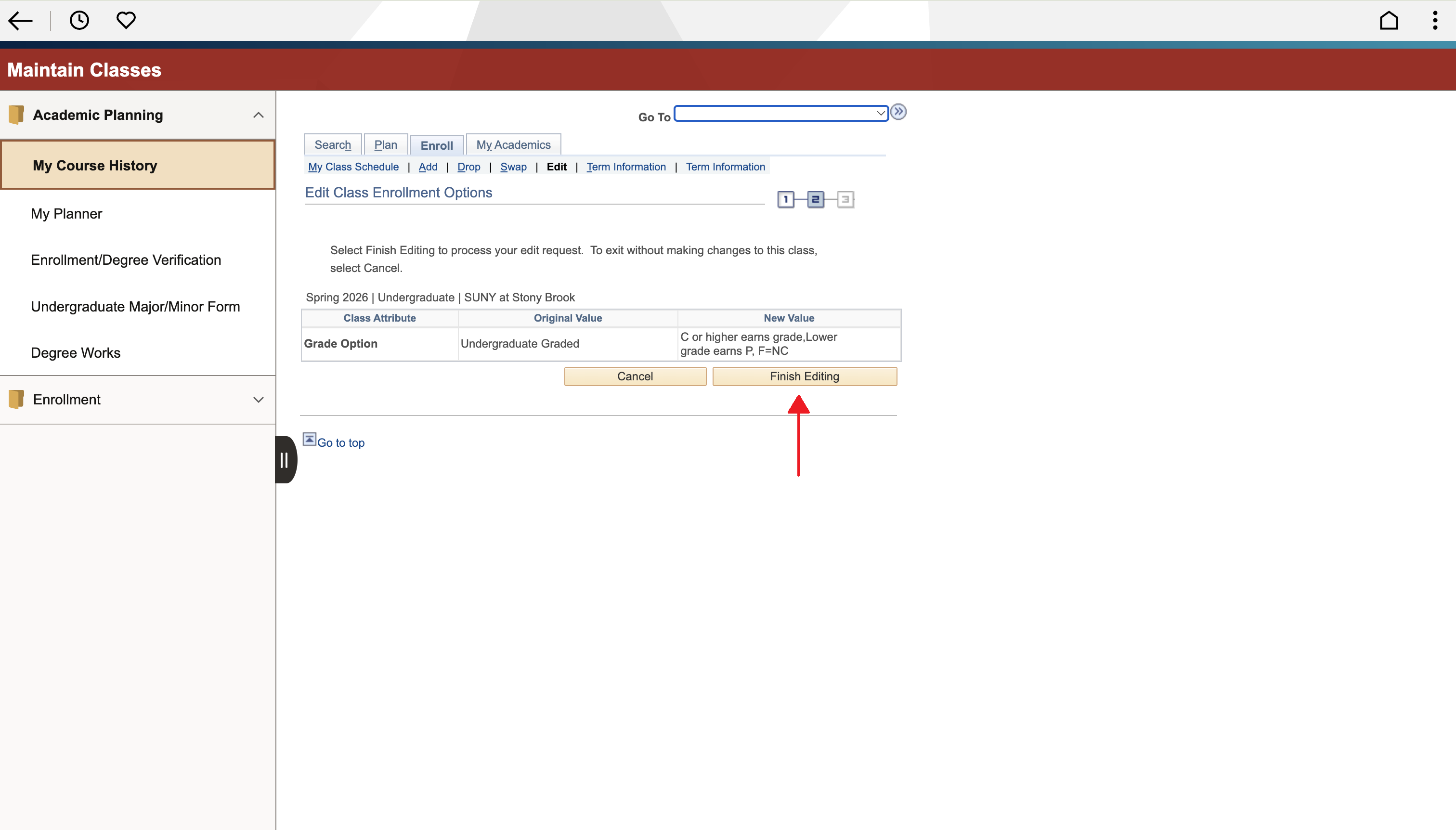
Step 6: Confirm that the Grade Option selection you have made for this class is correct. Then press Finish Editing.
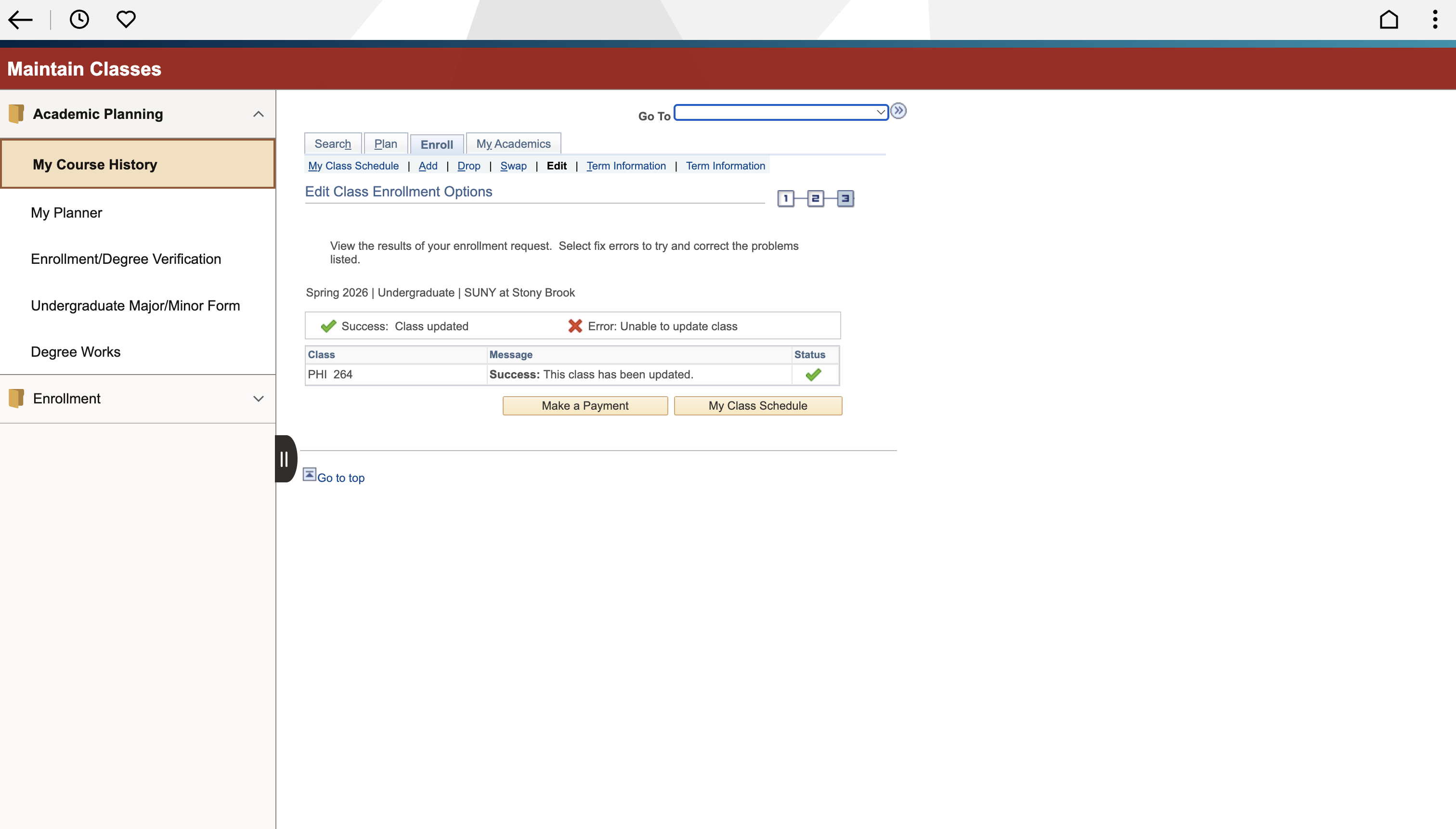
Step 7: See the Status column for a Green Check to indicate if your edit was successful, or Red X to indicate if you ran into an error.
Pro Tip: You can revert a course back to A through F grading before the G/P/NC deadline if you no longer wish to choose this option, or wish to use it for another course.