How to Search for Classes on SOLAR
The steps below will guide you through searching for classes on SOLAR, including searching for specific major courses, upper division courses, SBC courses, or online courses.
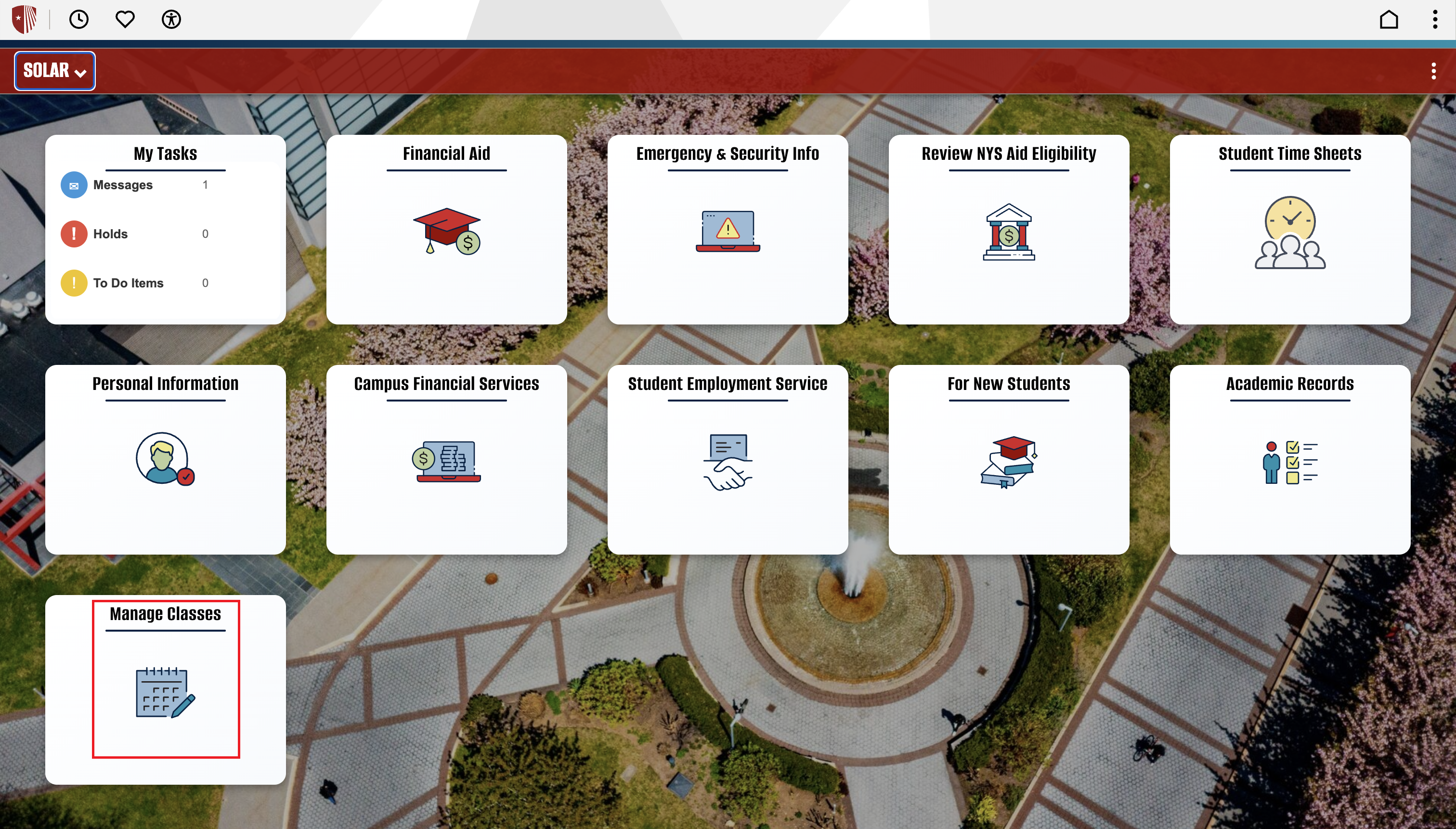
Getting Started: Once logged into SOLAR, select the “Manage Classes” tile.
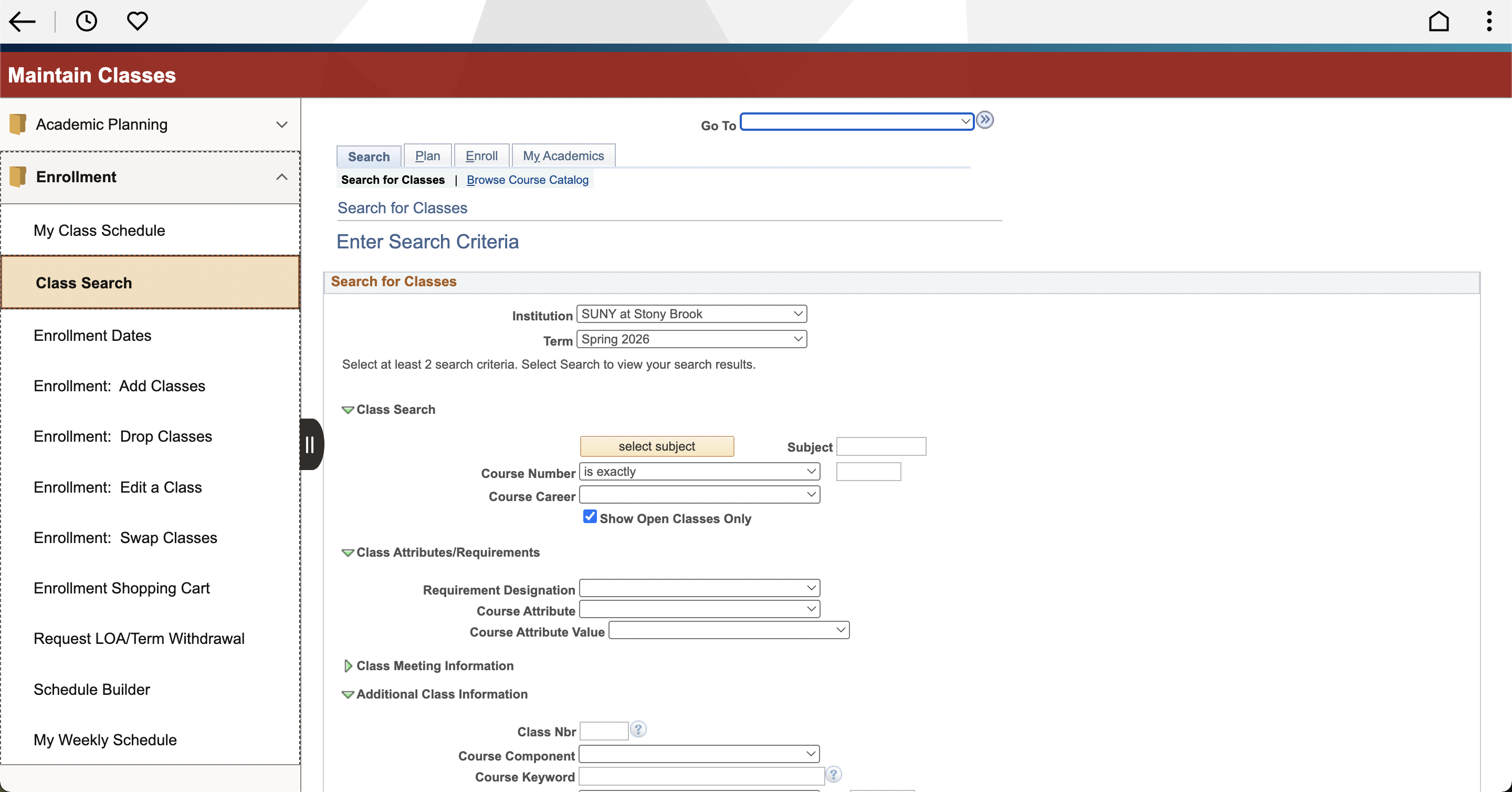
Step 1: Under the Enrollment dropdown, select the Class Search option.
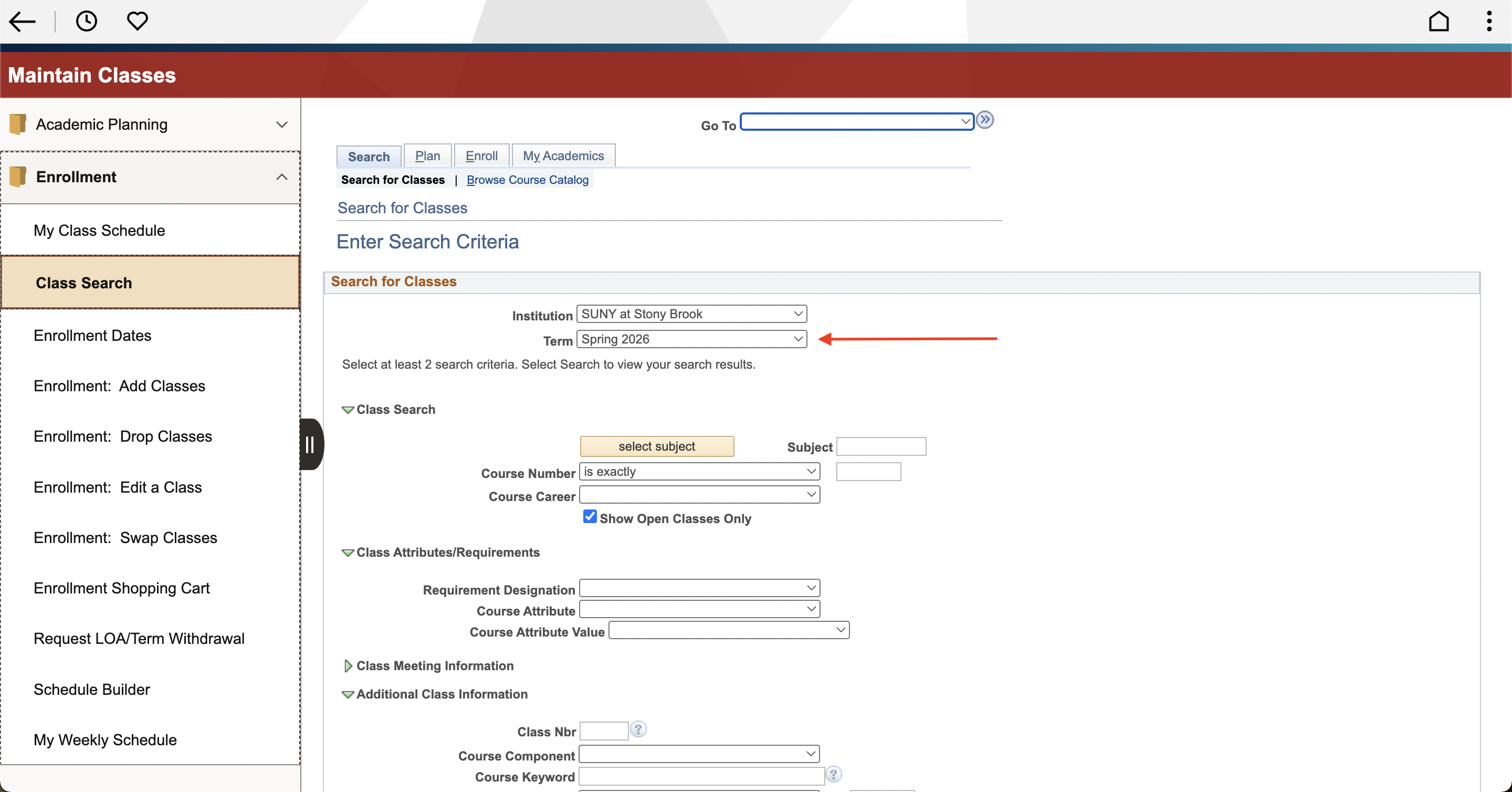
Step 2: Review and select the Term for the course search.
Major Course/Upper Division Course Search
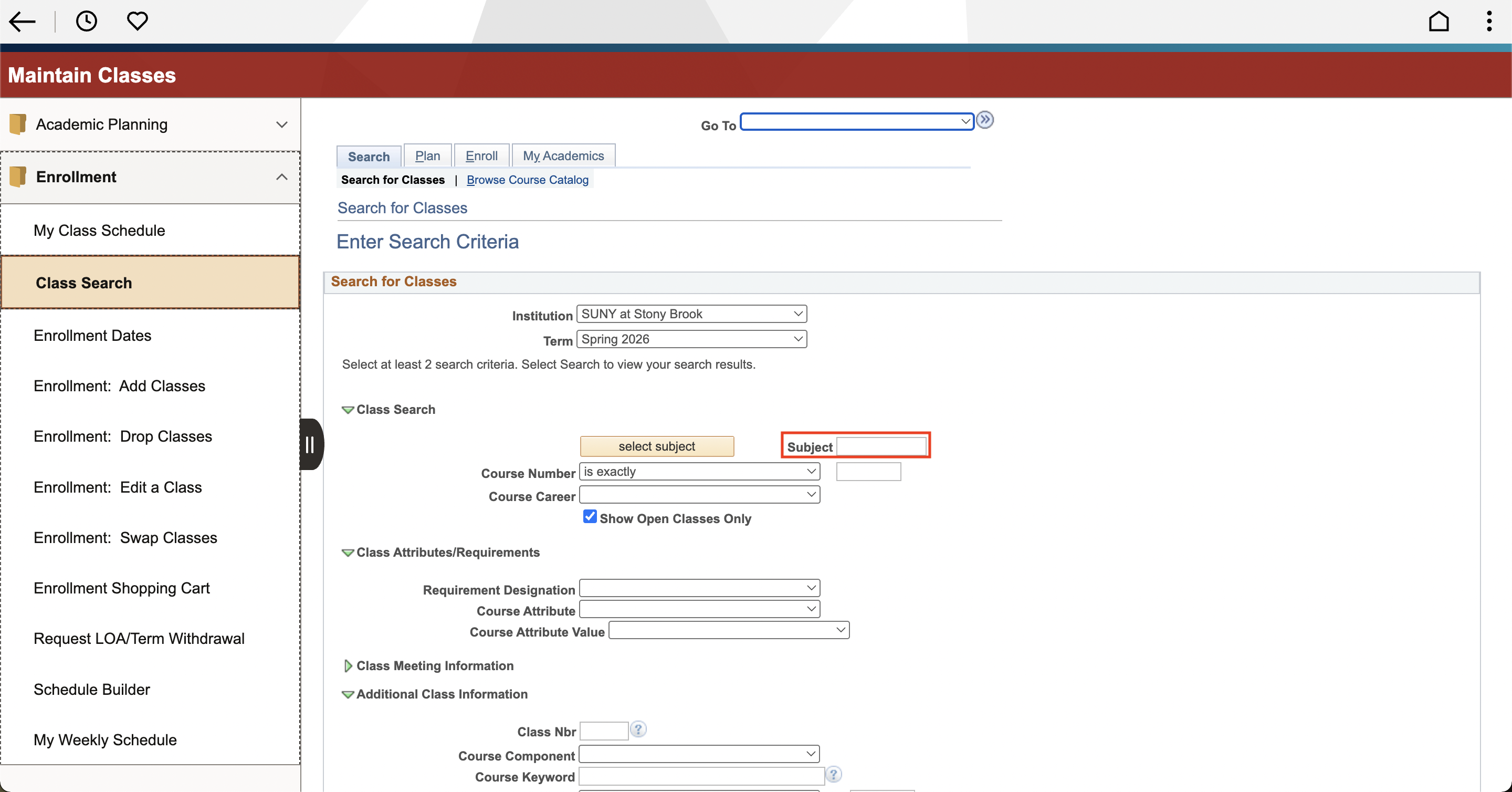
In the Class Search section, type in the first 3 letters of the class code of the Major course in the Subject box on the right. If you do not know the subject code, you can use the “select subject” feature to choose what department you are searching for.
Example: "SBU". By selecting “search”, it will result in any available course in that subject.
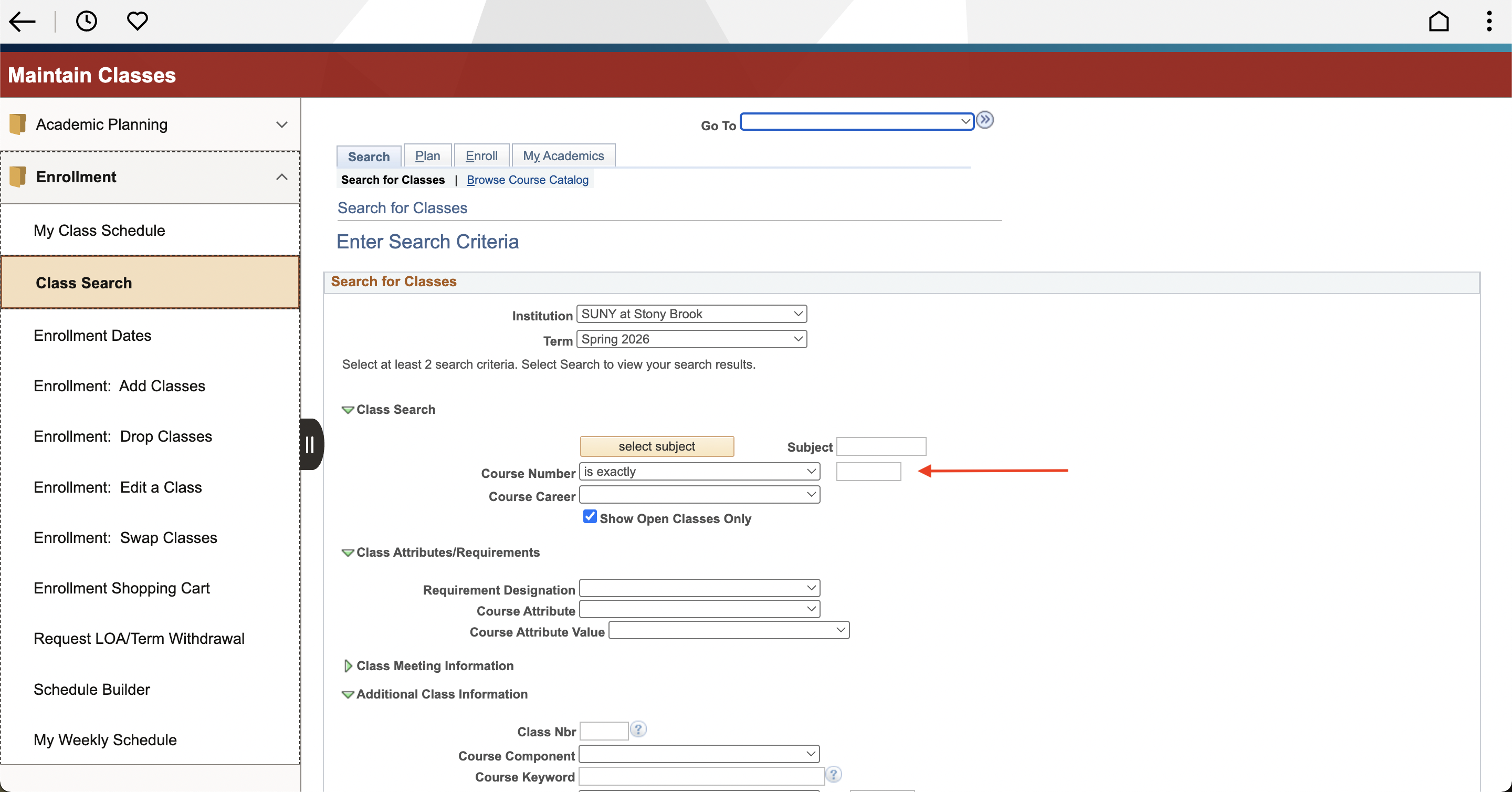
In the course number box just below the subject, you can enter the 3 number code for a specific class. Example: 101. By selecting “search”, it will result in the specific course only.
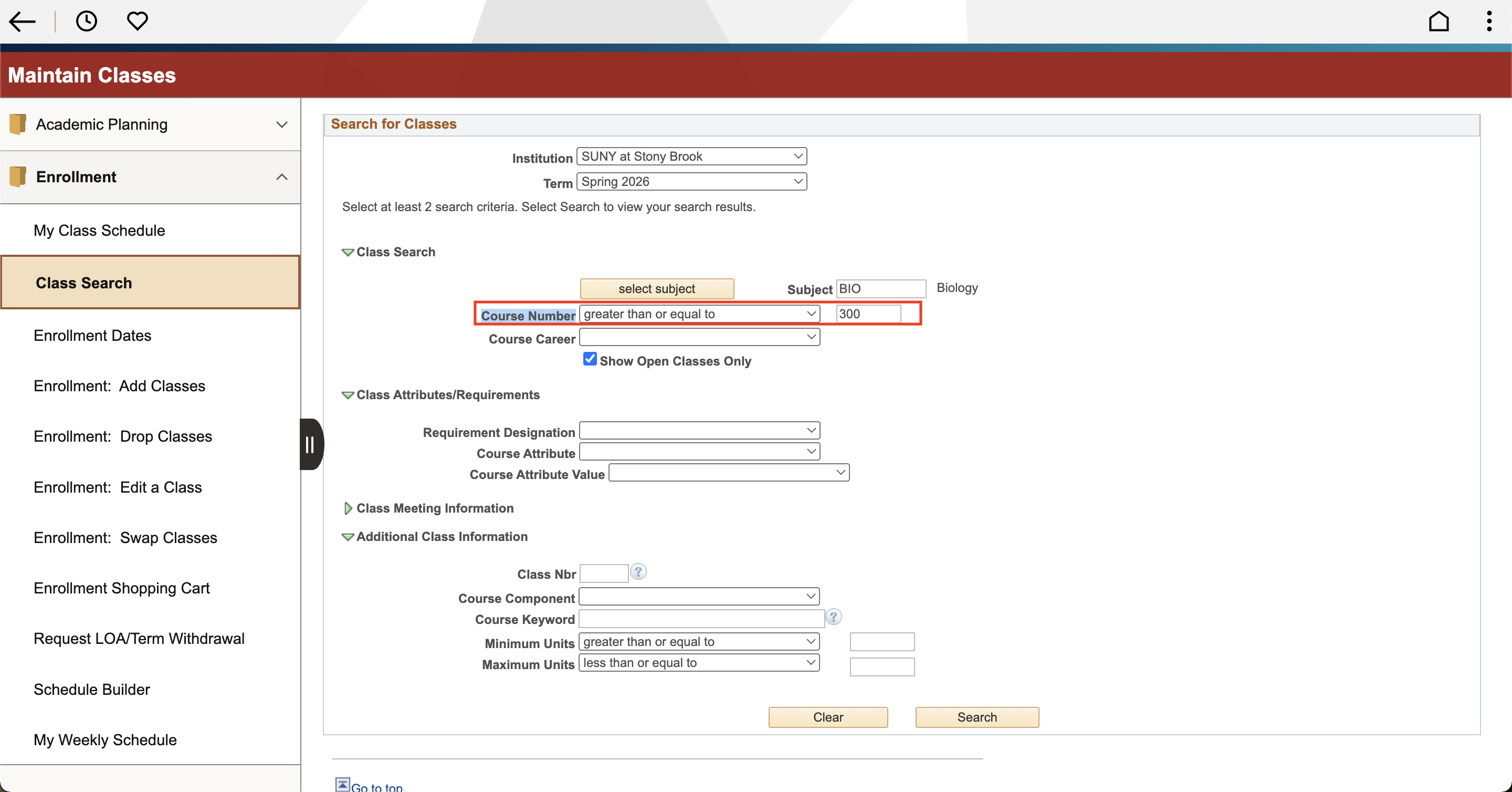
If you do not know what specific course you are looking for, you can search by course level. Example: For upper division courses, type “300” in the Course Number box, and select “greater than or equal to” from the dropdown box. By selecting “search”, it will result in any available upper division course in that subject.
SBC Course Search
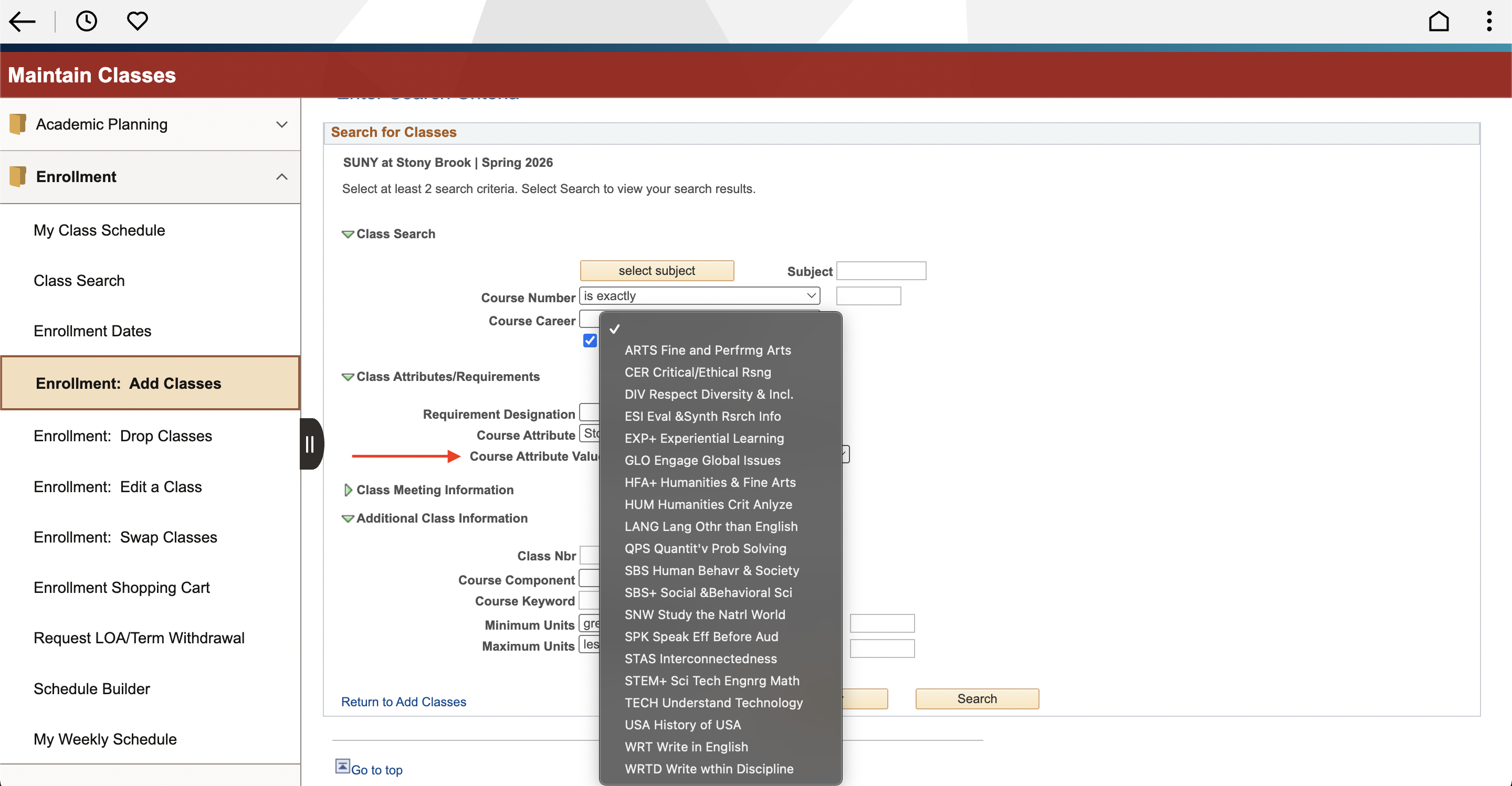
In the Class Attributes/Requirements section, select “Stony Brook Curriculum” in the second (2nd) dropdown box named Course Attribute.
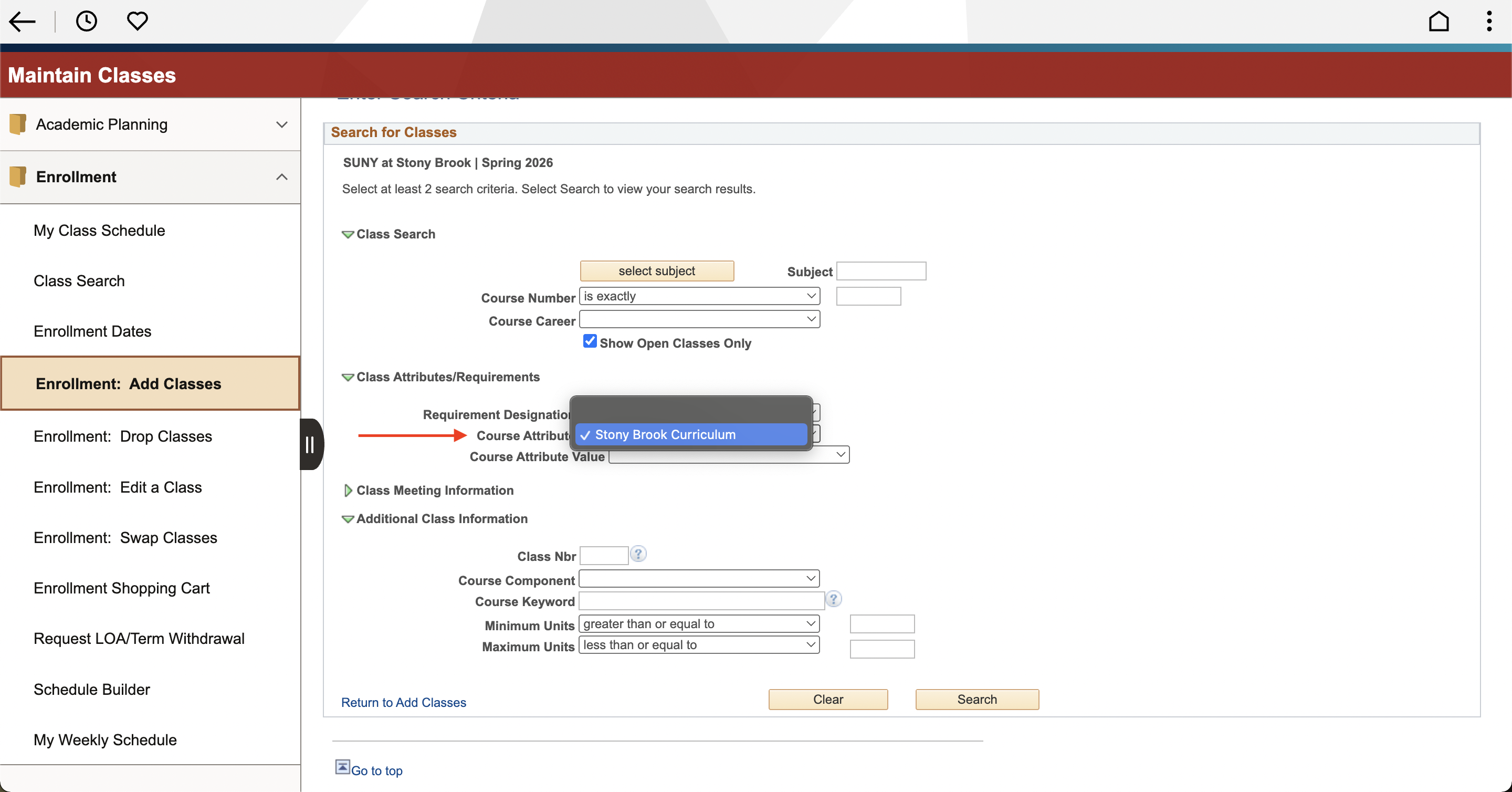
In the last (3rd) dropdown box named Course Attribute Value below, select an SBC category to search for an SBC class. By selecting “search”, it will result in any class that fulfills the selected SBC requirement.
Online vs. In-Person Course Search
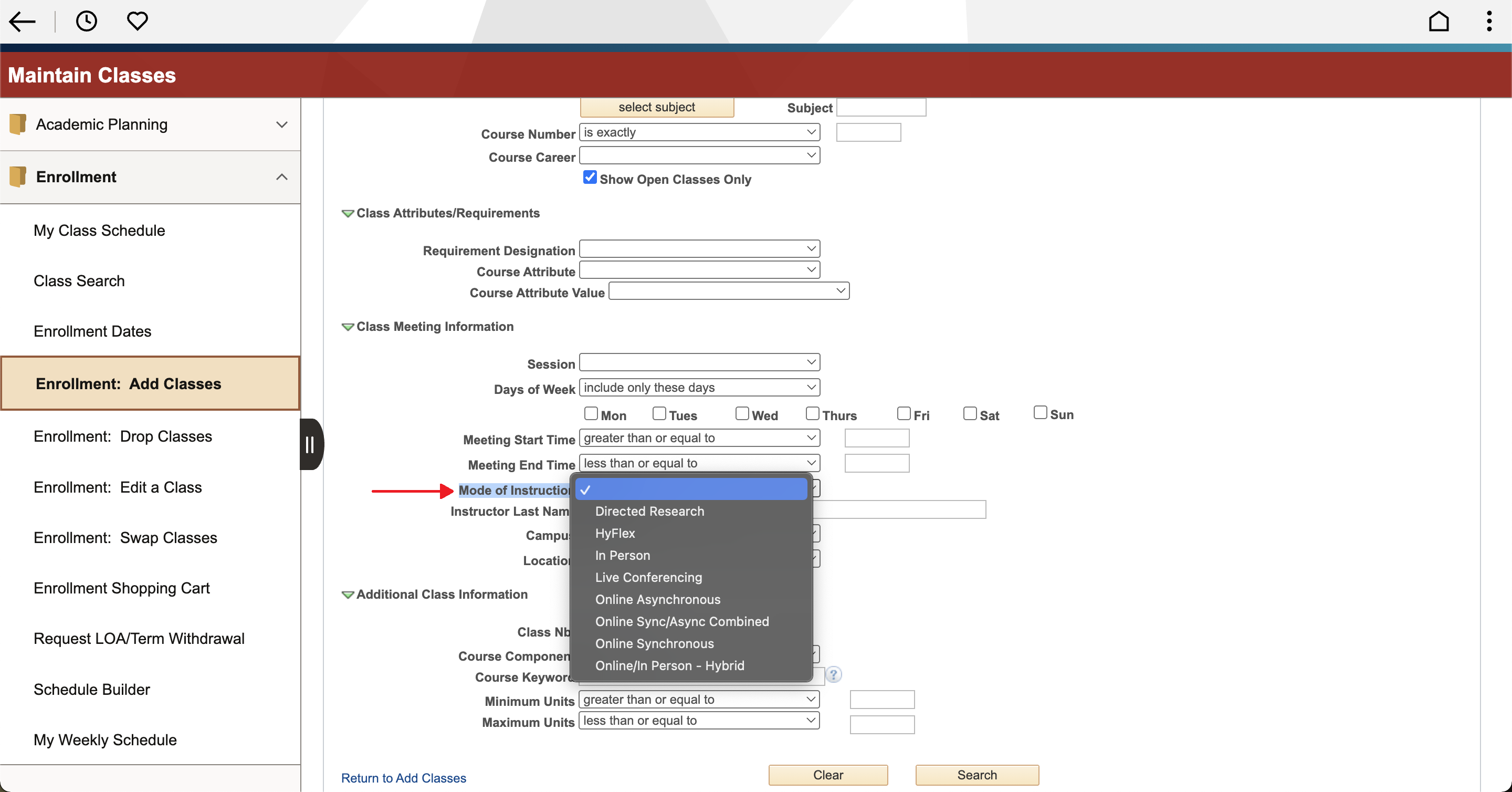
Below the Class Attributes/Requirements section, click on the small triangle on the left of the section Class Meeting Information to expand the section selection.

In the section Class Meeting Information, click on the “Mode of Instruction” dropdown box to filter online and in-person classes. By selecting “search”, it will result in any class that fulfills the selected search criteria.
Pro-tip: This search may only show specific sections for a course that offers both options or combined options. Example: An in person lecture with a required online asynchronous recitation, may only show you the asynchronous recitation when searching by mode of instruction “Online Asynchronous”.
Now that you've determined your search filters:
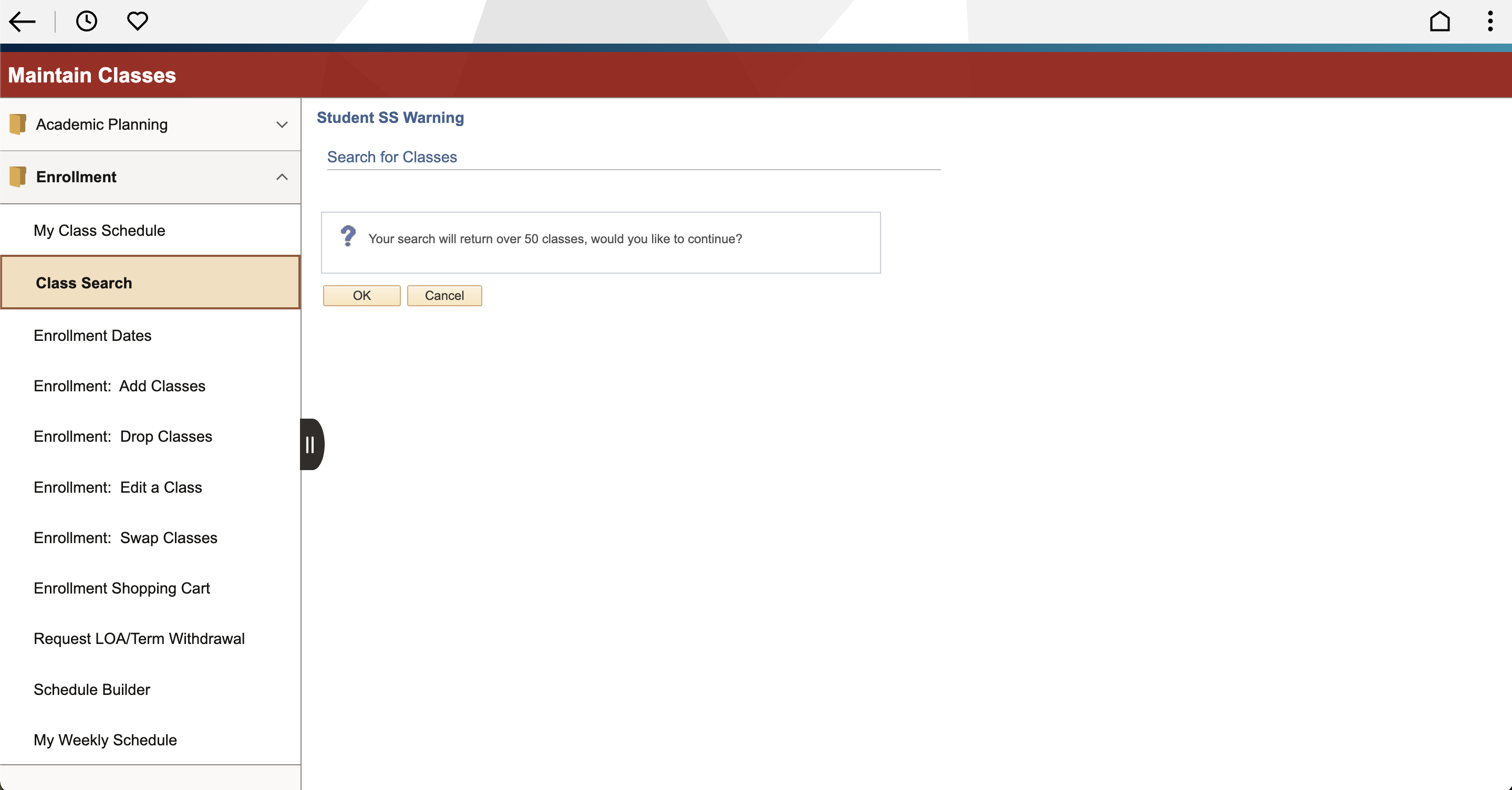
Step 3: Once you click Search, there may be a Student SS Warning display to notify that the search results may return more than 50 courses. Click OK to continue.
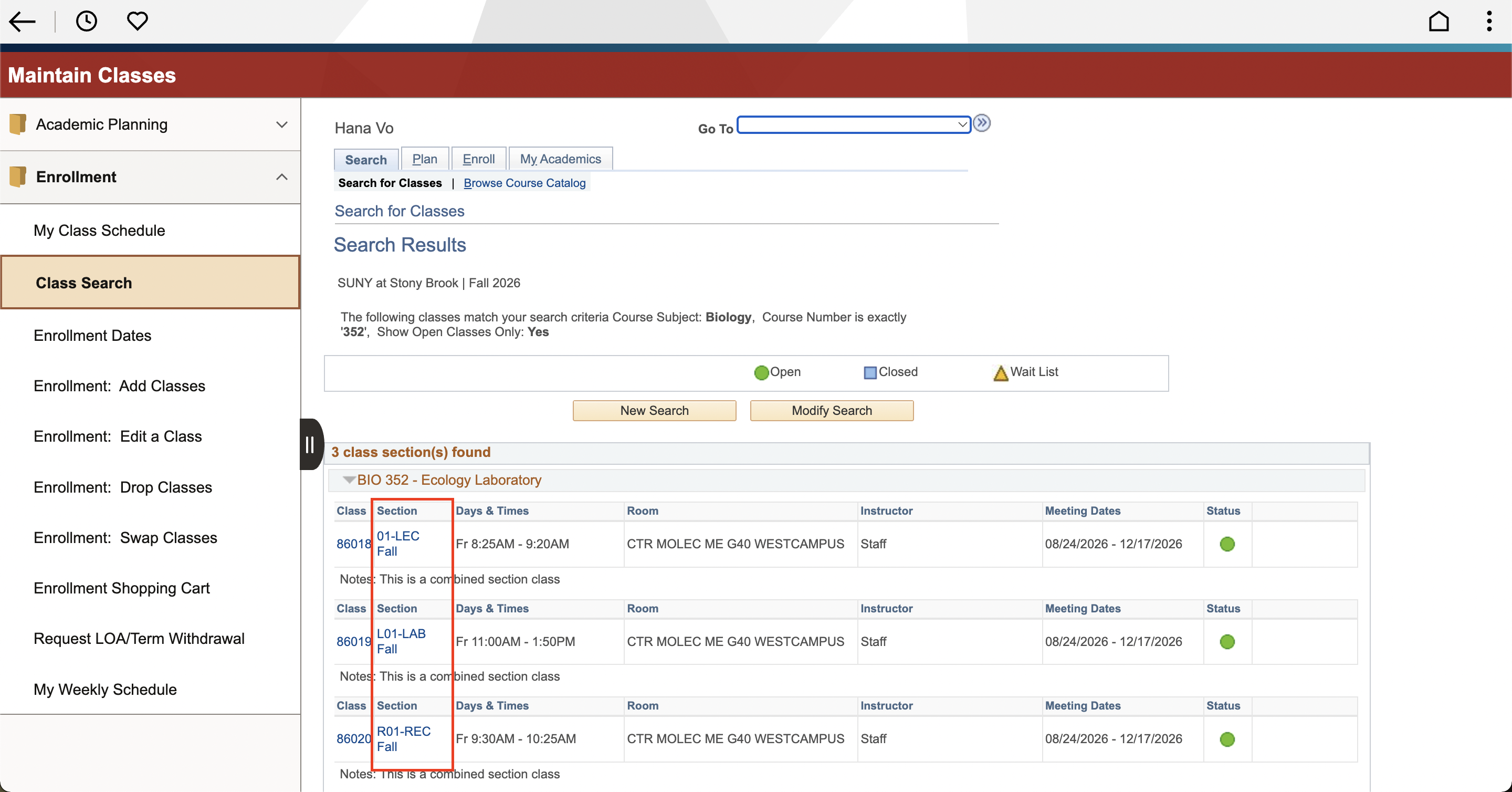
Step 4: To view more details about a course, select the link in the Section column.
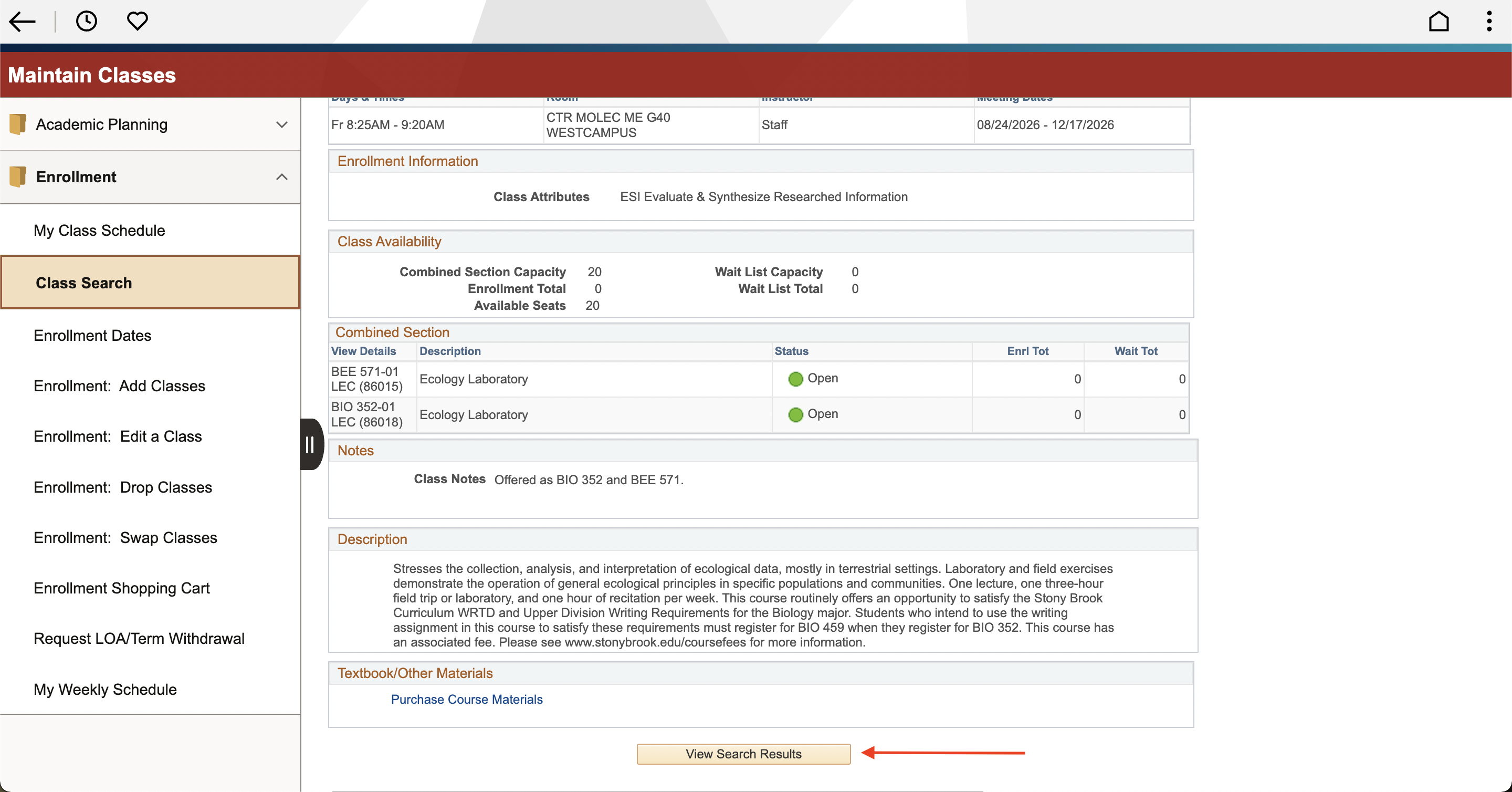
Step 5: To return to your search, scroll to the bottom of the page and select “View Search Results”.
Pro-tip: Do not hit the back button on your web browser; it will reset your search.
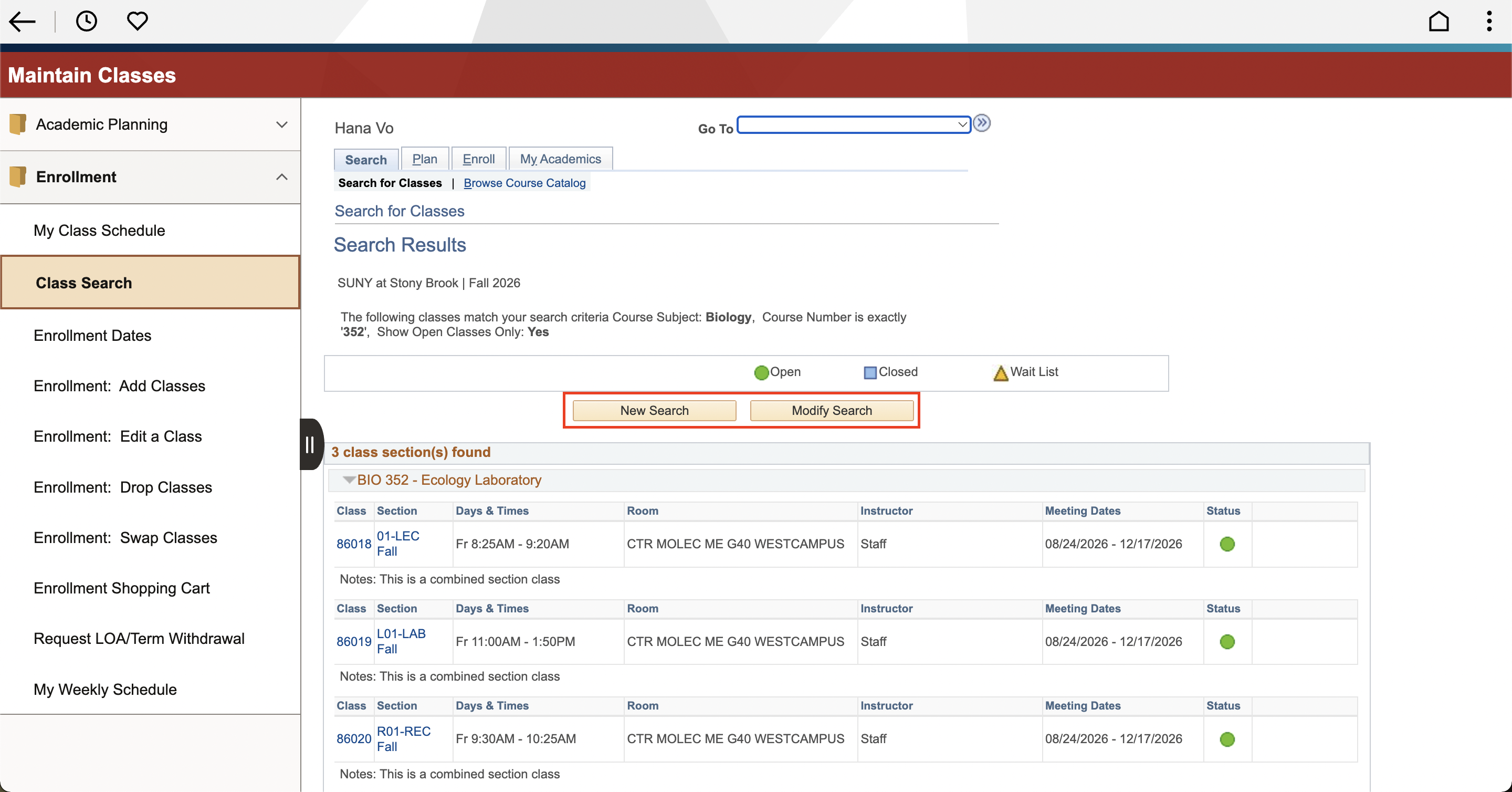
Step 6: To return to the search parameters page, select either “New Search” or “Modify Search”