How to Drop a Class on SOLAR
Follow the steps below to drop a class from your schedule via SOLAR. Always be sure to check the Academic Calendar for course withdrawal deadlines. Students are encouraged to use the swap feature when trying to switch from one class to another.
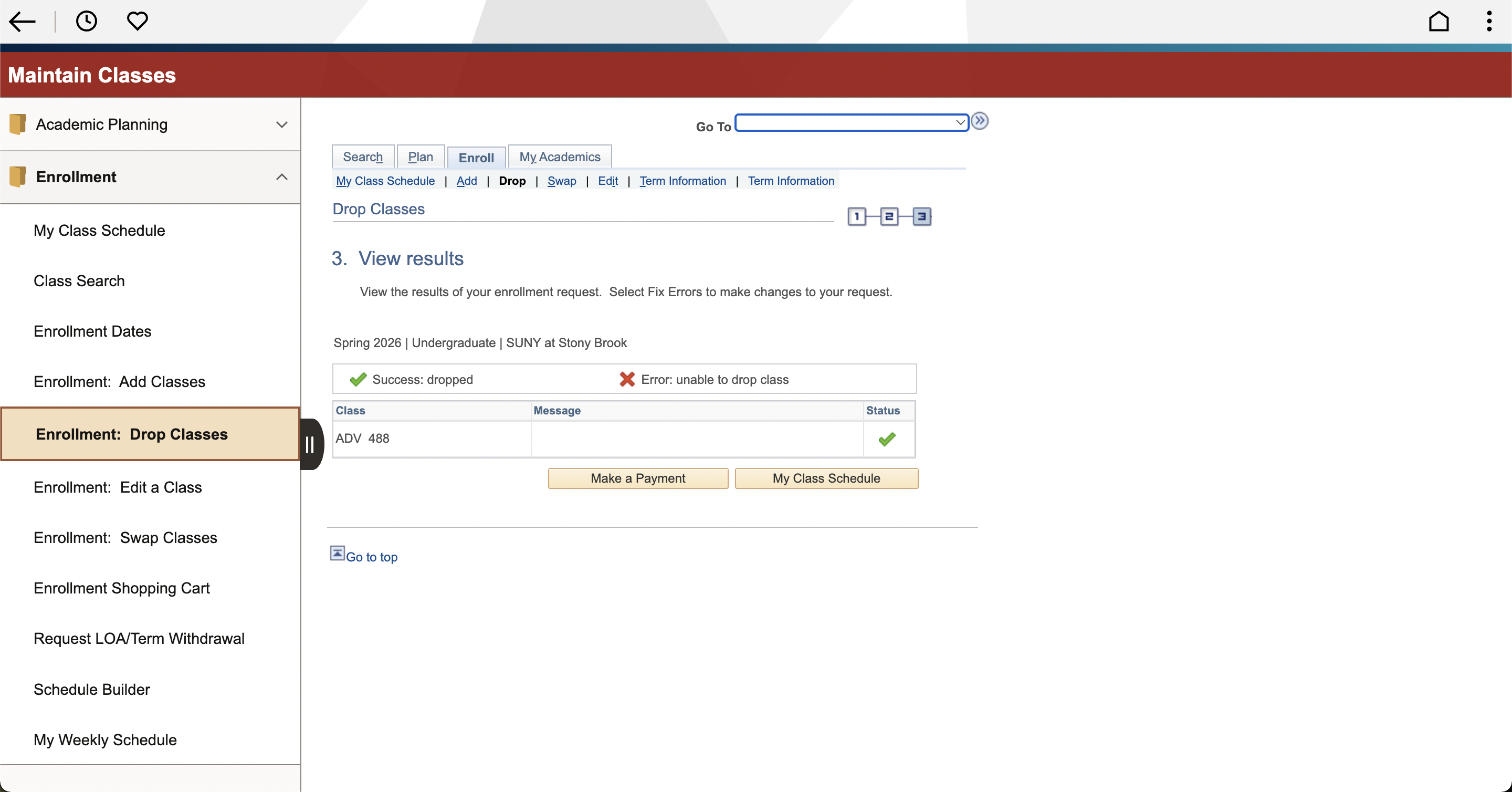
Getting Started: Once logged into SOLAR, select the “Manage Classes” tile.
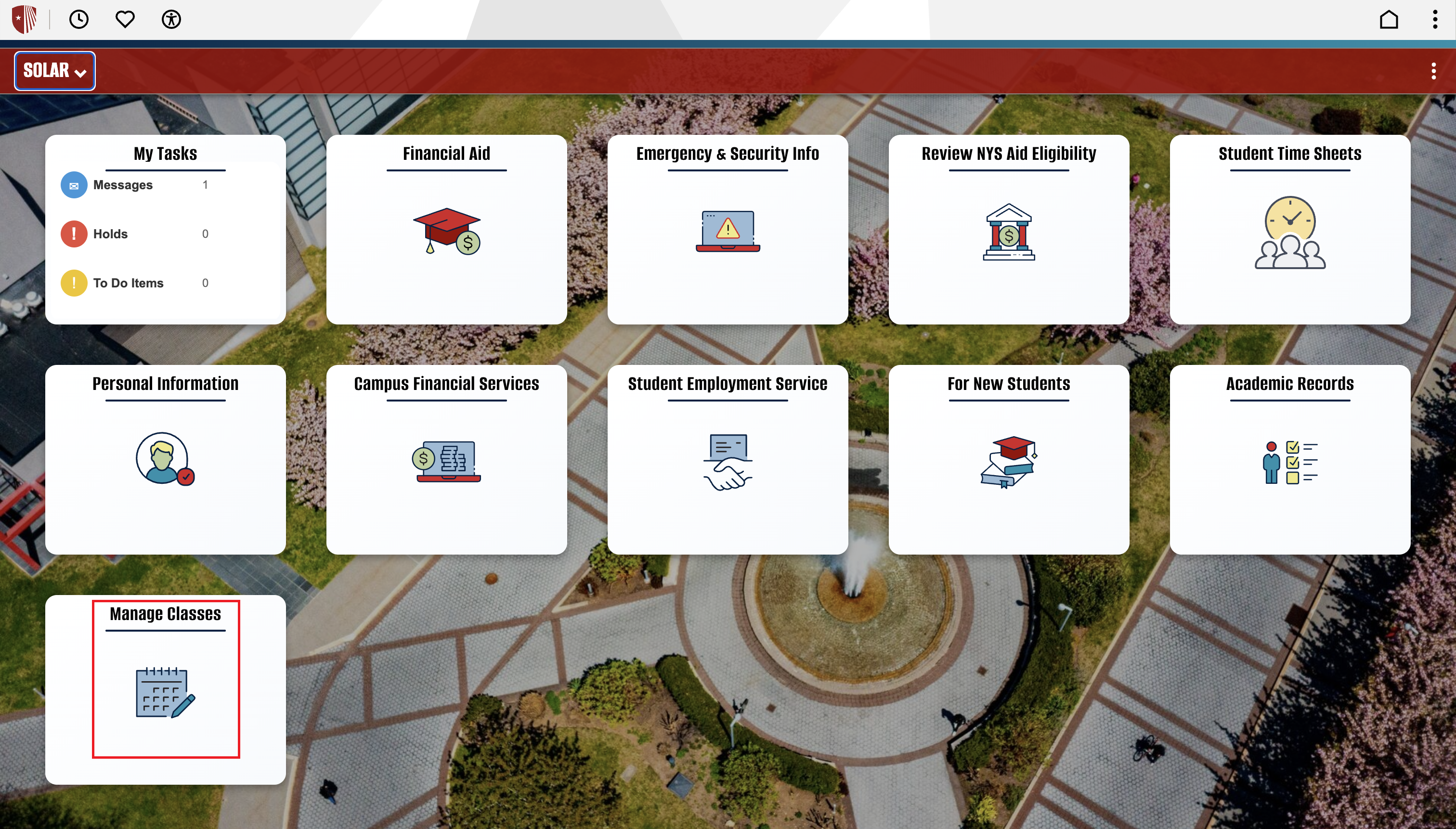
Step 1: Under the Enrollment dropdown, select the Enrollment: Drop Classes. This will show a list of currently enrolled courses. Select the class to drop. Then, click “Drop Selected Classes”
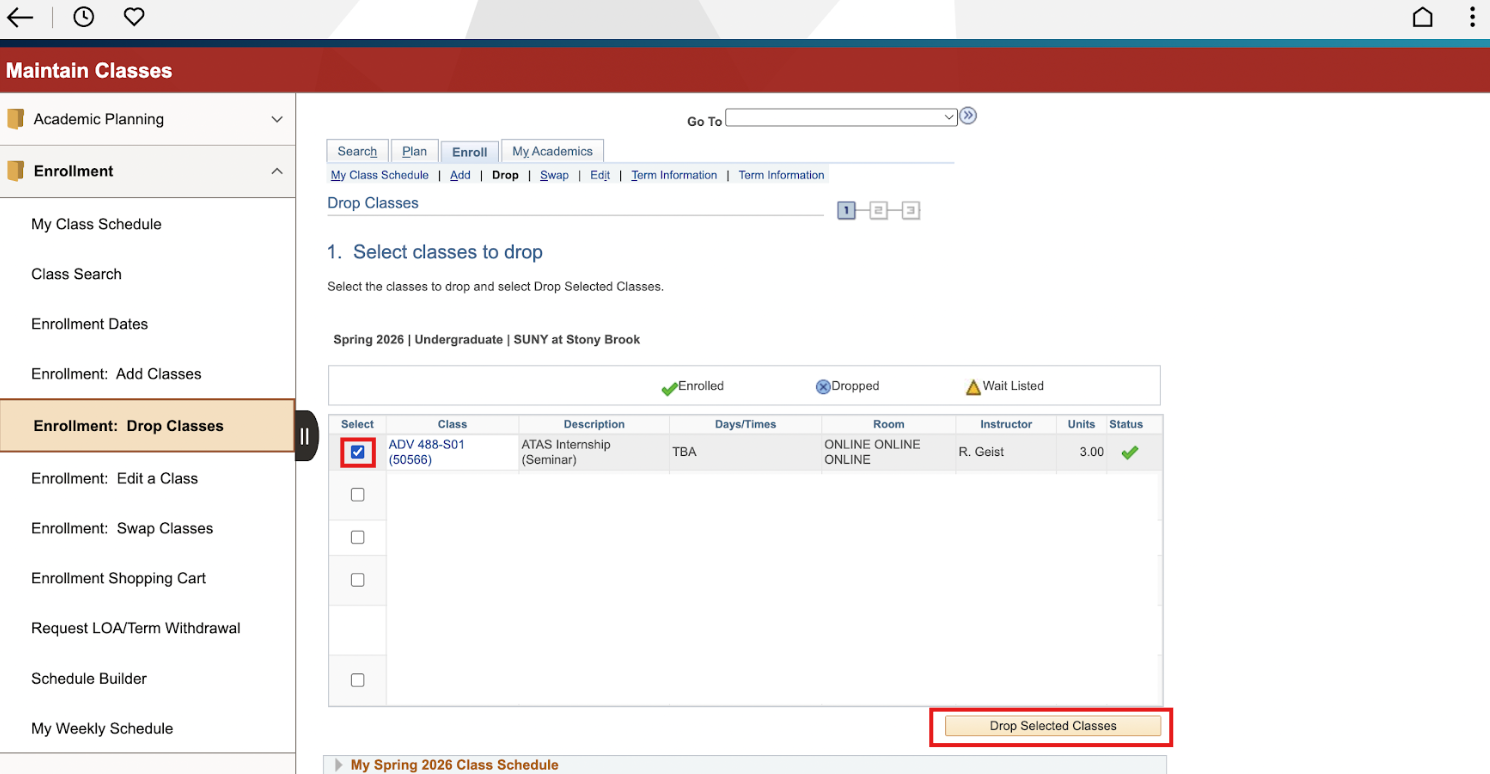
Step 2: The course section information will be displayed one more time. Once reviewed, click “Finish Dropping”.
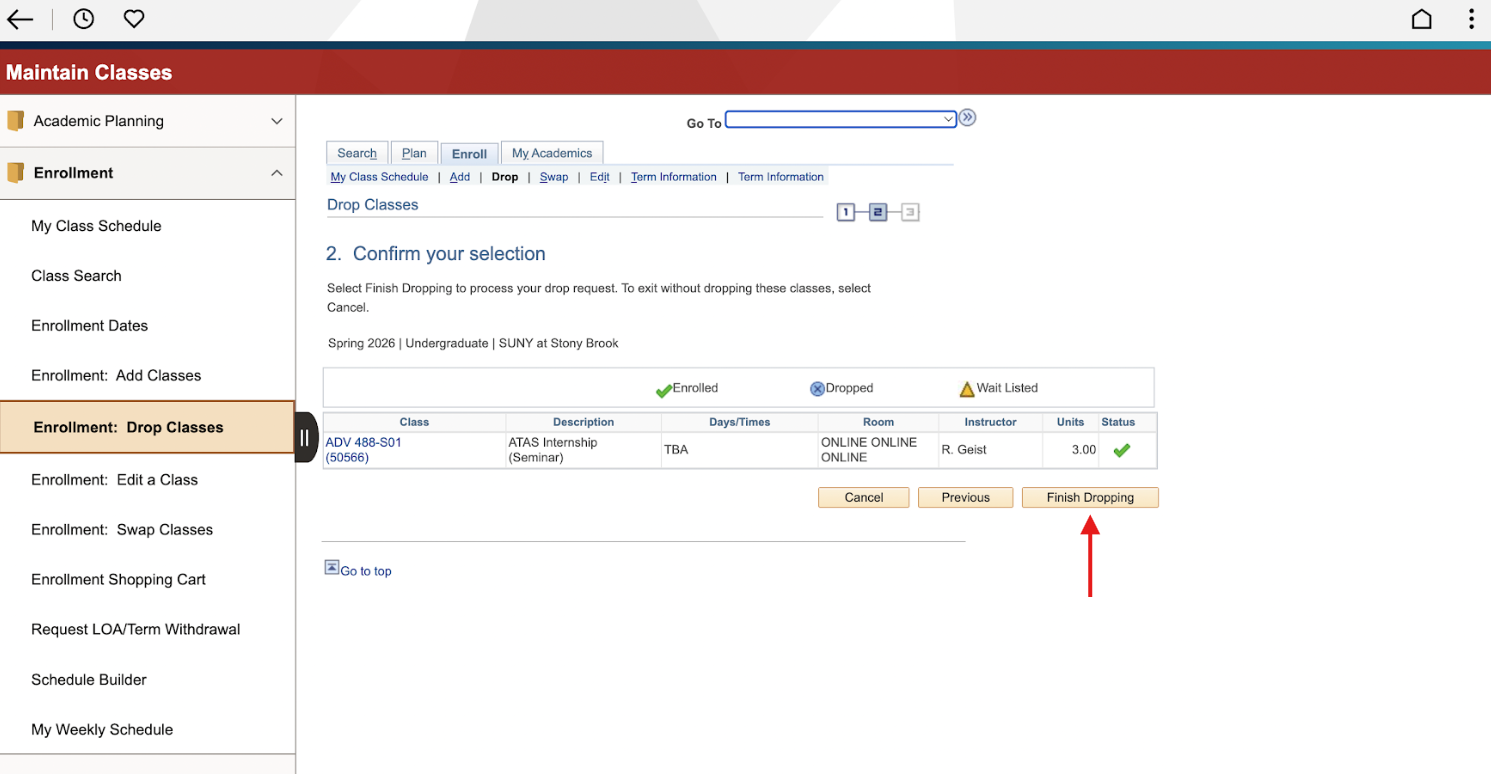
Step 3: See the Status column for a Green Check to indicate if your edit was successful, or Red X to indicate if you ran into an error.