How to Add a Class on SOLAR
Follow the steps below to add a class to your schedule via SOLAR.
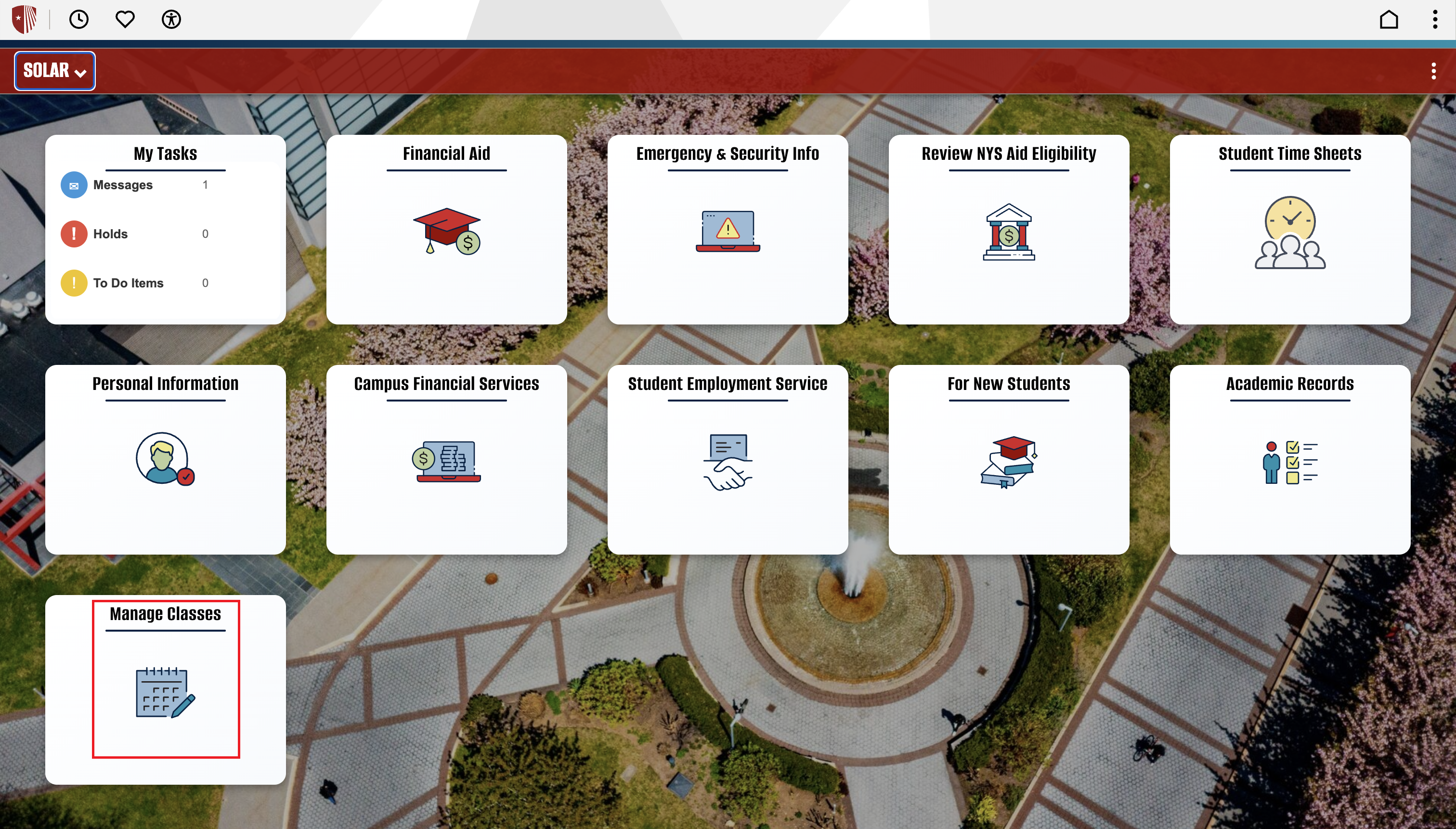
Getting Started: Once logged into SOLAR, select the “Manage Classes” tile.
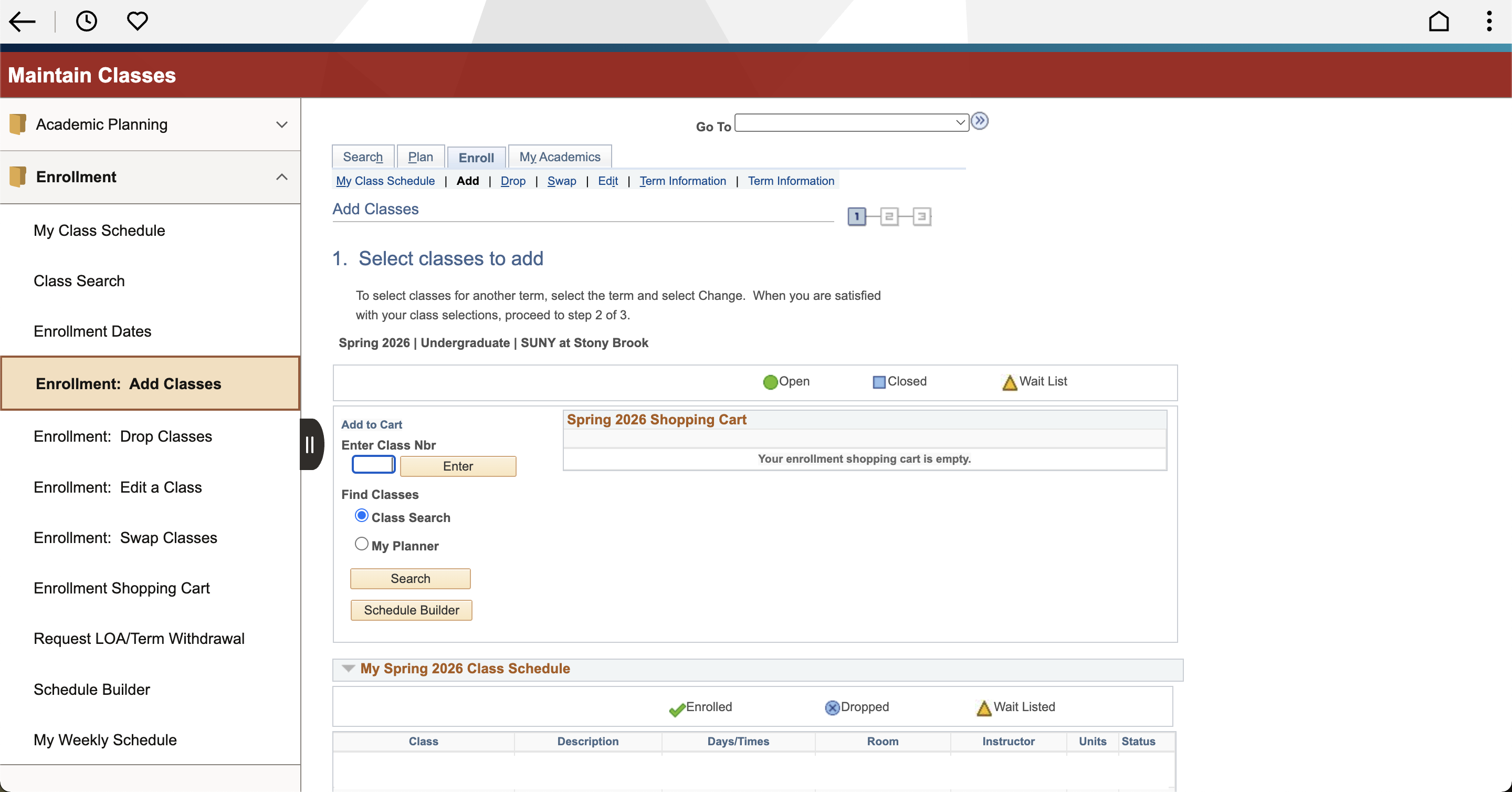
Step 1: Under the Enrollment dropdown, select the Enrollment: Add Classes. This will bring up the Shopping Cart.
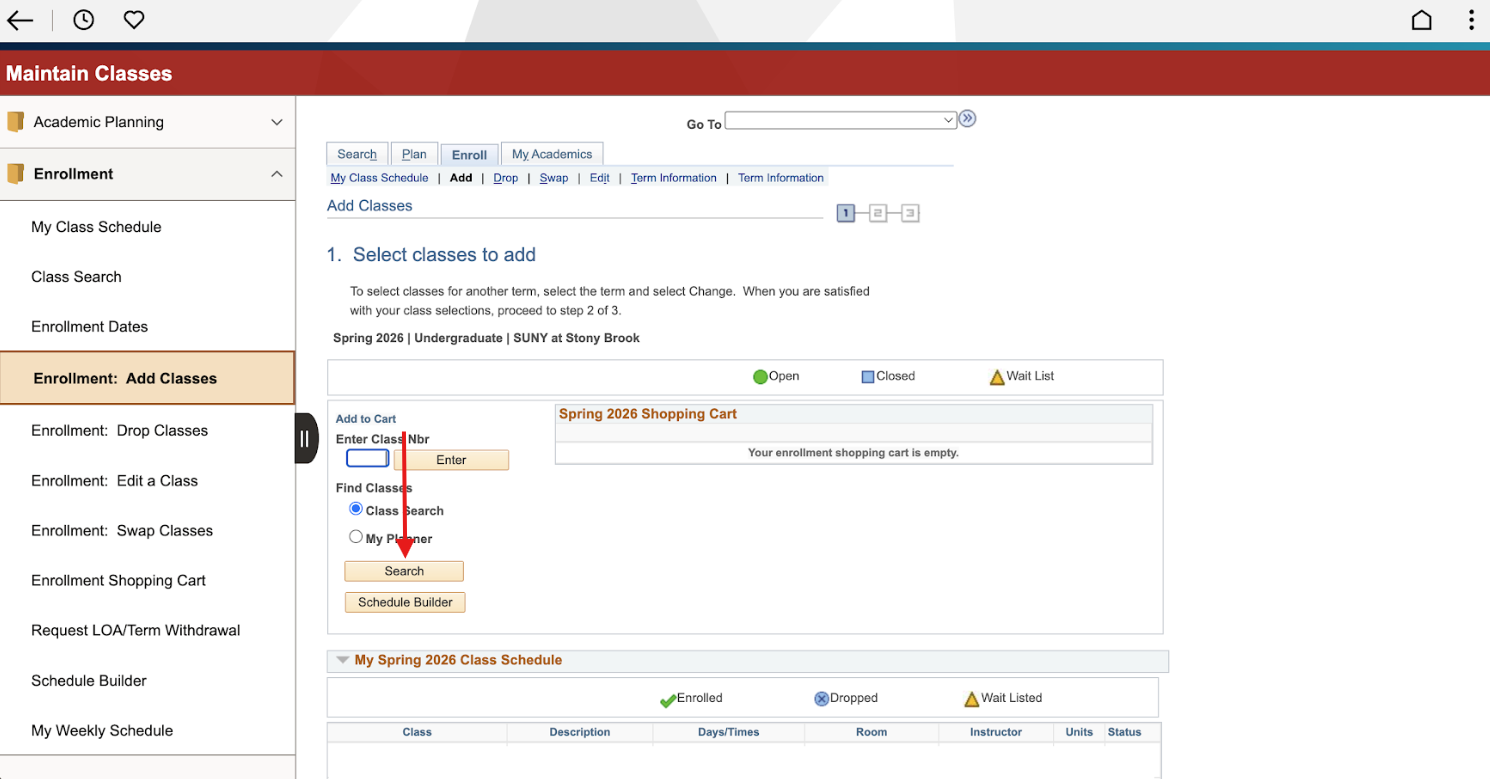
Step 2: On the left side of the Shopping Cart, in the Find Classes section, select the Search button on top of the Schedule Builder button to search for class.
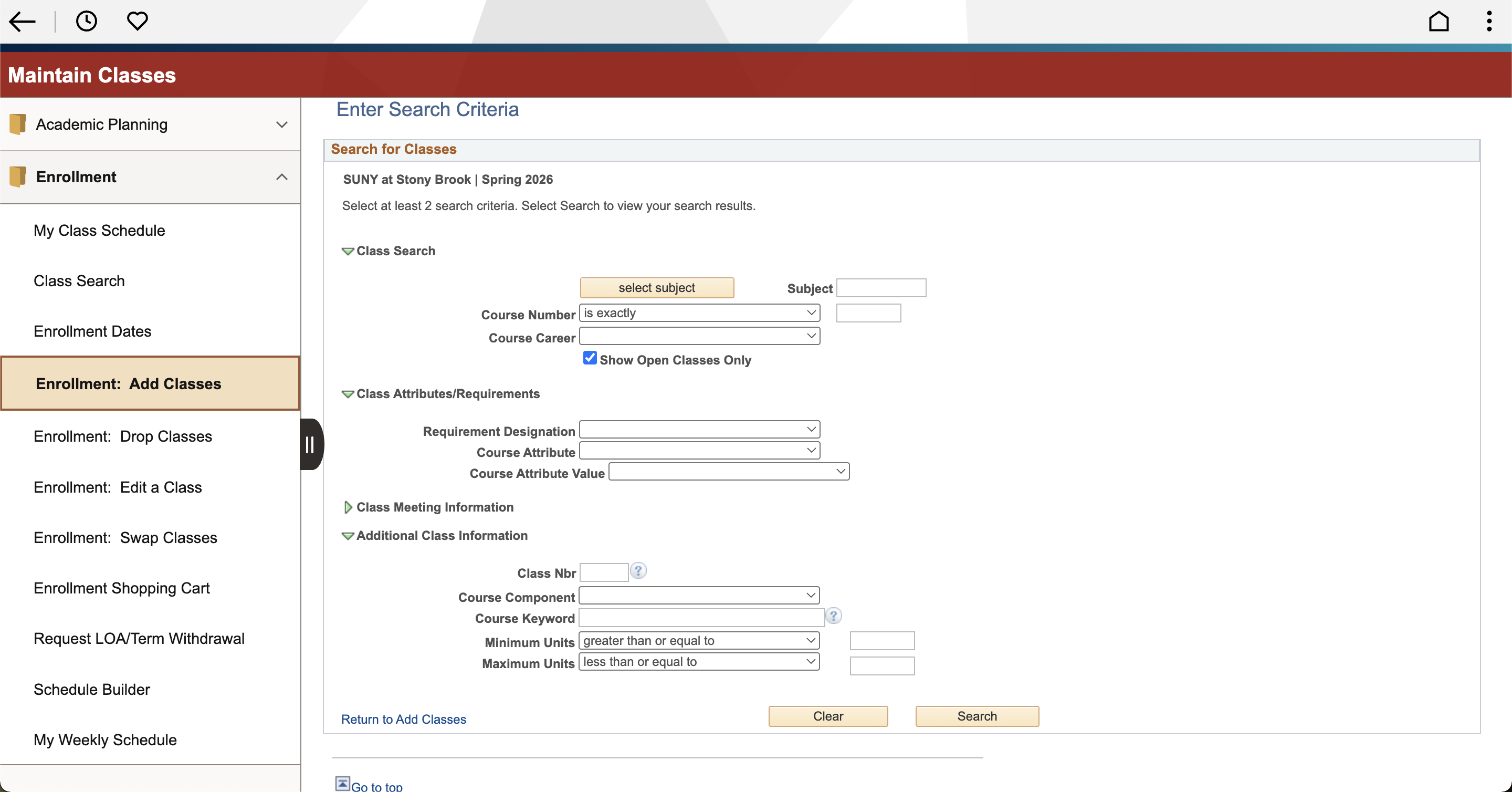
Step 3: Enter your search criteria and select the “Search” button. Refer to SOLAR Class Search tutorial for 3 detailed methods of searching for classes.
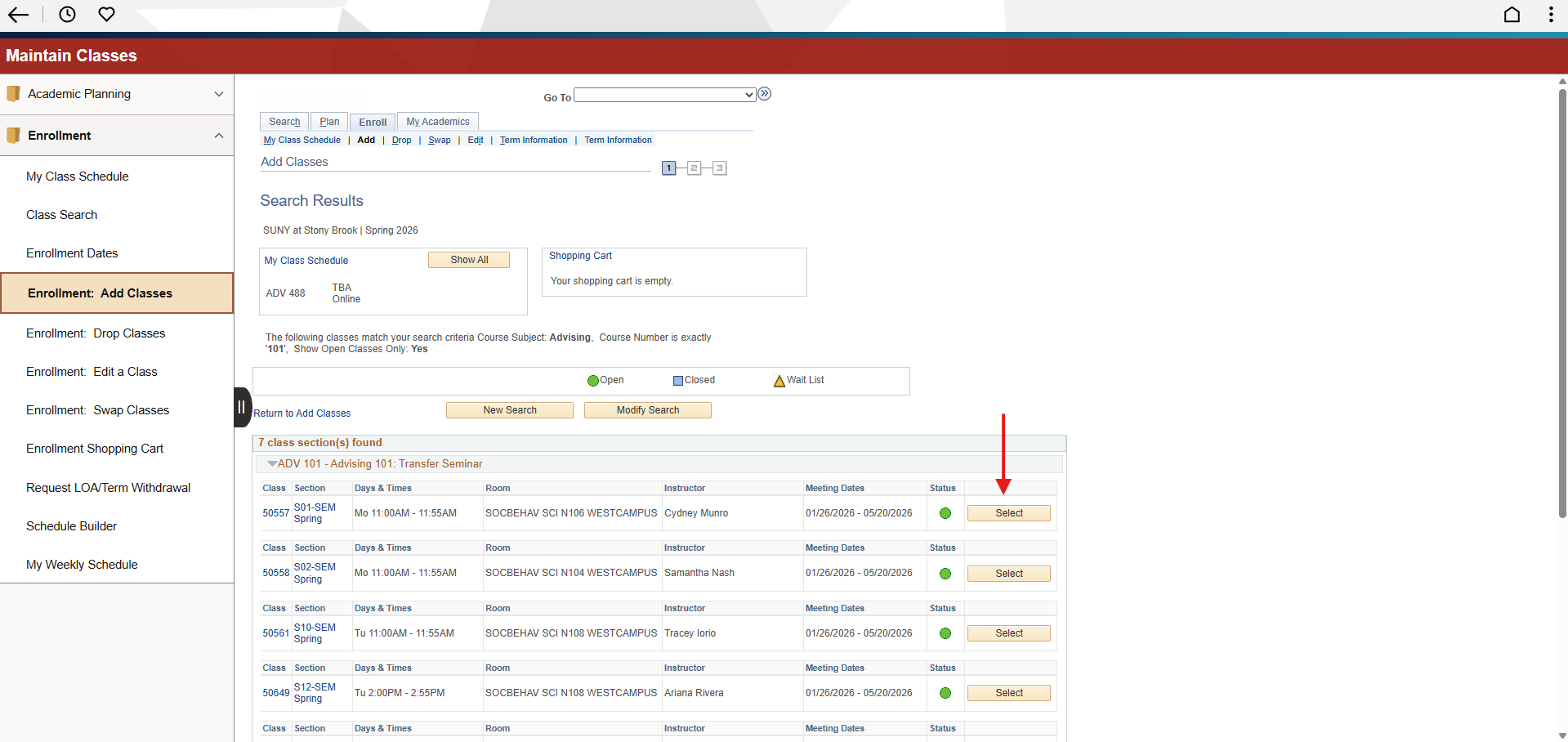
Step 4: The Search Results screen will show the open sections with different times, dates, mode of instructions, and instructors for that course. Click Select on the right column to register for that section.
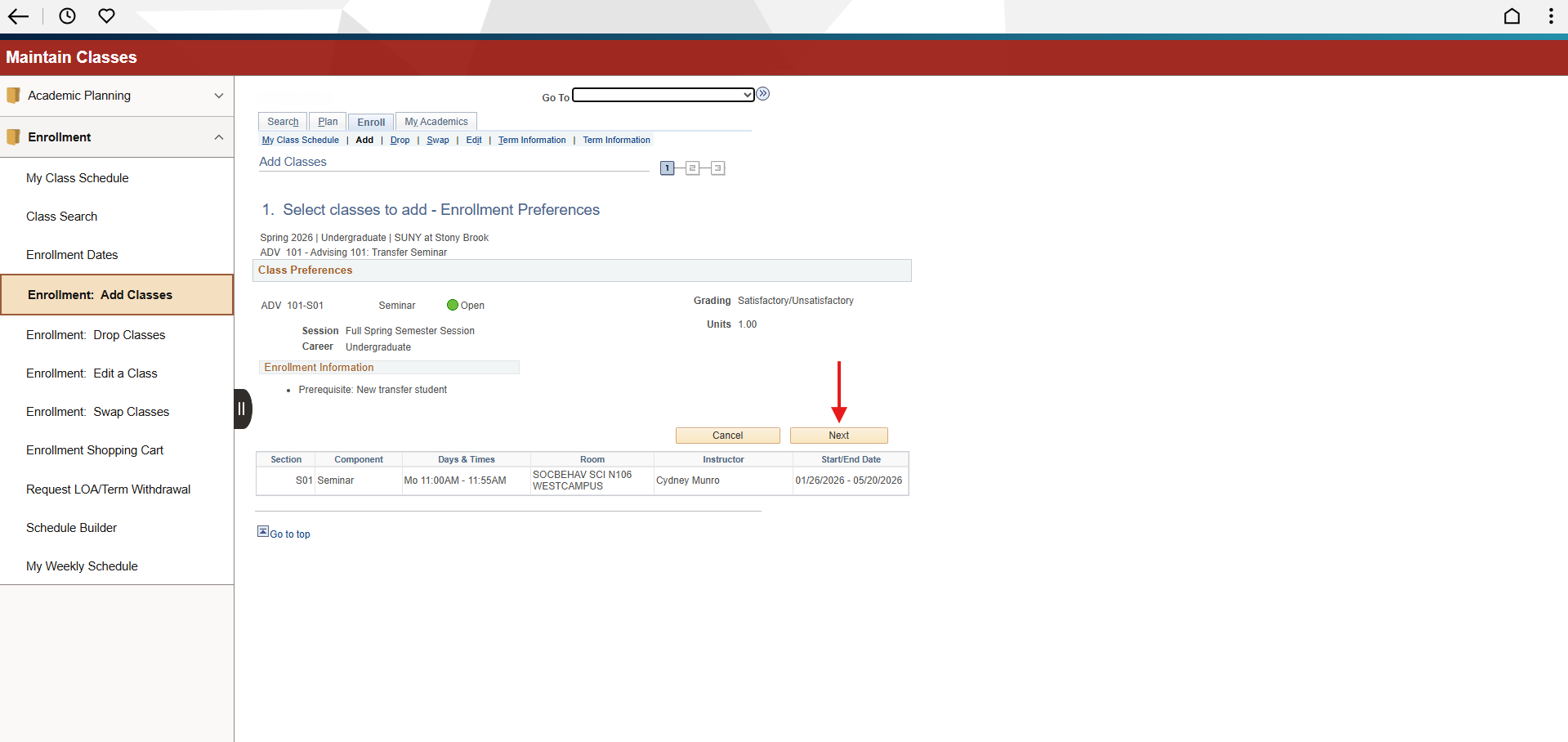
Step 5: The course section selected will display this Class Preferences page. Review the information and click Next to proceed.
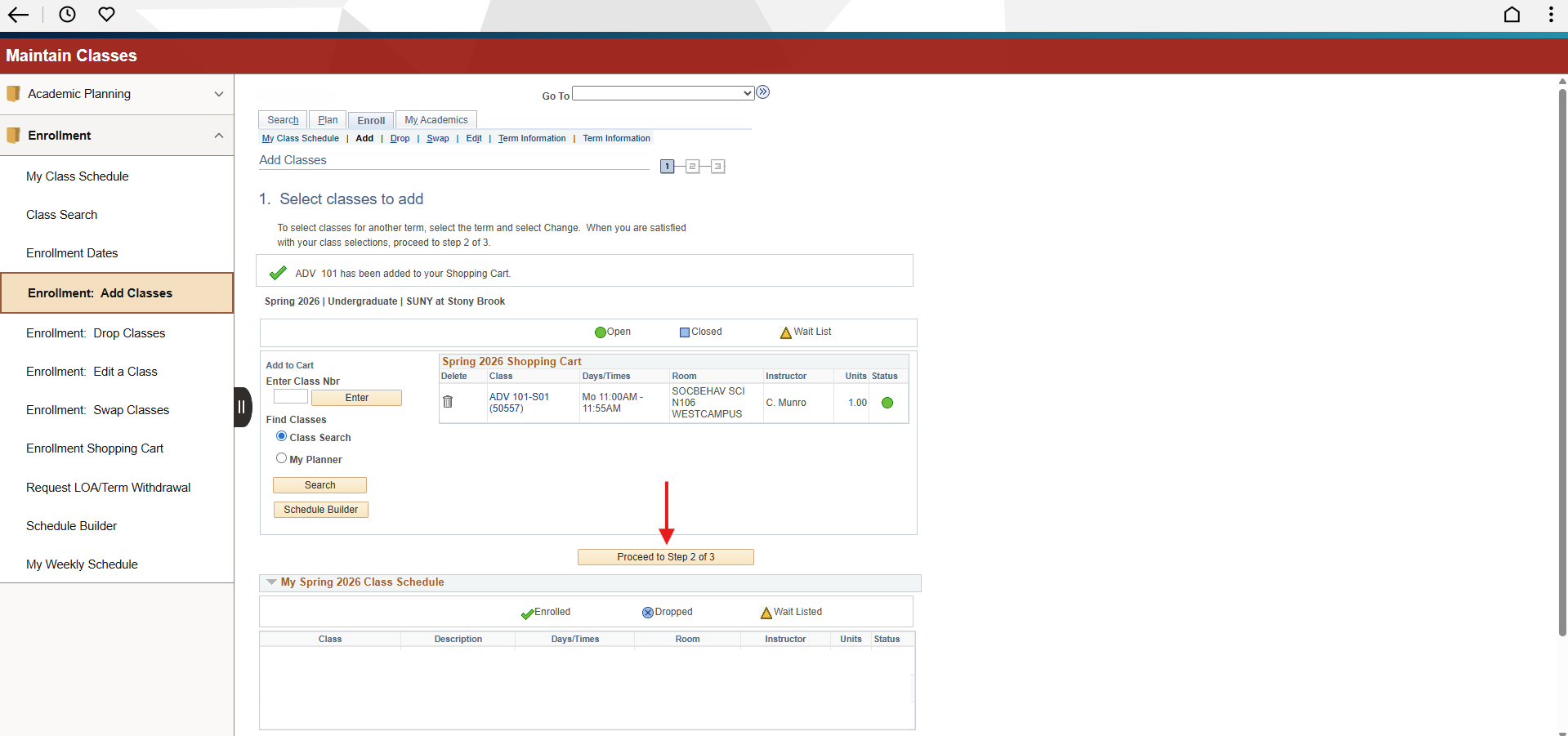
Step 6: The course section selected is now added in the shopping cart. Click Proceed to Step 2 of 3 on the bottom of the shopping cart to finish enrolling in the course.
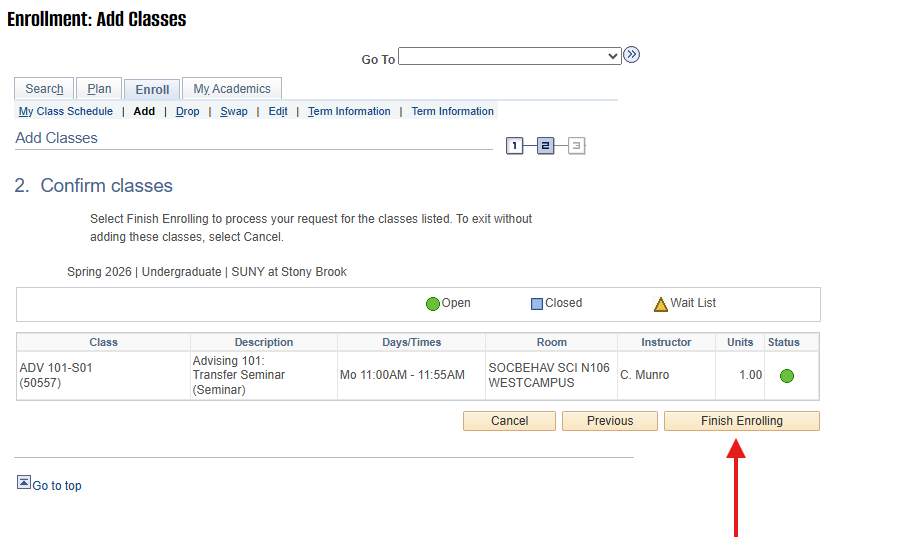
Step 7: The course section information will be displayed one more time. Once reviewed, click Finish Enrolling on the lower right, below the course information to finish registering.
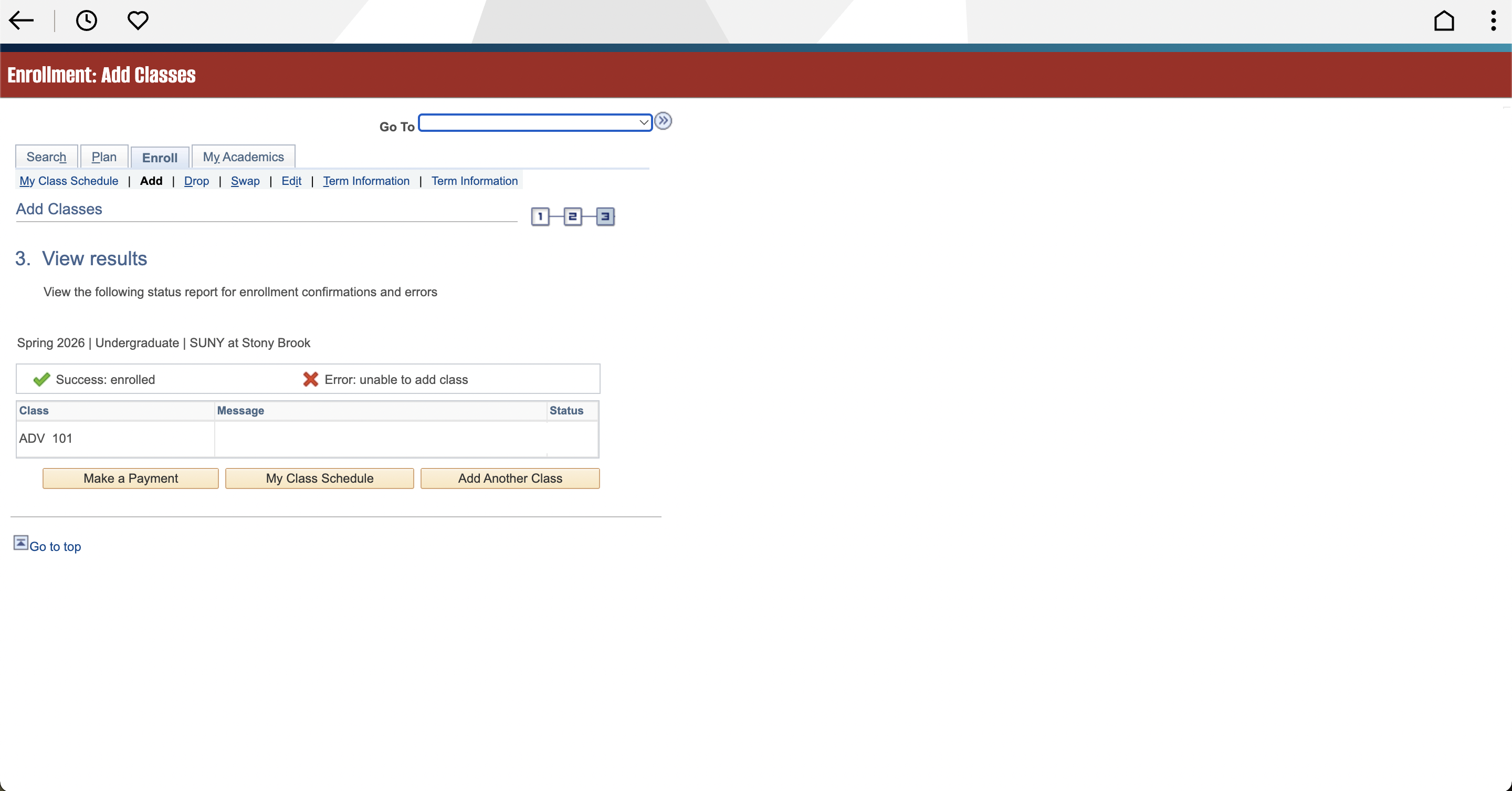
Step 8: See the Status column for a Green Check to indicate if your edit was successful, or Red X to indicate if you ran into an error. There will always be a detailed explanation for any error message.