

Forgetting or Removing a WiFi Profile from a Mac
Your device saves a profile for each Wi-Fi network you join so it can reconnect automatically in the future. Occasionally, changes to the network or its security settings can cause an older profile to interfere with your connection. Deleting outdated or unused Wi-Fi profiles can help ensure a smooth connection experience.
Deleting a Wireless Network Profile on a Mac
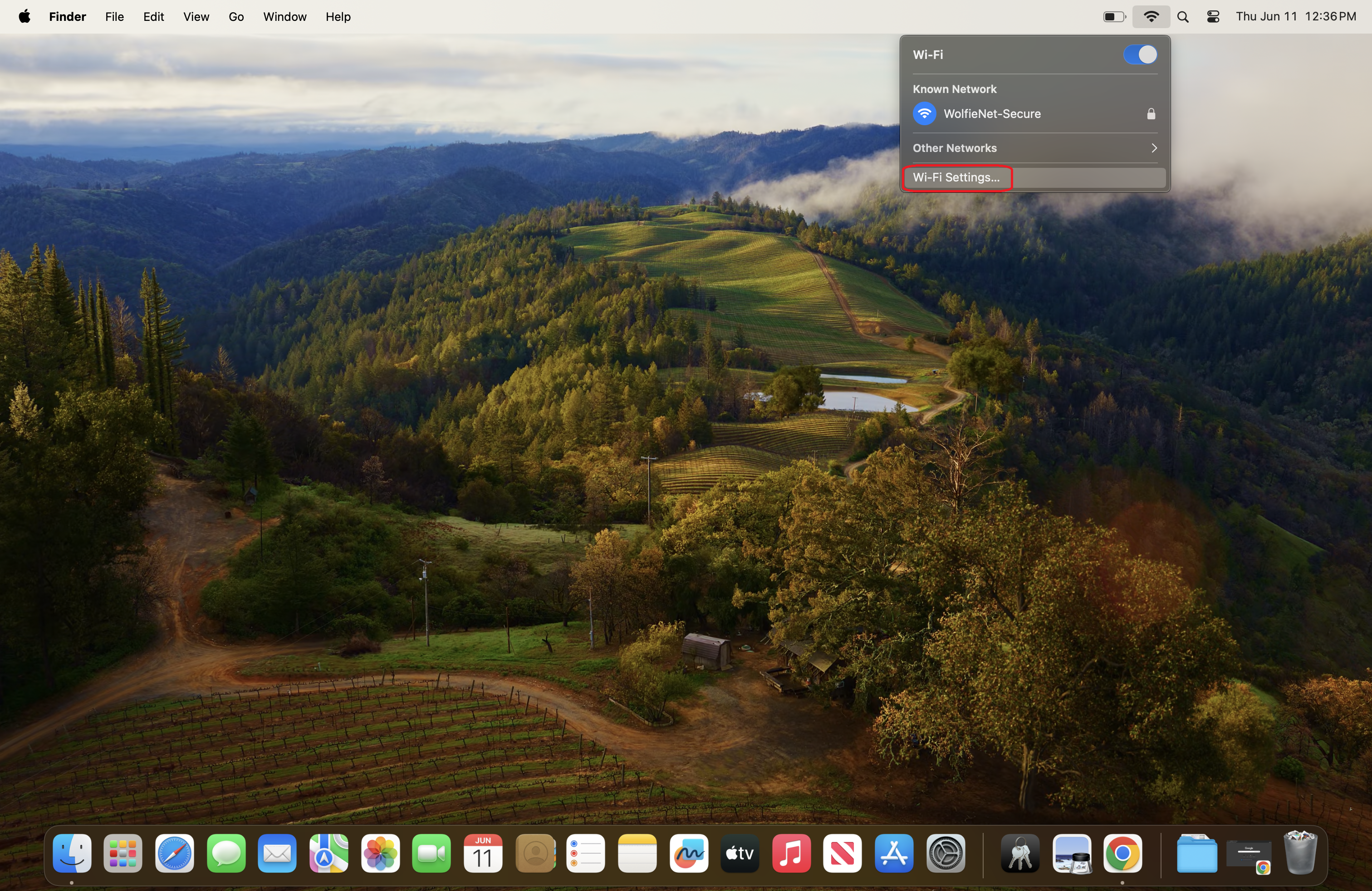
- Click on the Wi-Fi icon in the top right corner of your menu bar at the top of the screen. Select Wi-Fi Settings to open the network settings page.
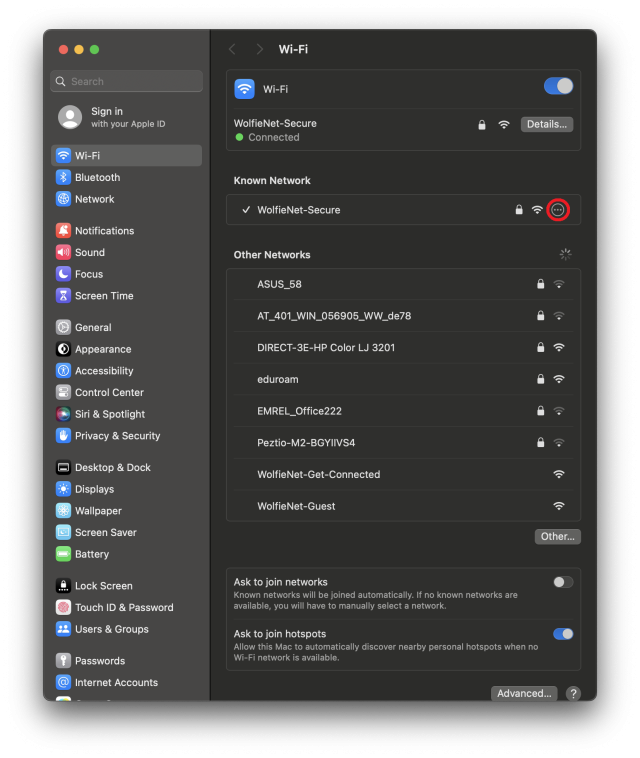
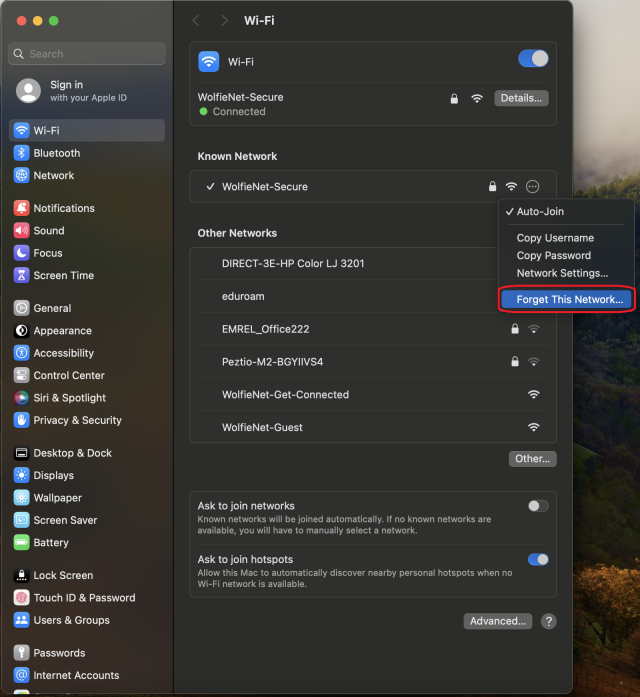
- Click on the three horizontal dots to the right of the network you're trying to forget. Select Forget This Network from the dropdown menu to remove it.
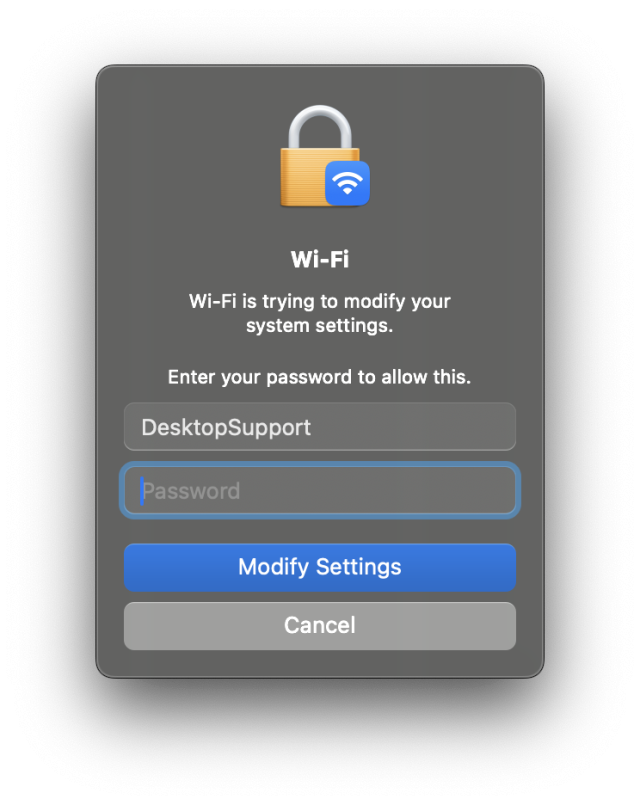
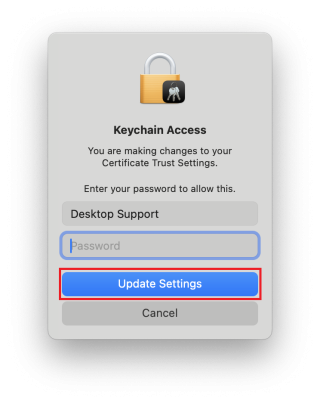
- Enter your device password if prompted. Then click Modify Settings.
Alternatively, if the Forget Network option is grayed out and unavailable to you on your device, try one of two alternative methods below:
Method 1:
- Go to Settings. Search ‘Profiles’ in the search bar. Click on Profiles.
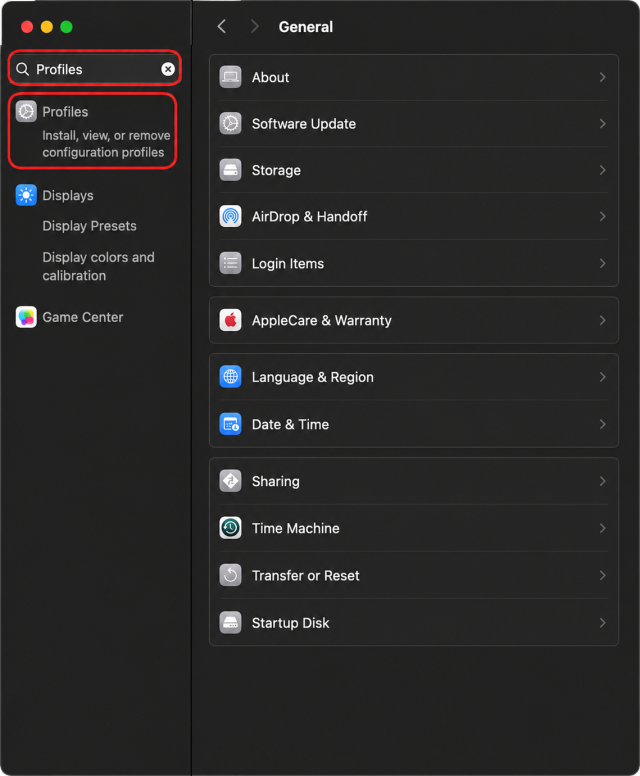
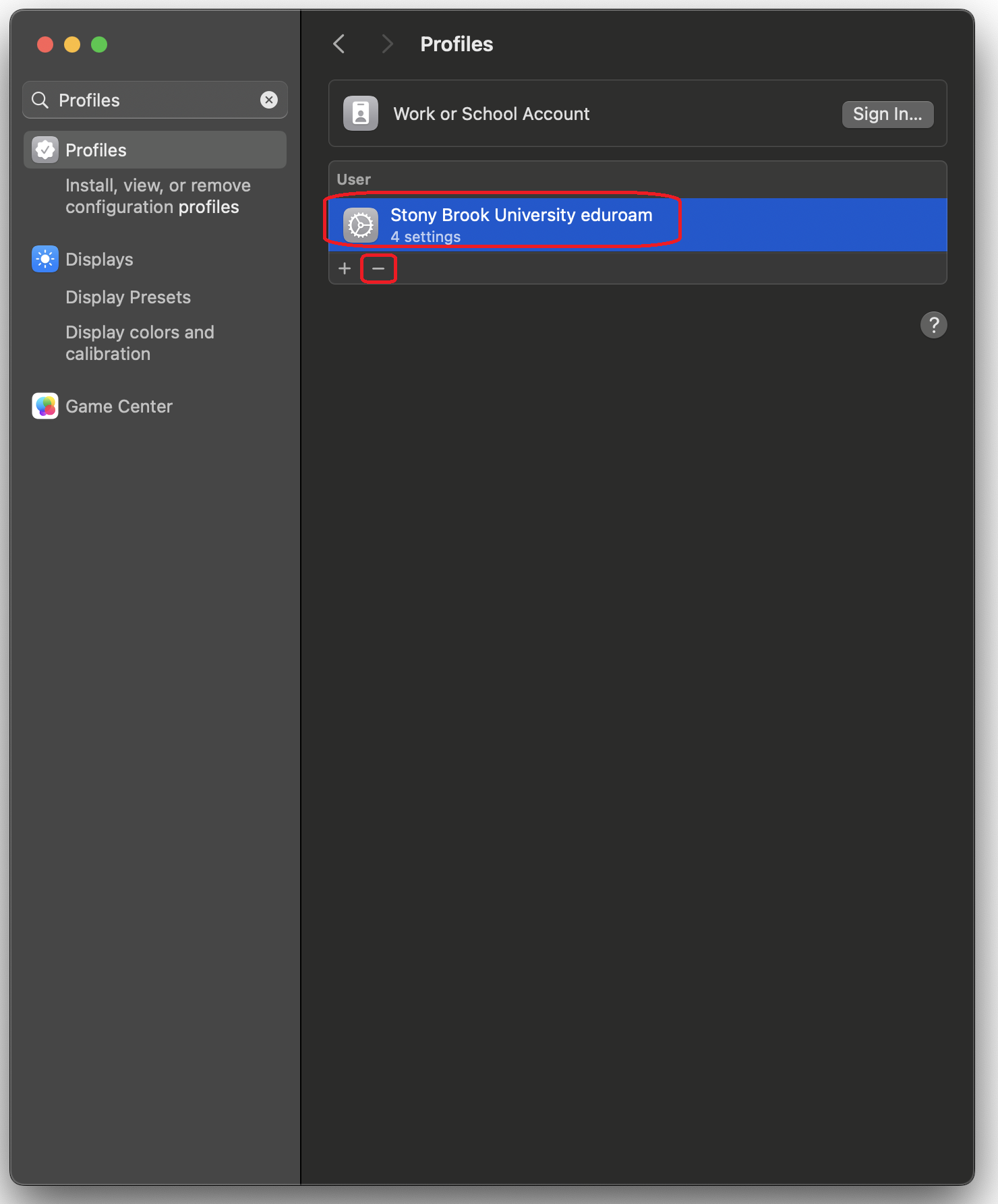
- Select the wifi profile you're trying to delete. Click the minus (-) button in the lower left corner.
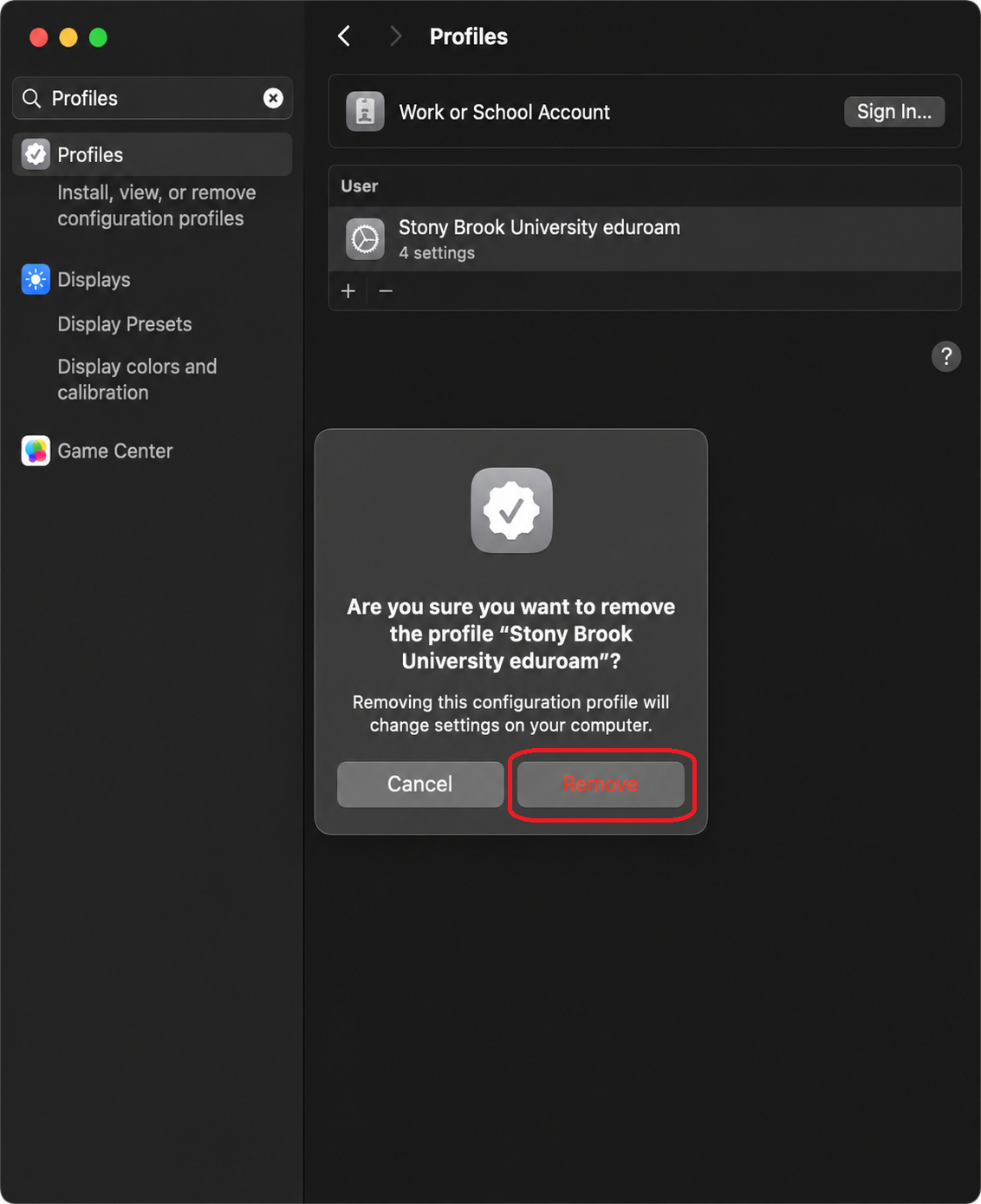
- Click Remove.
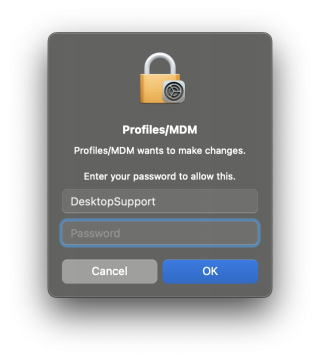
- Enter your device password.
Method 2:
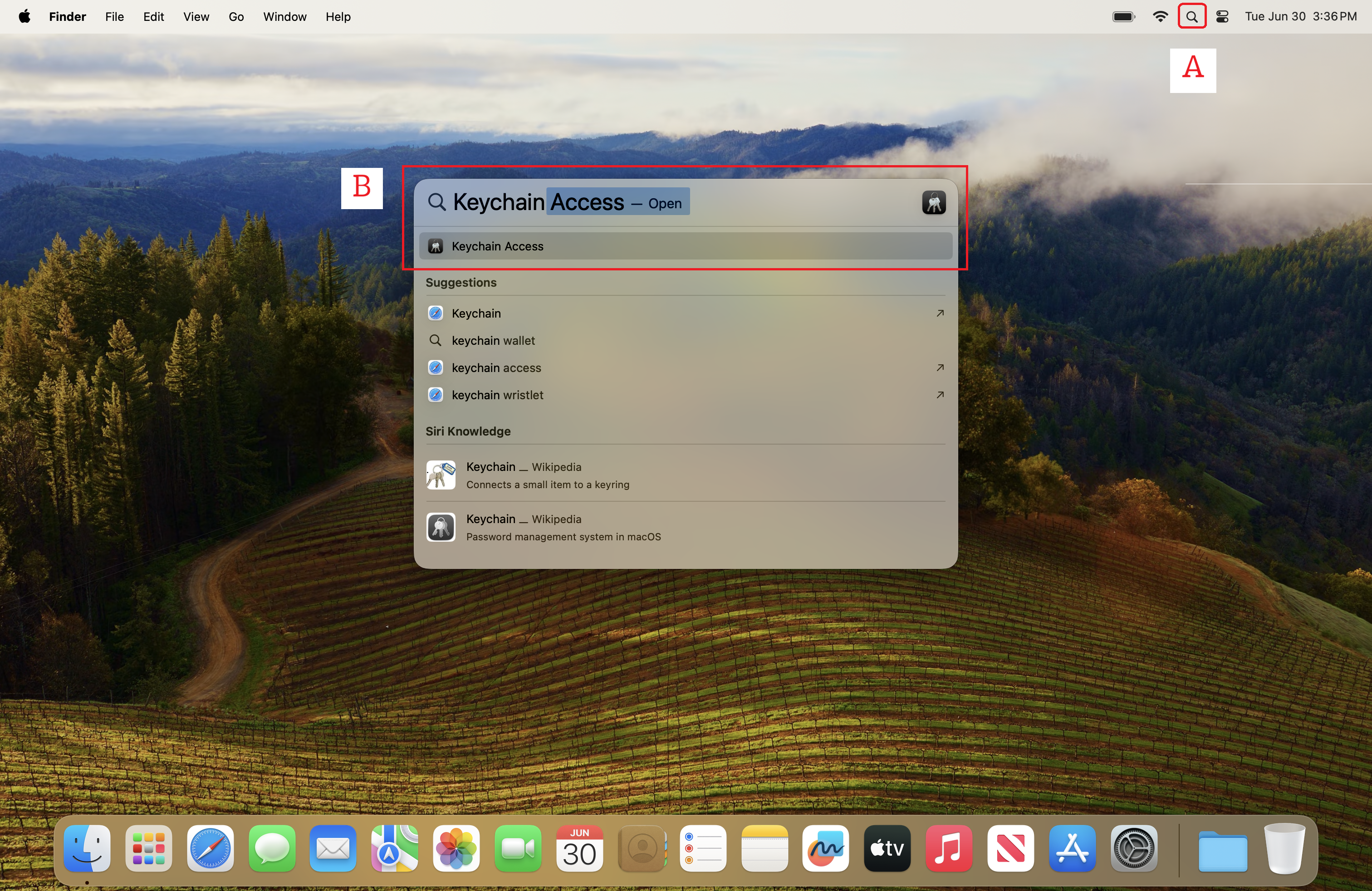
- Go to the Search function (magnifying glass icon) in the top right corner of your desktop screen. Search Keychain Access and click into it.
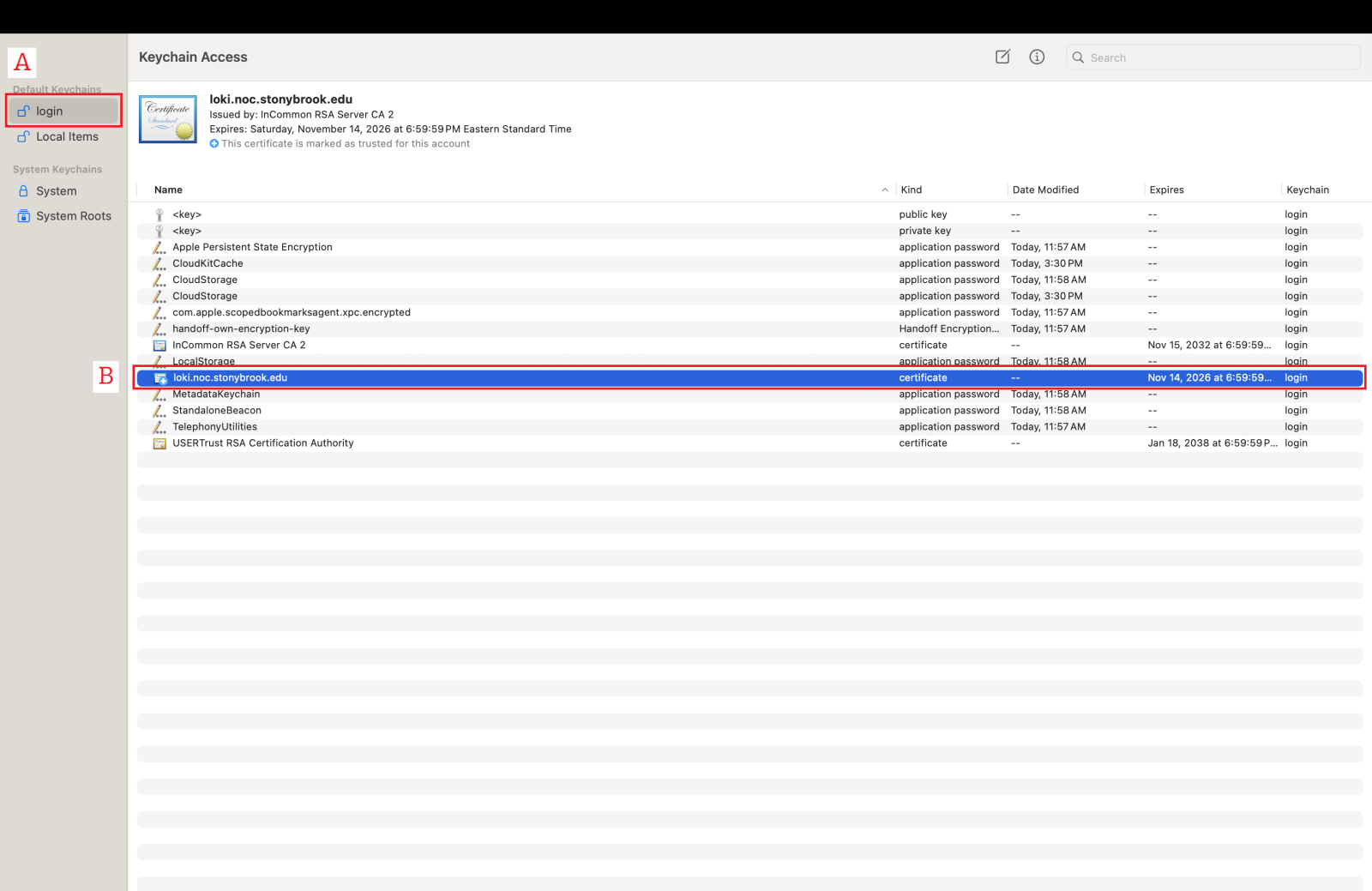
- Go to login from the menu on the left side. Look for loki.noc.stonybrook.edu.
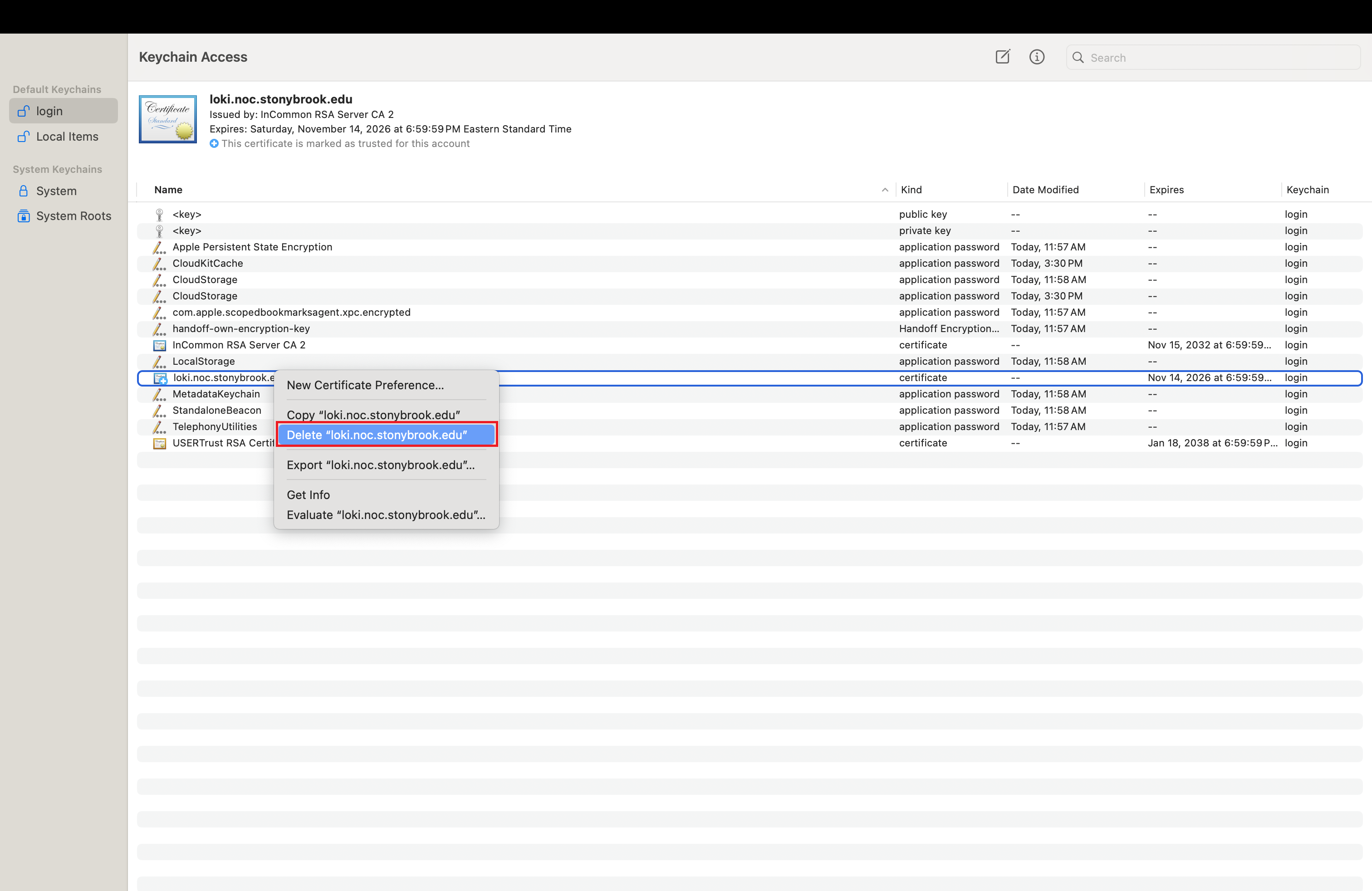
- Right click on loki.noc.stonybrook.edu and click on Delete.
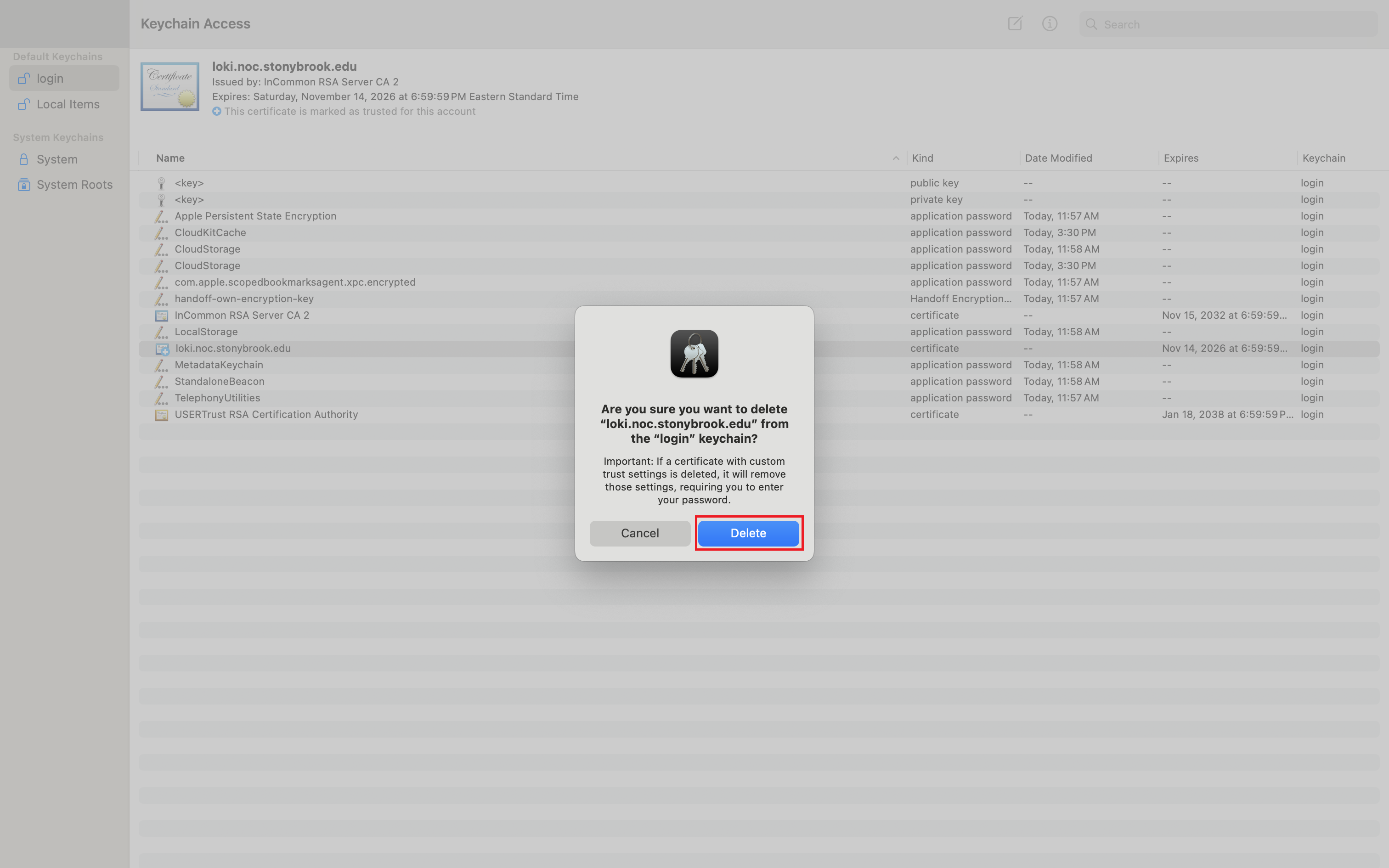
- Click on Delete again.
- Enter your device password.
After trying one or both of the methods, go back to the top of the page again and see if you are able to Forget Network in Settings this time, or if the networks you've been trying to forget have already been successfully forgotten.