

ChemDraw Institution License Quick Start Guide
Use this guide to register for Stony Brook University's ChemDraw institution license, download the appropriate installer, and activate the software on a Windows or Mac computer.
Find your Organization’s Institution license
To find your organization’s institution license:
- Go to revvity signals ChemDraw Subscription Gallery.
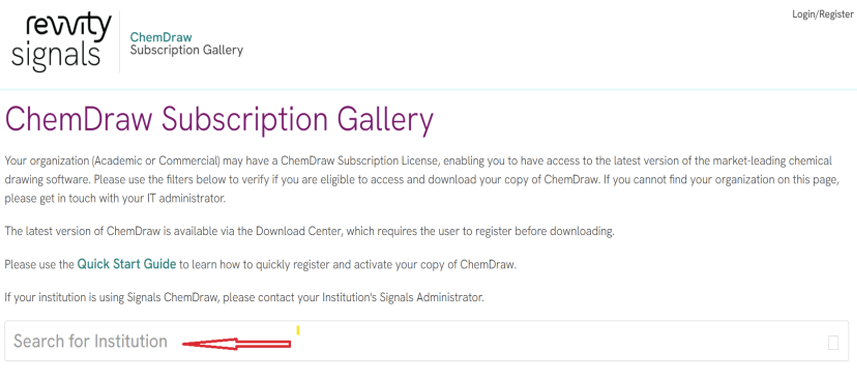
- Search for your institution by typing the name in the “Search for Institution” field.
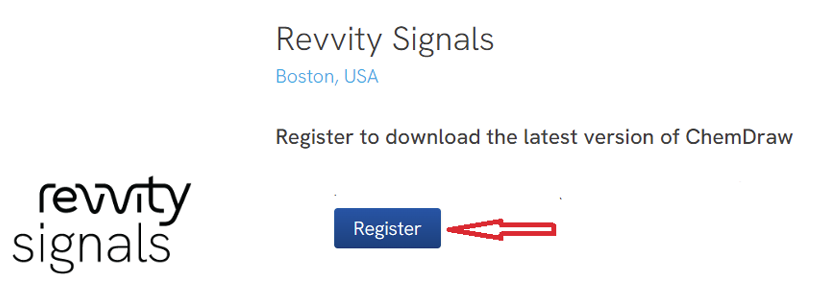
- The first option will be for registering to download the latest version of ChemDraw. The example shown here shows the Revvity Signals logo, but your institution’s logo will appear in its place.
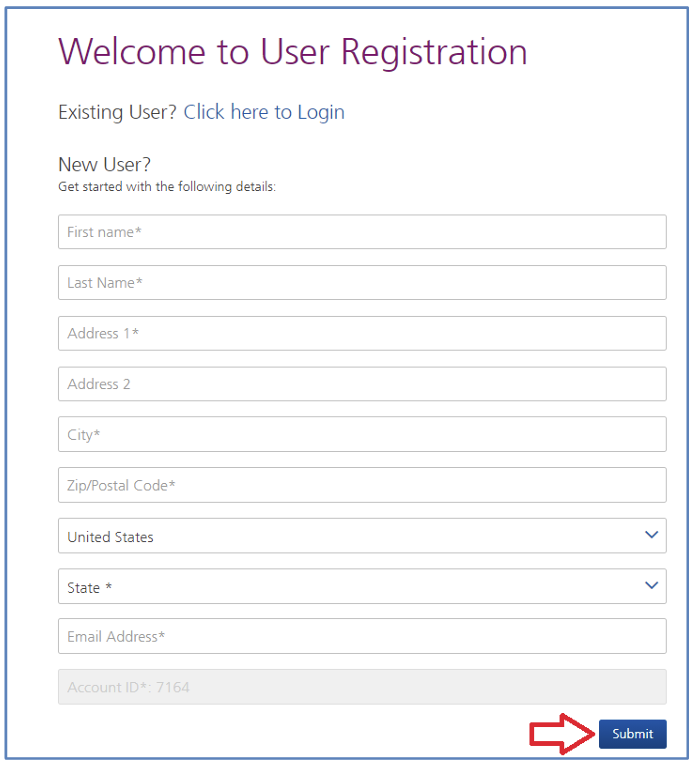
- If you are looking to register for ChemDraw, complete the Welcome to User Registration page and select “Submit” at the bottom of the form.
- You will receive a verification email. Follow the instructions to verify your email. After the verification is completed, a second email will be sent to you to set your password.
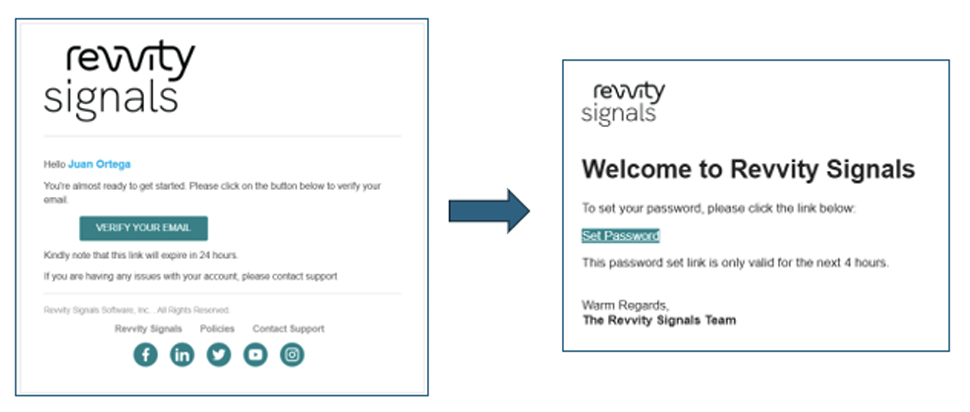
If you do not receive the verification email, click the “Resend Activation email option:

If you do not receive the second email to set up your password, click the Forgot Password option.
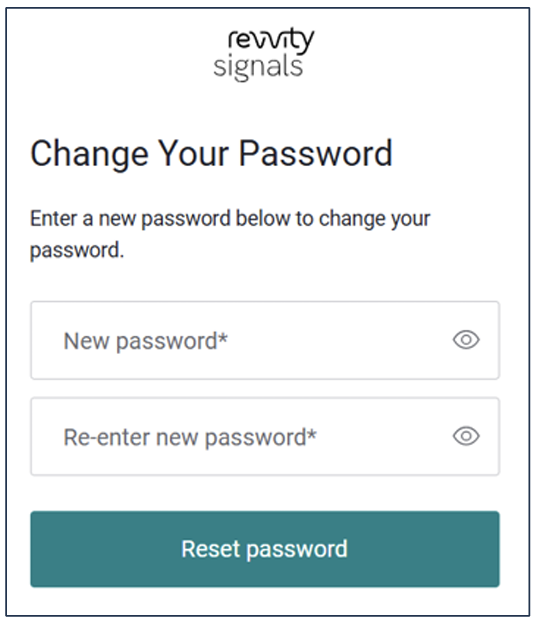
If you receive an error message, refer to the Click Here for Login Help option at the top of the login page.
Download Your Software
- Once you have signed up, you will be taken to the “List Entitlements" page. Find the row with your most recent order number (Entitlement ID column) and record the Product Activation code associated with that order.
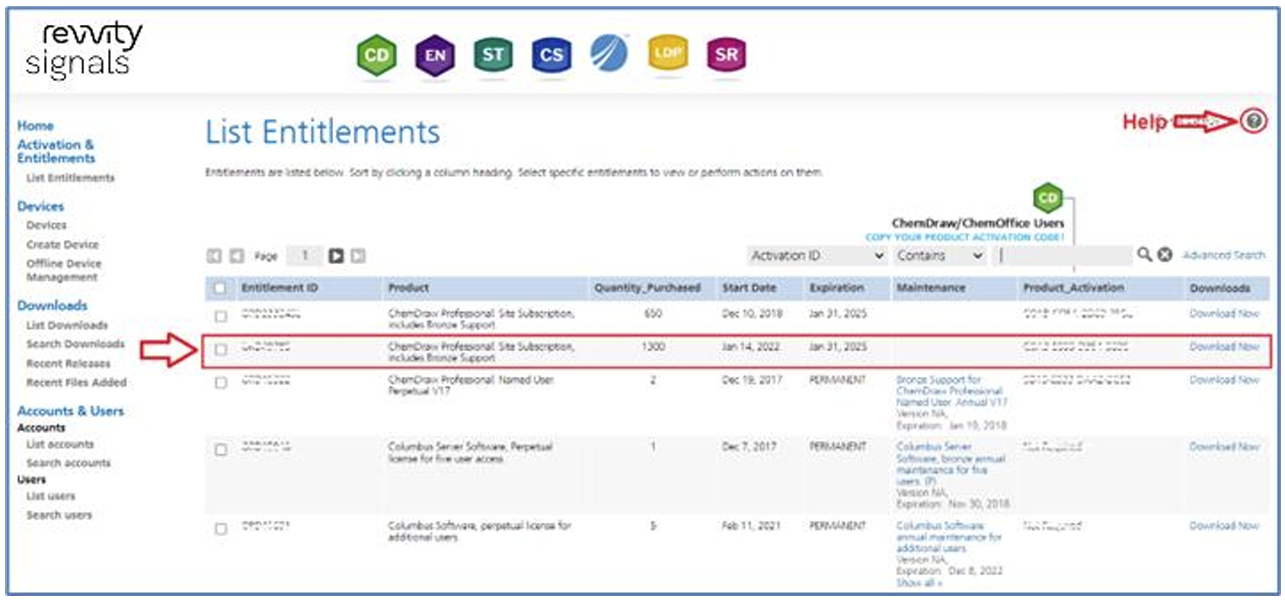
If needed, use the “Help” icon to learn more about the contents of the List Entitlements page you are viewing.
- For your current order, select the “Download Now” link in that same row to display the “Download Order” page. Find your ChemDraw Activation Code highlighted in yellow. Copy this activation code for your records
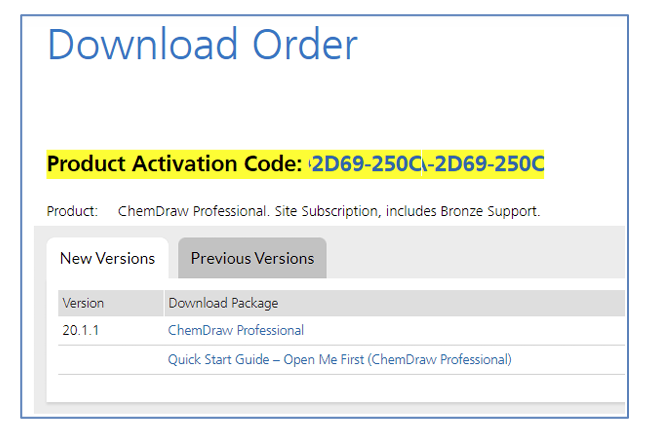
- To download the most recent version, click the “New Versions” tab, and select the Download Package link. If you need to download an older version, click the “Prior Versions” tab, and select the required version.
- The “Downloads” page is displayed. Scroll down the page and select the correct download option for your type of Operating System (Windows or Mac). To start the download, select the corresponding file name from the “File Name” column.
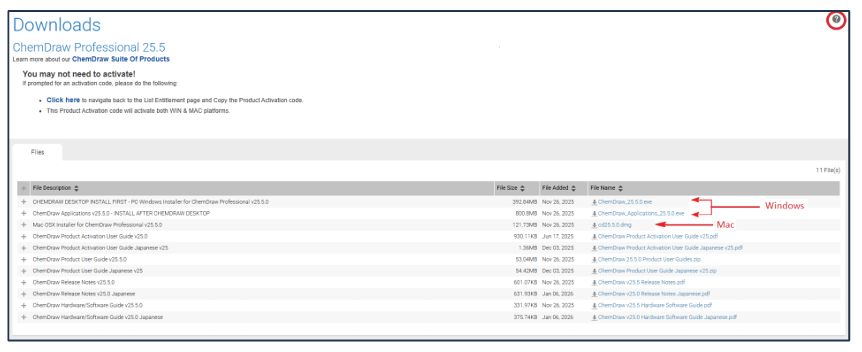
Use the “Help” icon to learn more about the contents of the Downloads page you are viewing.
Install and Activate ChemDraw
For Windows, there are now 2 installers available:
- For both Signals and Flexera activation, the joint all users/current user installers: ChemDraw and ChemDraw Applications
- ChemDraw Applications replaces ChemDraw/ChemOffice Suite, which was supplied previously. To install it, ChemDraw must first be installed, then ChemDraw Applications can be installed.
- ChemDraw Applications is only available for Windows. Mac only has access to the main ChemDraw software.
The following assumes Flexera activation is required.
- Once you have completed the download of the software to your computer, find the Windows (.exe) or Mac (.dmg) file to run the installer. For Mac (.dmg) simply select the installation file and run it via double click. For Windows, select the installation file and for: i) a current user installation, run it via double click ii) for an all users installation, use right-click to “Run as Administrator”.
Warning: Do not begin installation before the download is 100% complete.
Note: during installation, if a previous version of ChemDraw/ChemOffice (v17 and up) is detected, the installer may not prompt you for activation. If it does not ask for activation, then you are ready to run ChemDraw.
- If it does ask for activation, use the Activation Code you recorded from the “List Entitlements” page above (Download Your Software).
- In the ChemDraw application:
- in the Licensing window, select “Activation code” and click “Continue”:
- in the Activation window, enter the required details such as your “Name” and “Email”. In the “Activation code” field, enter the 16-digit, four-part code you recorded on the “List Entitlements” page above. Finally, click the “Activate” button:
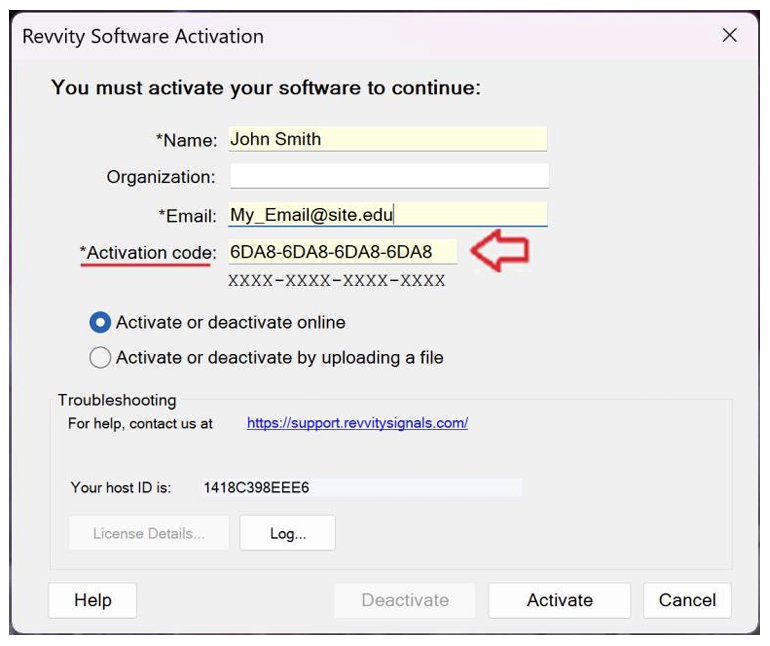
You should see a message indicating that ChemDraw was activated successfully.
- If the additional functionality supplied in ChemDraw Applications is required, repeat step #1 for this installer and it will replace ChemDraw with ChemDraw Applications. No reactivation will be required.
Note: If you are experiencing issues accessing the Revvity Signals website or following these instructions, contact your site IT administrator for assistance.