

Using My Planner in SOLAR
My Planner is a place that students can store courses that they may be interested in taking for the upcoming enrollment period or in a future term. Students choose courses directly from the course catalog.
Accessing My Planner
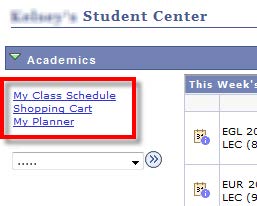
- From within SOLAR, Navigate to the Student Center and click My Planner
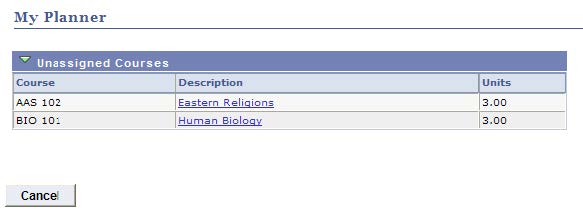
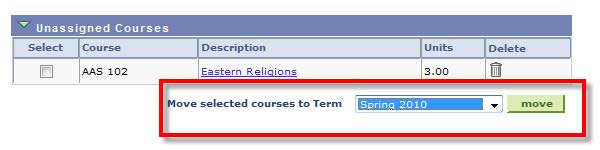
- My Planner will list all unassigned courses
- Click the course description to see the detailed course information
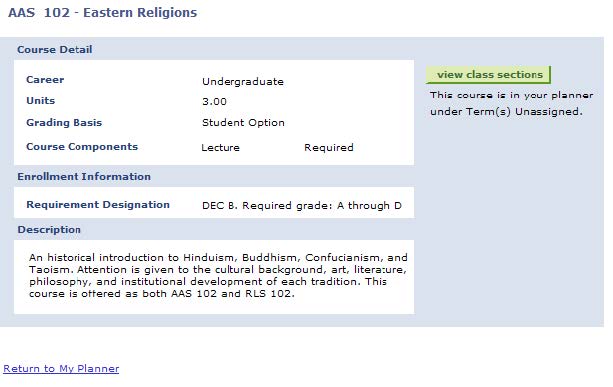
- Click View Class Sections to see available sections of the course being offered in the current term
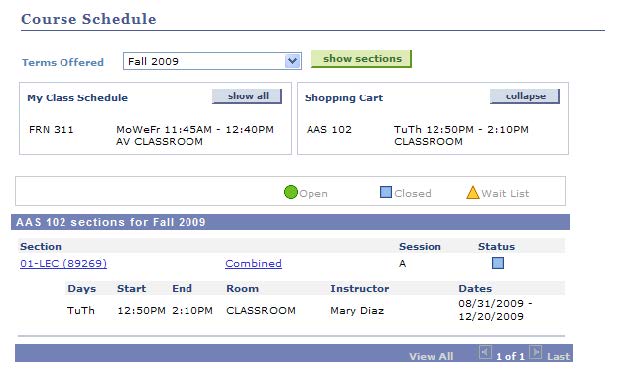
- Students can select the desired section and then place the course in a holding term in their Planner so that they may enroll in the future.
Supported By
Customer Engagement and Support